ATH Example: Reset TCP Connections after Detecting Threats
Create an Automated Threat Hunting (ATH) playbook that terminates TCP connections by sending TCP reset packets to both ends of a connection. This enables Stellar Cyber to disrupt malicious connections automatically as soon as it detects a threat.
To use this feature, you must select a Modular Sensor that has network visibility into the affected traffic path. The Modular Sensor must be positioned on a network segment where it can observe the relevant packets and send TCP resets to the source and destination IP addresses involved in detected threats.
The following are a few cases where quickly terminating the TCP connection reduces harm:
-
Exploit attempts with high-confidence signatures
Example: If Stellar Cyber detects clear IDS/IPS signatures for protocol exploits, such as an HTTP request that matches a known remote-code-execution exploit, terminating the connection prevents the delivery of an exploit payload or code execution staging.
-
Confirmed Command-and-Control (C2) callbacks
Example: If Stellar Cyber detects small, regular beaconing to known-malicious IP addresses or domain names or to a destination proven to be C2 server, breaking the TCP connection disrupts the attacker’s control channel.
-
Active data-exfiltration over TCP with DLP match
Example: If there’s a file transfer where Data Loss Prevention (DLP) rules match sensitive data being sent to an external host, immediately terminating the TCP connection limits data loss.
Create a Remote Host Connector
Create the following remote host connector to run the script on a Modular Sensor when the time comes to respond automatically to a detected threat. For more information about configuring a remote host connector, see Configuring Remote SSH Host Connectors.
-
Navigate to System | INTEGRATIONS | Connector, select Create | Connector, and enter the following in the General section:
Category: remote_host
Type: SSH Host (automatically filled in)
Function: Collect (clear), Respond (select)
Name: Enter a name for the connector, such as
TCP Resetfor example.Tenant Name: Choose a tenant from the drop-down list.
Run On: Choose a Modular Sensor.
-
Select Next and enter the following in the Configuration section:
Hostname: Enter 127.0.0.1
The connector runs on the selected Modular Sensor, which executes the TCP Reset script locally.
Port:
22Username: Enter a valid username for the SSH server on the Modular Sensor
Password: Enter the password associated with the username.
-
Select Next and then Submit the configuration.
How It Works
When a TCP Reset response action is triggered, the Stellar Cyber connector framework initiates a local SSH session to 127.0.0.1 on port 22 and executes the TCP Reset script on the Modular Sensor.
After the response action initiates, the Modular Sensor sends TCP Reset packets directly onto the network segments it monitors through its reset interface (explained in Step 6 in the following section, “Create an Automated Threat Hunting Playbook”).
Because the sensor observes both sides of each TCP session, it can accurately identify and terminate malicious or unwanted connections in real time.
Environment Requirements and Limitations
To ensure that TCP Reset responses function correctly on your network, verify the following conditions before enabling this feature:
-
Intermediary devices (firewalls, proxies, or similar) might block the TCP RST packets that the Modular Sensor sends.
The Modular Sensor sends TCP Reset packets to both the victim and attacker. If intermediary devices filter or drop RST packets, the reset action will not terminate the session effectively.
-
There must not be a NAT device that translates the original source IP address.
Network address translation modifies source IP addresses, which prevents the Modular Sensor from matching packets correctly and identifying the intended connection to reset.
NAT applied to outbound traffic from an internal network to the Internet usually does not interfere, provided that the Modular Sensor observes both directions of the connection before the NAT boundary. However, if the NAT device lies between the sensor and either the victim or attacker, the reset action might not function as intended.
-
Create an Automated Threat Hunting Playbook
Create an ATH playbook that detects a threat that depends on an active TCP connection and can be mitigated by the termination of the connection by sending TCP resets to the two endpoints. A few examples of this type of threat are brute-force logins, command-and-control callbacks, covert tunneling, data exfiltration, exploit delivery, and large-scale reconnaissance.
-
Navigate to Automation, select Create, and configure an Automated Threat Hunting (ATH) playbook that detects the type of threats that rely on a TCP connection.
For information about ATH playbooks, see Automated Threat Hunting.
-
Enable the Calculations section in your playbook and then select + (Add a Calculation).
Alerts that share the same detection engine (
engid) and the same source host IP address (srcip) are likely duplicates. Without deduplication, each duplicate alert can independently trigger a response. This results in unnecessary repeated responses, which you can eliminate by configuring the Calculations section. -
Add the following calculation to deduplicate alerts:
Name:
find_unique_engidCalculation type: Top
Field to calculate on: engid
Calculate By: count
Size: Enter the size you want to use; for example,
10. -
Select Add Subgroup and then enter the following:
Name:
find_unique_srcipCalculation type: Top
Field to calculate on: srcip
Calculate By: count
Size: Enter the size you want to use; for example,
100.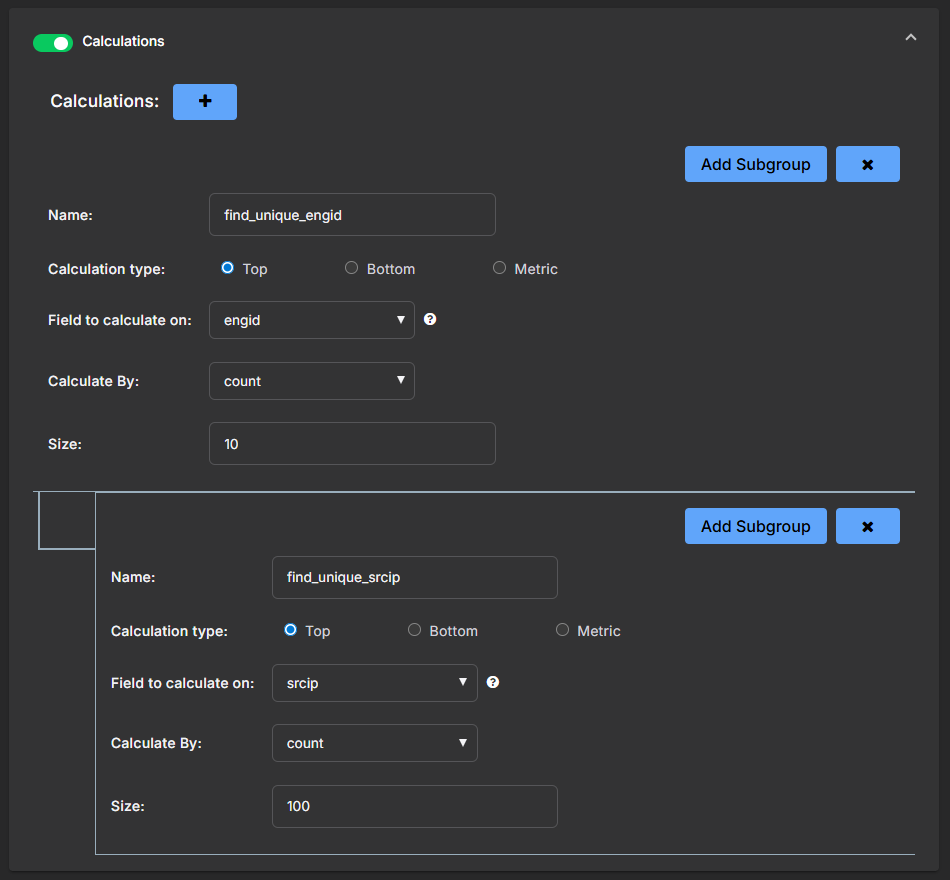
With this calculation, you group alerts by the
engidandsrcipfields and return only the most frequent unique values (top values). You first identify the top 10 detection engines that detected the alert (for example, correlation rules, machine learning models, or IDS signatures). Then, within each detection engine, you identify the top 100 alerts that share the same source IP address. This nested grouping ensures that alerts sharing the same detection engine and source IP address are treated as duplicates, so only one response is triggered per unique combination rather than multiple redundant actions. -
In the Actions section, select Run Script; and then from the Target list, choose the connector you created previously (TCP Reset, for example).
-
For Script to Execute, choose custom and then copy and paste the following script as a single block in the Script Body field:
Copy{{#ctx.payload.aggregations.find_unique_engid.buckets}}
{{#find_unique_srcip.buckets}}
tcpreset {{engid}} -i eth1 -o eth0 -h {{srcip}} -d 180
{{/find_unique_srcip.buckets}}
{{/ctx.payload.aggregations.find_unique_engid.buckets}}Enter the script exactly as shown. Do not add any blank lines between lines of code.
Lines 1 and 2 and lines 4 and 5 define nested loops that iterate through the results of the Calculations step. The outer loop cycles through each detection engine in the
find_unique_engidgroup, and the inner loop cycles through each source IP address in thefind_unique_srcipsubgroup within that detection engine. This nested structure ensures that the script processes every unique combination of detection engine and source IP address identified in the Calculations step.Line 3 defines the response by issuing a
tcpresetcommand. This command uses the detection engine and source IP address values identified in the Calculations step and dynamically substitutes them into the placeholders{{engid}}and{{srcip}}. Thetcpresetsyntax is as follows:tcpreset {{engid}} -i {sniff intf} -o {reset intf} -h {{srcip}} [-p {{dstport}}] -d {duration}
-i {sniff intf}(required): The monitoring interface that listens to traffic. It must be active. You can view available interfaces with theshow interface physicalcommand. The sensor validates the interface status when receiving the command.-o {reset intf}(required): The interface used to send the TCP reset traffic. It must be active and have a valid IP address. You can also view available interfaces with theshow interface physicalcommand. The sensor validates the interface status when receiving the command. There is no default interface; you must always specify one. If you want to use the management interface, you must include it explicitly. If you want to use a non-management interface, configure a valid IP address on the interface with theset interface <name>command before sending TCP resets through it.-d {duration}(required): The number of seconds that the TCP reset runs. For example, if you set a duration of 180, the sensor continues to monitor the sniffing interface for packets that match the specified criteria (detection engine + source IP address + optional destination port) for the next 180 seconds. Any further attempt to maintain or establish a TCP session during this time is terminated by immediately sending TCP resets to both ends of the connection.Do not change the double curly brace values
{{engid}}and{{srcip}}. The sensor automatically extracts these values from the matching alerts in the playbook.When this command is executed, the Data Processor sends TCP resets to both sides of the connection through the reset interface on the Modular Sensor. This means that all TCP sessions involving the specified source IP address are terminated, regardless of whether the packets are inbound or outbound. By default, the host is isolated from all TCP connections. To limit the reset to a specific port, add the optional
-p {{dstport}}parameter:tcpreset {{engid}} -i eth1 -o eth0 -h {{srcip}} -p {{dstport}} -d 180
Do not change the
{{dstport}}placeholder. With this option, only traffic between the source IP address and the specified destination port is terminated, but resets are still applied to both ends of the connection.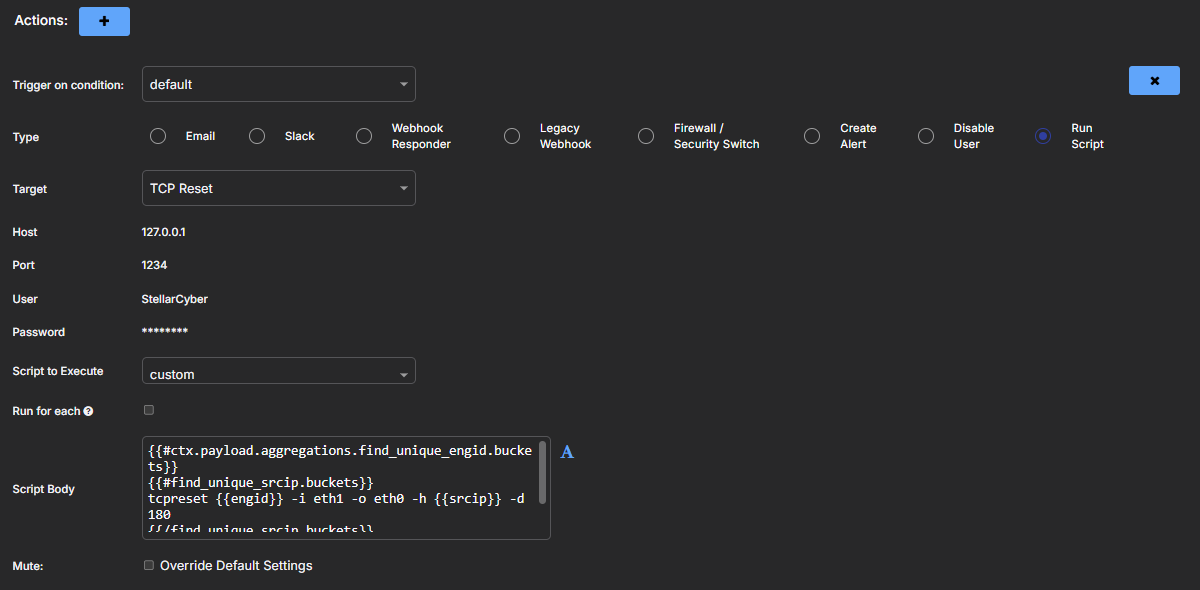
Save & Run the Playbook
Select Submit to save and immediately run the playbook.
The new playbook appears in the Automated Threat Hunting Playbooks list.
