Working with Watchlists
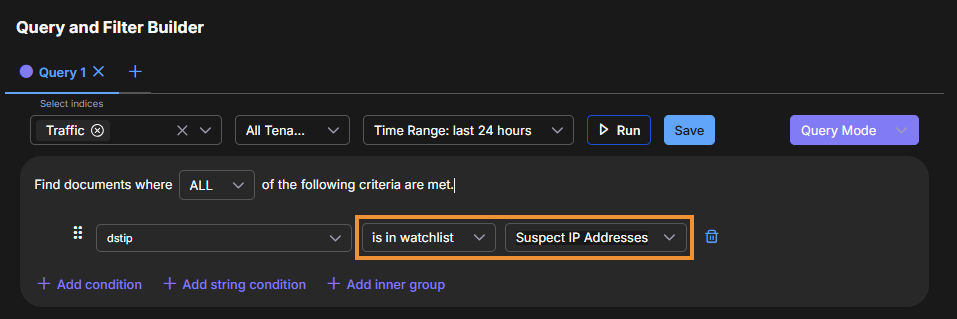
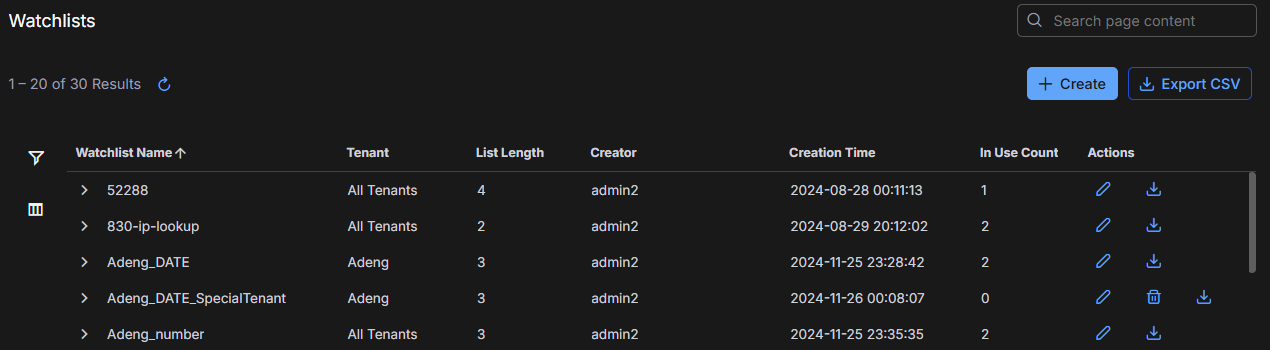
This watchlists feature—formerly called lookup lists—(System | Saved Objects | Watchlists) lets you centrally create and manage lists of IP addresses, text strings, dates, or numbers for conditional matching in queries, alert filters, and Automated Threat Hunting (ATH) playbooks.
Watchlists provide a single location to maintain reusable collections of values that you can reference across different tools in the platform:
This is useful when you need to reuse match values in multiple queries, filters, or reports, and when you want to import values in bulk for consistent conditional logic.
Use of this feature requires the Watchlists privilege.
The table has common behaviors to all tables in Stellar Cyber, including column management, sorting, editing, or deleting. The Export CSV button at the top of the table is used to export the whole table as a list. Each row includes a Download CSV button that lets you download a CSV-formatted list to archive and edit offline.
Creating or Editing a Watchlist
Create your list with the intention of matching against a specific field such as app_id. Use the instructions in this procedure to create a new list, edit list entries, or upload a replacement set of values to an existing list.
Note the following points:
-
Changes you make to an existing list affect all queries referring to the list.
-
You cannot change the tenant for a list that is in use.
-
If you want to use a watchlist for different tenants, either set it to All Tenants, or create the list again for each individual tenant.
The scope of a query determines which tenants can use it. Whether it's possible to create a query for All Tenants depends on the scope of the object being queried, such as charts, correlations, and Automated Threat-Hunting (ATH) rules. In short, the scope of a queried object cannot be more restrictive than the scope of the query itself. For example, if you create an ATH rule for All Tenants, then the query for this ATH rule can either be All Tenants or just a single tenant, such as "Tenant A" for example. However, if you create an ATH rule for Tenant A, then the query cannot be for All Tenants because the other tenants won’t have this ATH rule and won’t be able to query it. In this case, the query can only be for Tenant A.
-
To create a new watchlist, select the + Create button.
-
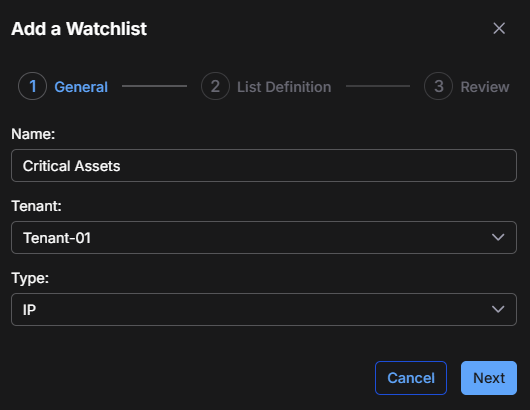
In the General section, enter or edit a Name for the watchlist; and for a new list, set the Tenant and the Type of items in the list.
The Name appears in the Query Builder Value menu when the Operator is either is in watchlist or is not in watchlist.
Special characters are not permitted in name fields for queries, watchlists, reports, or dashboards. Letters, underscores, spaces, dashes, numbers and periods are permitted.
For the Tenant, choose either All Tenants so that the list is available for all the tenants in your system or choose an individual tenant so that the list is available only for it.
The Type indicates the format of the values that the list contains: string, number, IP, or date (see Syntax, below).
-
Select Next to advance to the List Definition section.
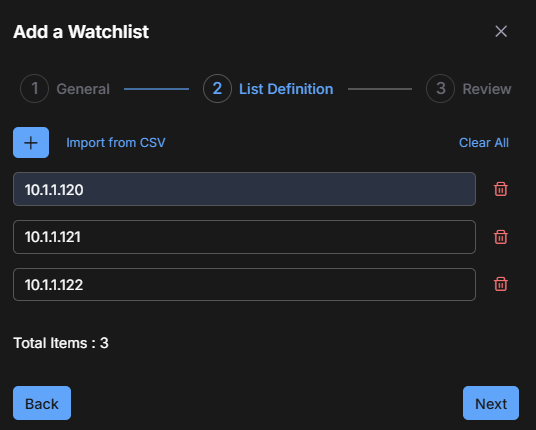
You have the option to import a list in CSV format or add individual list items manually.
-
To import a list of items in a CSV file, select Import from CSV and upload the file (see File Format, below).
or
To add individual items manually, enter the first item in the field, and then select the blue + (Add) button to create a new field and add the item next item there. Continue adding fields and populating them with items until your list is complete.
When the import completes or you've added all the items manually, the List Definition section displays all the items, one per field, as well as the total number.
Some notes about importing a CSV file:
-
If you are editing rather than creating a new list, imported records fully replace the existing list.
-
Changes you make to an existing list affect all queries referring to the list.
-
The count of imported records might differ from the number of entries in your import file because the import retrieves only entries that match the specified file type.
-
-
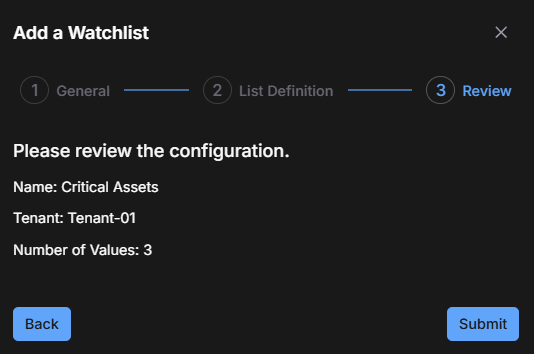
Select Next to advance to the Review section and check that the name, tenant, and total number of items are correct and that the configuration is free of error (see Limits and Validation, below).
-
When satisfied, select Submit to save the watchlist.
To edit a list, select the Edit this row icon near the far right of a watchlist row.
Syntax
All entries for a list must be of the same type.
-
String: Alphanumeric and symbols
If you are supplying a list of hashes to use in queries, do not include the SHA= or MD5= prefix. Just include the hash value itself.
-
Number: Integer and decimal.
-
IP address: IPv4 and IPv6 format supported. CIDR format is supported (for example, 192.0.1.0/24).

-
Date: Unix Epoch or ISO 8601 date formats
Examples:
Epoch (in milliseconds is recommended unless you know the field you are matching specifically uses another format)
1641852524004Date only forms (variations of YYYY-MM-DD)
2021-12
2021-10-25
Date plus time forms (variations of above plus time):
1995-02-04T24:00
File Format
Use the following notes as a guide when creating or editing your import file:
-
Import files must have a .csv extension.
-
The content should be in a single column list, one entry per row.
If your import file includes more than one column, only the first column is used. For example, given the CSV file entries below:
ssh, 22
http, 8080, 8443
ubuntu, 631, 5298, 5900
The imported list elements are:
ssh,http, andubuntu
Limits and Validation
Stellar Cyber performs the following checks when you are creating or editing a list:
-
A maximum of 1000 entries are allowed per list. For efficiency, however, smaller list sizes are strongly recommended.
-
Duplicate values are noted but not automatically removed.
-
Syntax is matched to the specified list Type. Errors are noted for manual correction.
-
Numbers and symbols are permitted as String elements.
Special characters are not permitted in name fields for queries, watchlists, reports, or dashboards. Letters, underscores, spaces, dashes, numbers and periods are permitted.
Adding Entries from the Alert Details Page
You can add entries to watchlists directly from the Detections | Alerts | Alert Details page. This capability lets you enrich your watchlists as you investigate alerts, without needing to leave the current view.
When reviewing alert information on the Alert Details page, hover your cursor over relevant fields to reveal the Add to Watchlist icon or option. Depending on the alert type and how its fields are presented, the Add to Watchlist button might appear either as an inline icon next to a field or as an option in a pop-up panel.
-
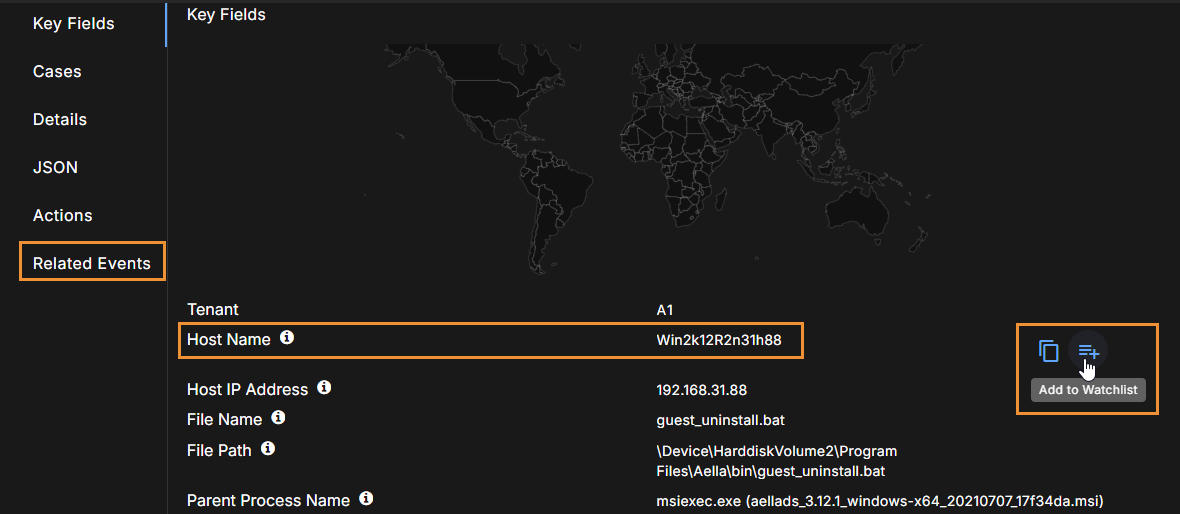
In some cases, the Add to Watchlist icon appears inline beside supported fields such as Host Name and Host IP Address in the Related Events section. Hover your cursor over a value in one of these fields to display the icon.
-
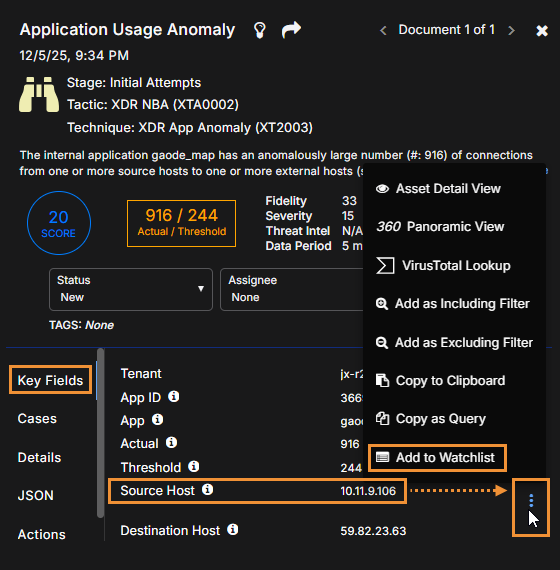
In other cases, the Add to Watchlist option appears in a contextual pop-up panel for supported fields such as User, Host Name, Host IP Address, Source Host, and Destination Host in the Key Fields section. Hover your cursor over the value of a supported field, select the blue three-dot icon that appears on the right, and then choose Add to Watchlist from the panel.
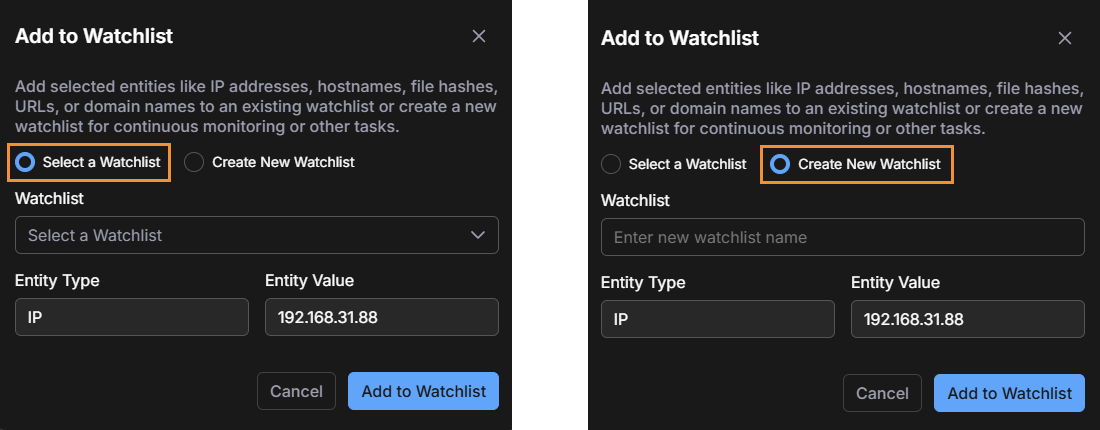
When you select Add to Watchlist, a dialog box opens where you can add the selected value to an existing watchlist of the same type, or create a new watchlist. Stellar Cyber validates the data type, prevents duplicate entries, and confirms when the value is successfully added.
Supported Entity Types
|
Entity Type |
Common Fields |
|---|---|
| IP addresses | dns.resolved_ip, dstip, engid_gateway, host.external_ip, host.internal_ip_addr, host.ip, hostip, ipAddress, lastIpAddress, remote_ip, srcip, srcip_list |
| Hostnames | computer_name, device.name, deviceDnsName, device_name, dstip_host, engid_name, host, host.name, hostip_host, hostname, netid_name, sds_engid_name, srcip_host |
| Usernames/IDs | accountName, dstip_username, dstip_usersid, event_data.SubjectUserName, event_data.targetusername, exec_user, hostip_username, login_user, process_user, remote_ip_usersid, secondary, smb_username_set, srcip_username, srcip_usersid, user.id, user.identifier, user.name, user.principal_name, userAccount.userPrincipalName, userDisplayName, user_name, username, wineventlog_user |
| File hashes | action_file_md5, action_file_sha256, actor_process_image_md5, actor_process_image_sha256, file.file_hash, file.hash.md5, file.hash.sha1, file.hash.sha256, fileid, md5, parent.file.md5, parent.file.sha1, parent.file.sha2, process.file.md5, process.file.sha1, process.file.sha2, process.hash.md5, process.hash.sha1, process.hash.sha256, process.parent.hash.md5, process.parent.hash.sha1, process.parent.hash.sha256, sha256 |
| URLs | event.url, url, url_list |
| Domain names | dns.question.name, dns.question.registered_domain, dns.question.top_level_domain, domain_list, email.domain, senderDomain, user.domain |
All types except IP addresses are stored as string values in watchlists.
Deleting a Watchlist
When a watchlist is in use, the delete button is not available.
-
To identify the query that is using the list, hover your cursor over In Use.
A tooltip displays the query names that refer to the list.
-
Access the Queries table to locate the named queries and edit them to remove the watchlist.
When you remove all references to the list, the delete button becomes available.
Exporting a Watchlist
The CSV export at the top of the table is used to export the whole table as a list. Each row, however, includes a Download CSV button that lets you download a list for archiving and editing offline. You can edit the list and reimport it, or you can edit it in the UI.
Using a Watchlist
Use watchlists when you add or edit a condition within an alert filter or query, such as when you are editing a report.
-
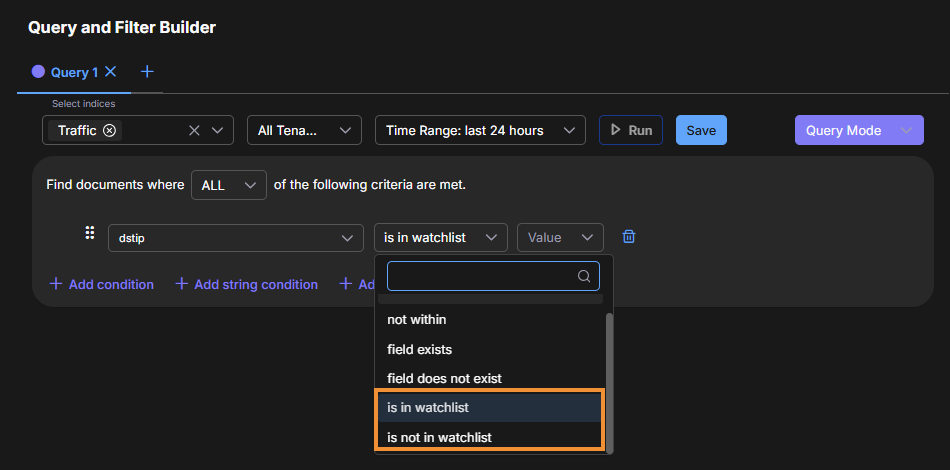
Select the Operator menu to choose the needed watchlist condition.
This operator is displayed in the menu when you have the Watchlist privilege enabled.
-
is in watchlist: Use this to match any of the items in the selected list (boolean OR).
-
is not in watchlist: Use this to match anything that is not in the selected list (boolean AND NOT).
-
-
For the Value, select the watchlist Name for use in the rule.