Alert Auto Triage
Alert Auto Triage is only available through the Early Access Program and is only supported in SaaS deployments. For information about participating in the Early Access Program, contact your Stellar Cyber Customer Success representative.
Alert Auto Triage automatically investigates alerts to determine whether they represent a True Positive, Benign (True Positive), False Positive, or Inconclusive finding. It helps you reduce manual triage effort and focus on alerts that require your attention.
This feature is part of the Stellar Cyber Human-Augmented Autonomous SOC model, which combines automation with human oversight. By automatically classifying alerts before you review them, the Stellar Cyber Platform increases operational speed, reduces noise, and ensures your attention is directed toward high-confidence and high-impact security incidents.
The automated triage process uses structured validation checks called Verdict Signal Checks (VSC) to assign verdicts and provide supporting evidence for each decision. You can override or confirm verdicts, and your feedback helps improve future results through continuous learning.
The following are the sections in this topic:
Perform Alert Auto Triage on a Case
By default, cases with a severity score of 75 or higher (Critical) are automatically analyzed by the Stellar Cyber Platform, up to a maximum of 40 AI-analysis runs per organization within any rolling 24-hour period.
If you want to analyze a case with a lower severity score or reanalyze a case that has already been processed but now contains new alerts, follow the steps below.
-
Select a case name on the Cases page.
This opens the case details.
-
At the top of the page, select Run Analysis.
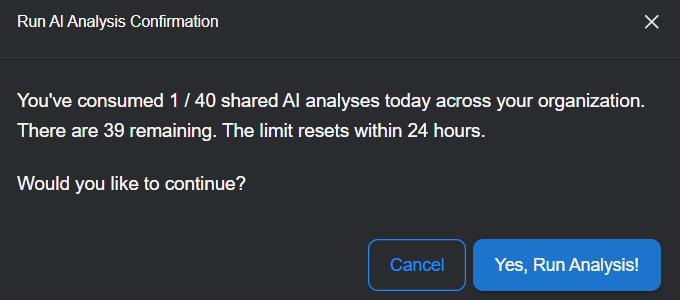
A message appears showing how many AI analyses have been run by your organization in the past 24 hours. This limit ensures balanced use of analysis resources across all tenants.
-
Select Yes, Run Analysis!.
The Run Analysis button changes to Analyzing... and then Case Analyzed when done. The process takes several minutes, depending on the number of alerts in the case.

-
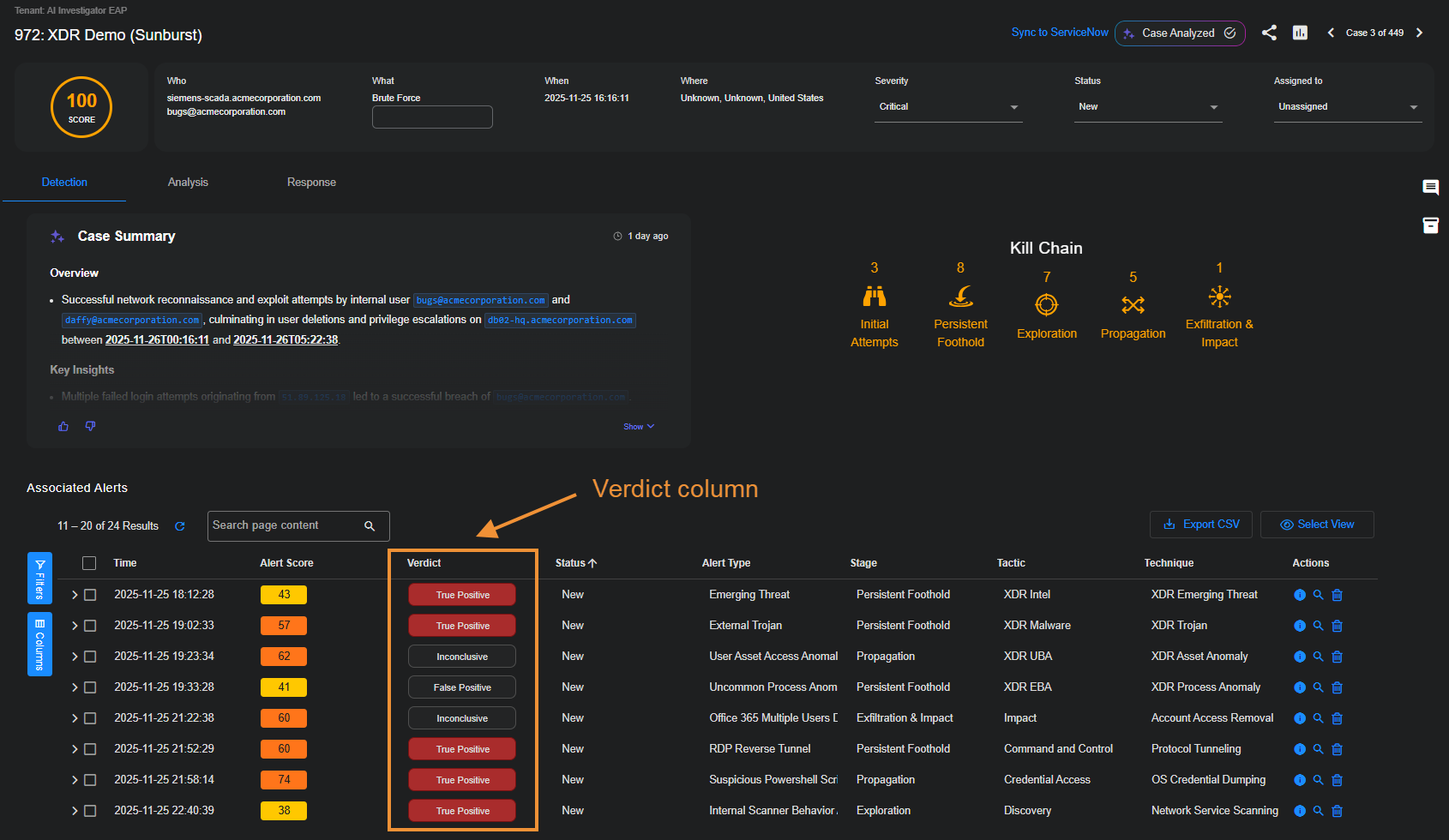
To see the verdicts listed for the alerts associated with the case, open the Detection tab and check the Verdict column in the Associated Alerts table.
-
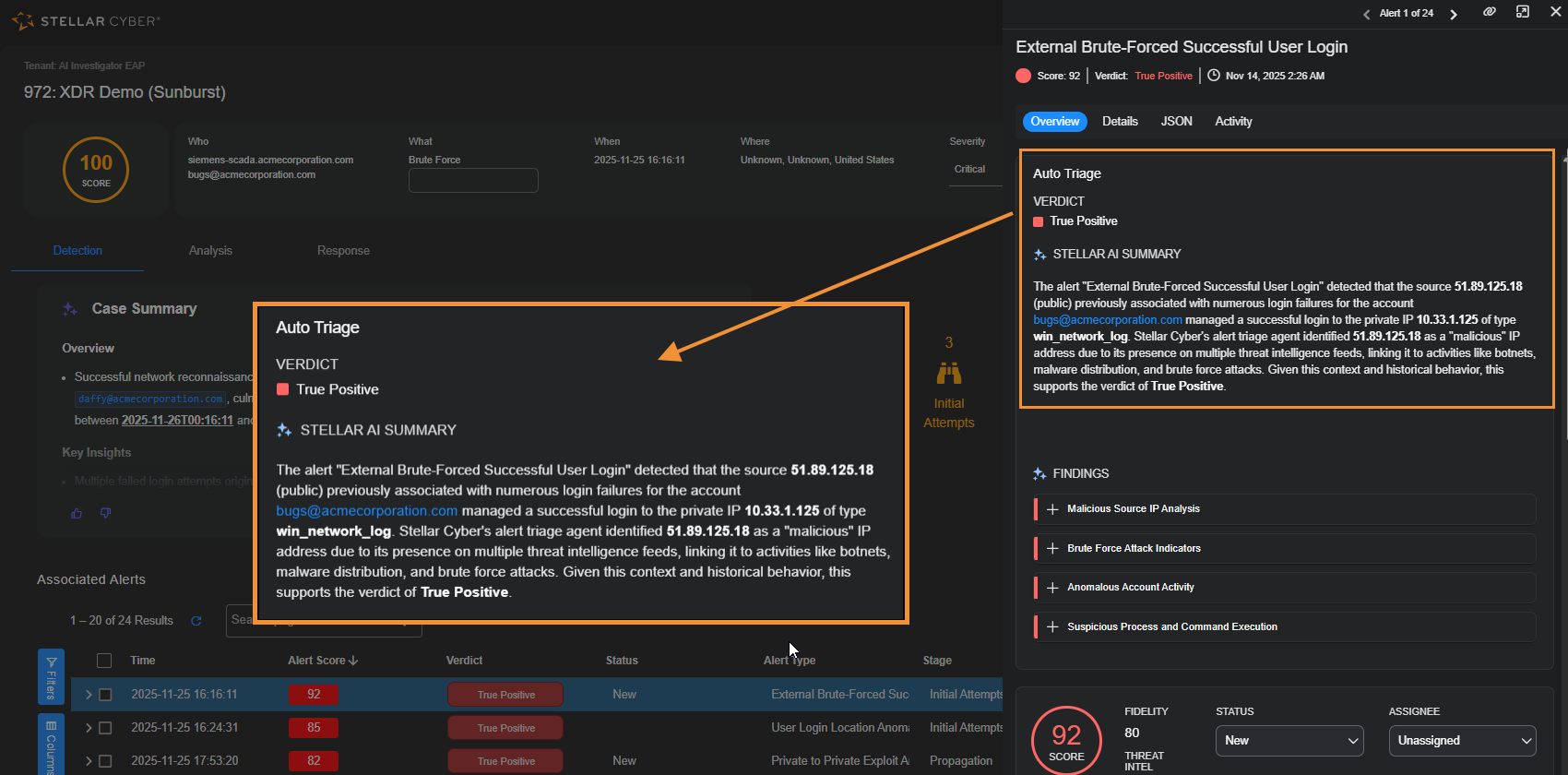
To see details about the verdict for a specific alert, select the More Info
 button in the Actions column.
With the Overview tab active in the Alert Details side panel, you can see the verdict and read a summary about how it was determined.
How Alert Auto Triage Works
Alert Auto Triage evaluates alerts through a structured sequence of validation checks. These checks apply contextual and behavioral analysis to determine whether an alert indicates a real threat.
The automated workflow includes the following main stages.
1. Input Sources
Alert Auto Triage analyzes data from integrated sources such as the following:
-
Endpoint detection systems, including SentinelOne and Microsoft Defender
-
Identity platforms such as Okta and Entra ID
-
Network and behavioral detections that include observables such as IP addresses, domains, URLs, or file hashes
2. Verdict Signal Checks
Each alert is evaluated through multiple validation checks, such as the following:
-
IP or domain reputation
-
Abnormal process or user behavior
-
Device vulnerability or policy compliance
-
Relationships between entities and previously observed verdicts
Only alerts that meet confidence thresholds pass all checks and are promoted for review. This filtering process removes routine or low-value alerts so you can focus on alerts that require investigation.
3. Verdict Assignment
After analysis, the Stellar Cyber Platform assigns a verdict to each alert.
|
Verdict |
Definition |
|---|---|
| True Positive | The alert represents a confirmed malicious or policy-violating activity that requires investigation or response. |
| Benign (True Positive) | The alert correctly detected a behavior that matches a known pattern or anomaly, but the activity is expected or authorized, such as administrative maintenance. |
| False Positive | The alert was triggered by normal or authorized activity that resembles a detection rule or statistical pattern. |
| Inconclusive | The Stellar Cyber Platform found insufficient or conflicting evidence to determine a clear verdict. You should review these alerts to determine if it’s malicious or benign. |
4. Transparent Reasoning
Each alert includes an AI Findings section in the Overview tab in the Alert Details panel that lists the validation steps and evidence used in the triage process. This section lets you review how each verdict was determined, including supporting indicators such as malicious reputation, abnormal activity, or anomaly patterns.
By showing the logic behind every decision, the Stellar Cyber Platform ensures transparency and trust in automated outcomes.
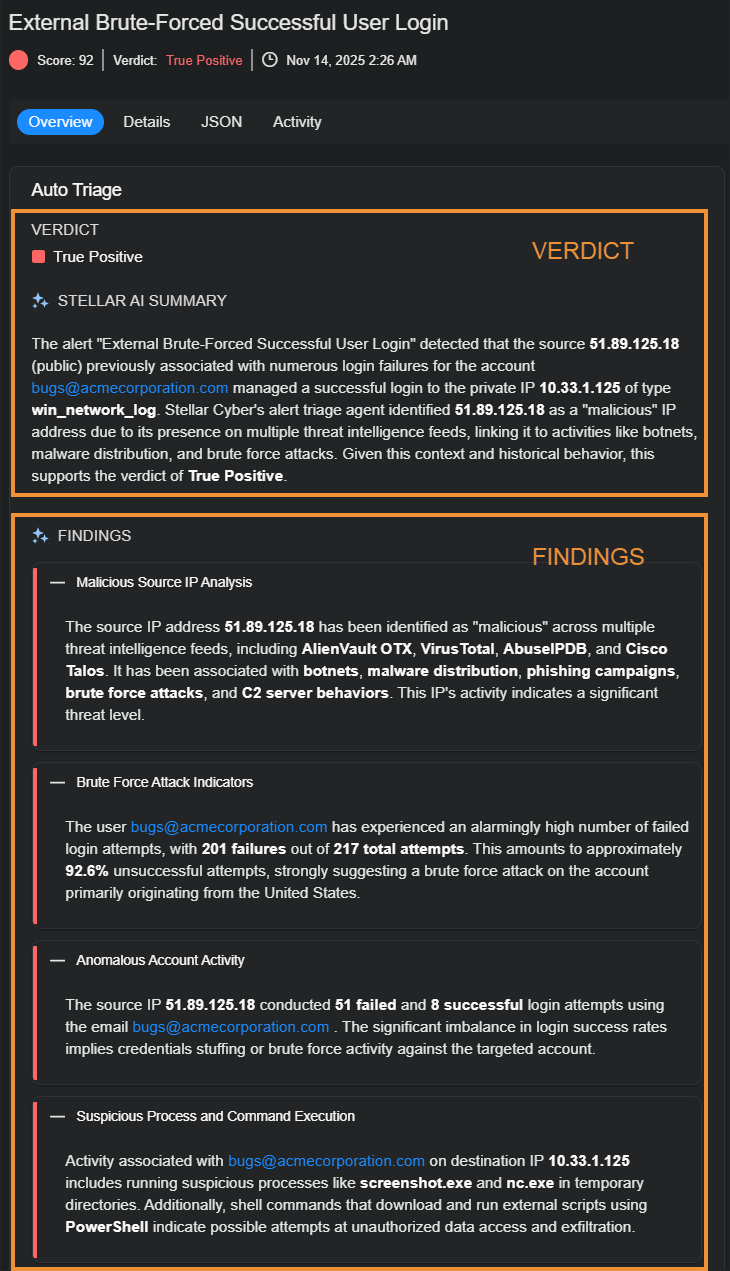
The AI icon  next to Verdict and Findings indicates that these were generated through AI.
5. Human-Augmented Feedback Loop
You can review, confirm, or override verdicts directly within the Stellar Cyber Platform. Overriding an AI-generated verdict is available at the alert level only; you cannot directly override the verdict of a case. However, when the verdicts of alerts within a case are overridden, Stellar Cyber automatically reevaluates the case verdict, ensuring consistency between alert-level feedback and case-level conclusions. This separation ensures scoring remains stable and explainable, while verdicts reflect AI reasoning and human validation.
When you make a correction or add context:
-
The Stellar Cyber Platform records your feedback.
-
The associated validation criteria are adjusted.
-
Future similar alerts are evaluated using the refined criteria.
This feedback loop improves accuracy and allows the Stellar Cyber Platform to align with your operational environment and detection policies.
Override Verdicts
You can review automated verdicts and override them when necessary to provide corrective feedback. This process maintains your control and contributes to continuous learning in the Stellar Cyber Platform.
Stellar Cyber recommends prioritizing alerts marked as True Positive or Inclusive.
To review or override a verdict:
-
Navigate to Cases and select a case name to open the case details.
-
In the Associated Alerts table, select the More Info icon at the right end of the row of a specific alert.
-
In the Overview tab, review the Findings section to see the reasoning behind the verdict and the evidence used.
-
If you determine that the verdict is incorrect, expand the Verdict drop-down list and choose the correct one.
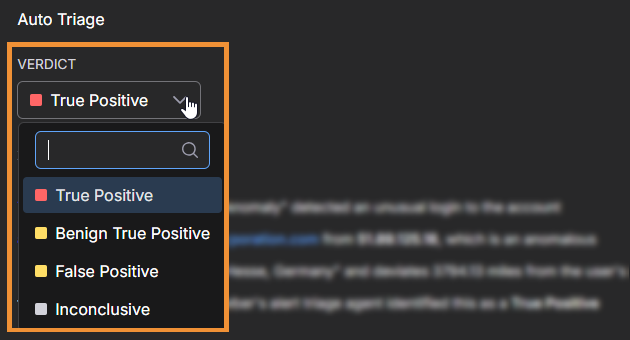
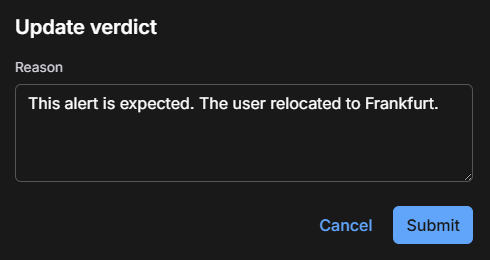
You’re then prompted to provide a reason for the change and submit it.
-
Optionally enter a reason for changing the verdict and then select Submit.
Providing a reason for the change is optional, but doing so helps preserve your decision for tracking purposes and future reference.
-
To see the AI-generated verdict that was modified, hover your cursor over Updated by user.
A pop-up appears noting the change of verdicts.
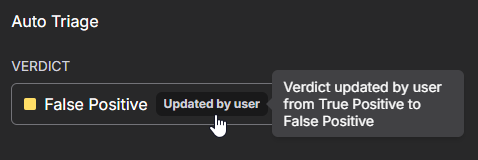
All overrides are logged and auditable and might be surfaced in reporting.
When you override a verdict, Stellar Cyber incorporates that feedback into future evaluations, gradually improving the accuracy of automated triage.
Best Practices
Before fully automating alert triage, begin with limited deployment and build confidence in the results over time. Use a gradual, feedback-driven approach by enabling auto triage for cases with a smaller set of alerts, closely reviewing the outcomes, and providing feedback regularly.
For example, you can start with critical alerts only, review the assigned verdicts for a week, and then expand automation to include high severity alerts once you are satisfied with the accuracy.
Follow these best practices to maximize the value of Alert Auto Triage:
-
Start with a few critical and high severity alerts before expanding to others.
-
Regularly review False Positive and Inconclusive alerts to provide feedback that refines future verdicts.
Privacy and Data Handling
For privacy considerations, see the OpenAI Privacy Policy.
Alert Auto Triage processes data securely in compliance with Stellar Cyber privacy and security standards. Case data is used only for analysis and summary generation and is never used for model training.
The AI service is hosted in the United States and operates under the Stellar Cyber enterprise OpenAI license. All communication between the Stellar Cyber Platform and the AI service occurs through the Stellar Cyber secure, auditable API layer. Data is transmitted only for the duration of the analysis request and is not stored or reused after processing.
