AI Assistance
In SaaS deployments, AI Assistance is included with the Alert Auto Triage add-on license at no additional cost (or as part of an active trial). In on-premises deployments, AI Assistance is available through the Early Access Program—contact your Customer Success representative to enroll. 
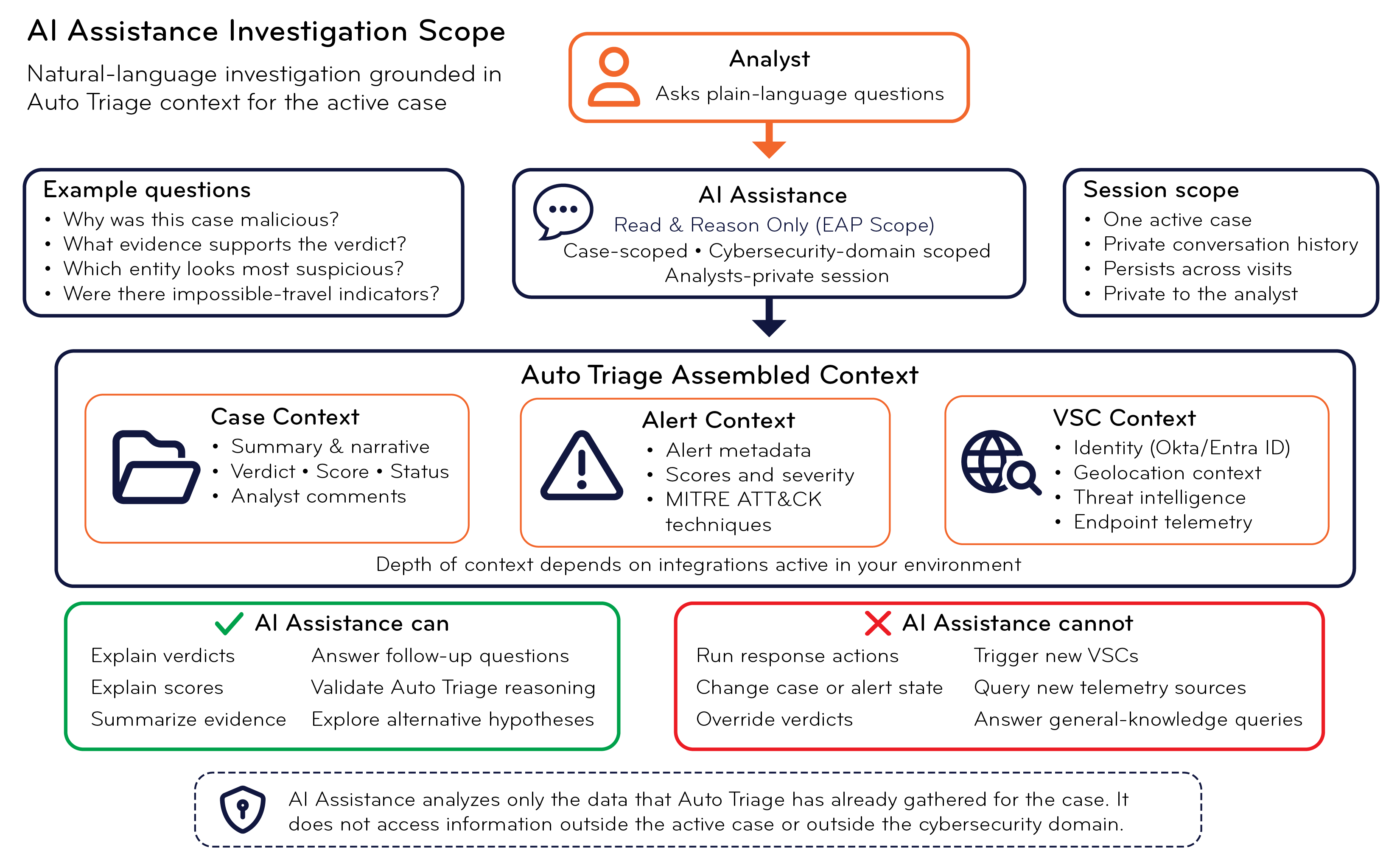
What AI Assistance Does – AI Assistance is an interactive panel in the Case Detail view that lets you investigate a case by asking questions in natural language. You can ask why a case received a particular verdict, what evidence supports a score, or which entities appear most suspicious. AI Assistance converts your questions into answers grounded in the active case and explains the reasoning behind Alert Auto Triage findings. You can continue the investigation by asking follow-up questions in your own words, with no query syntax to learn.
Data Sources and Context – When you ask a question, AI Assistance reasons over evidence that Alert Auto Triage has already assembled for the active case. You can explore information from the case summary, narrative, verdict, score, status, analyst comments, alert metadata, alert scores, MITRE ATT&CK mappings, and Verdict Signal Check (VSC) results. Depending on the integrations enabled in your environment, you can also ask questions about identity information from Okta or Microsoft Entra ID, geolocation context, threat intelligence enrichment from sources such as VirusTotal and AbuseIPDB, and endpoint telemetry from SentinelOne or Microsoft Defender. Environments with additional identity and endpoint integrations provide richer context and more detailed answers.
Scope and Persistence – Your AI Assistance session is scoped to a single case and is private to you. If multiple analysts are working the same case, each analyst maintains an independent conversation history, preventing cross-contamination of investigative reasoning and preserving a clear audit trail. If you close the panel, leave the case, or end a shift, you can return later and continue where you left off. You can clear a session using the New Session option in the panel for a fresh start. You can also copy a conversation to the clipboard and paste it into the case ticket as an investigation note. The incoming analyst can open the case, review the prior conversation thread in AI Assistance, and pick up the investigation from where it was left off.
Capabilities and Limitations – You can use AI Assistance to explain evidence, summarize findings, answer follow-up questions, validate Auto Triage reasoning, and explore alternative investigative hypotheses. AI Assistance is limited to the cybersecurity domain and does not answer general-knowledge questions. Your questions center on the active case, and you can also ask broader questions that query data outside the context of the case and aggregate the results. AI Assistance is a read-and-reason feature. You can use it to understand and evaluate evidence, but you cannot use it to run response actions, change case or alert state, override verdicts, or trigger new Verdict Signal Checks. Existing workflows and tools remain responsible for those actions.
|
Capability |
Description |
|---|---|
| Natural language Q&A | Ask questions in plain English about the active case or your broader environment, scoped to the cybersecurity domain. |
| Verdict justification | Get a plain-language explanation of why a case received its verdict and score. |
| Evidence citations | Responses cite the specific alerts, entities, or VSC checks that informed them. |
| Dynamic suggested prompts | Context-specific starter questions generated from the active case or alert. |
| Entity chips | Identifiers in responses—IP addresses, emails, URLs, file paths—are highlighted for quick scanning. |
| Per-user session retention | Conversation history is preserved per analyst, per case, across visits. |
| Session reset | Start a fresh session at any time using the New Session option. |
| Cliipboard copy | Any response can be copied for use in tickets, reports, or runbooks. |
Analyst Benefits – You can use AI Assistance to understand why a case received a particular verdict or score, locate specific details without opening every alert, validate Auto Triage reasoning against your own judgment, and explore alternative explanations for suspicious activity. If you are new to an investigation workflow, AI Assistance can provide in-context guidance while you work through a case. If you are an experienced analyst, it can reduce the time spent reviewing raw case data and help you move more quickly from evidence to judgment and action.
The following are the sections in this topic:
Prerequisites
The following topics describe what is required to access AI Assistance and the limits that apply to its use.
Licensing
AI Assistance is included with every Auto Triage license at no additional cost. It is not available without an active Auto Triage entitlement.
Deployment Requirements
In SaaS deployments, AI Assistance is available with the Alert Auto Triage add-on license. In on-premises deployments, AI Assistance is available through the Early Access Program and requires outbound connectivity from the deployment to the Stellar Cyber cloud AI services; for details, see AI Processing and Data Flow.
Environment Validation
Before enabling AI Assistance for a customer instance, Stellar Cyber performs an environment validation that reviews:
-
Current case volume and severity distribution
-
Data Platform capacity
-
Active integrations – particularly SentinelOne, Microsoft Defender, Okta, and Microsoft Entra ID, which provide the deepest VSC enrichment
A Stellar Cyber Technical Account Manager (TAM) coordinates this validation as part of onboarding. You do not need to initiate it separately.
Usage Limits
AI Assistance works on the analyses produced by Alert Auto Triage, which limits the number of automated and manually triggered case analyses per instance. Note that these limits apply to analyses, not to your conversations: AI Assistance does not limit the number of questions that you can ask. For analysis limits and how to trigger an analysis, see Perform Alert Auto Triage on a Case.
Working with AI Assistance
AI Assistance opens as a side panel within the Case Detail view. From this panel, you open AI Assistance, ask questions, read grounded responses, and manage your session. The following topics describe each part of that workflow.
Open AI Assistance
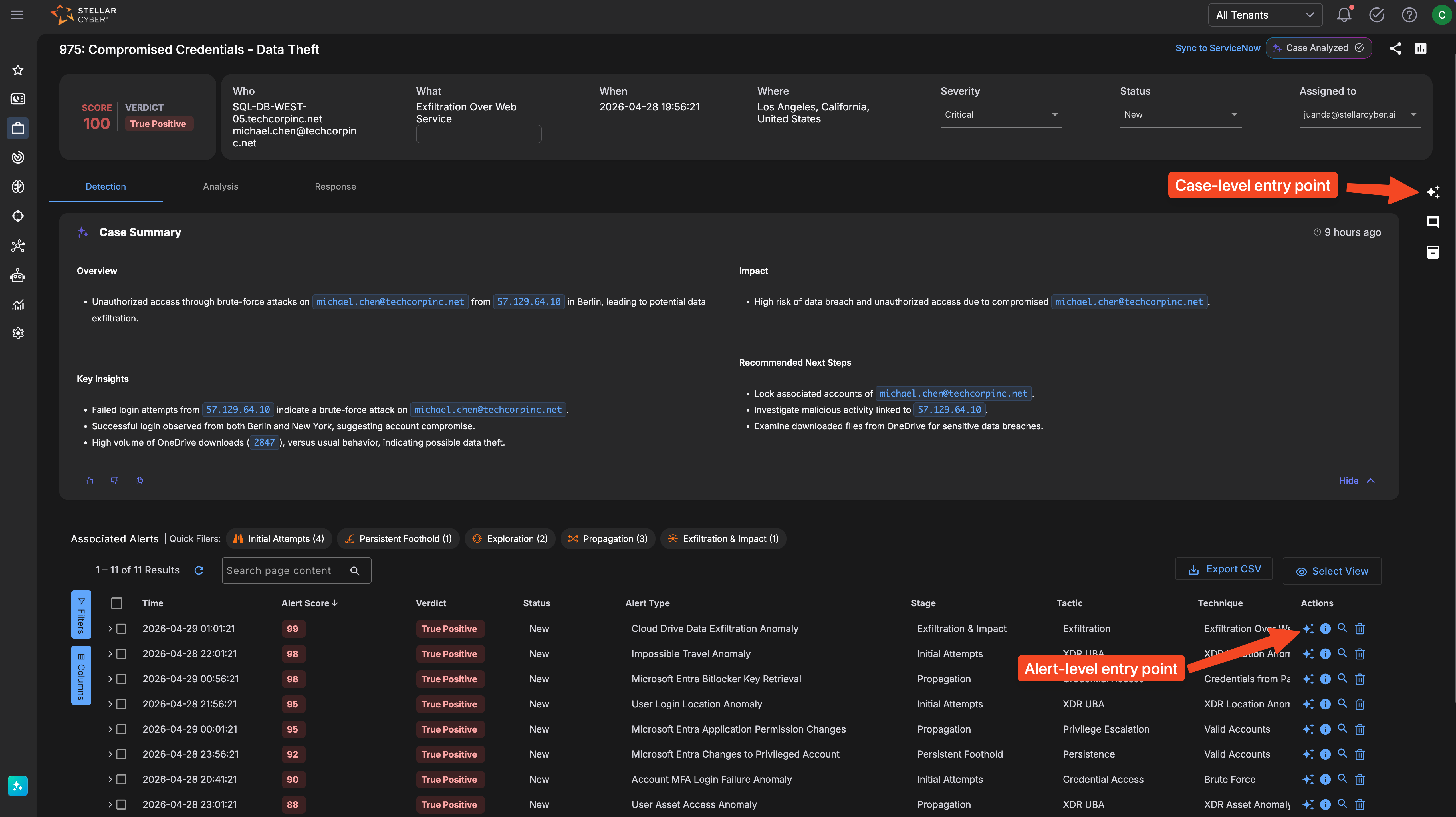
AI Assistance is available from the Case Detail view, so you open it from within a case rather than from a menu. It has two entry points that open the same panel with access to the same case data. The difference is in how the suggested prompts are framed: one entry point is scoped to the entire case, and the other is focused on a single alert.
To open AI Assistance for an entire case:
-
Select Cases to open the Cases page.
-
Select a case name to open the Case Detail view.
-
In the top-right corner of the Case Detail view, select the AI Assistance icon.
AI Assistance opens scoped to the entire case, including its summary, verdict, all associated alerts, and all Verdict Signal Check (VSC) signals gathered during triage. This is the recommended starting point for most investigations.
To open AI Assistance for a specific alert:
-
Select Cases to open the Cases page.
-
Select a case name to open the Case Detail view.
-
On the Detection tab, find the alert you want to investigate in the Associated Alerts table.
-
In the Actions column for that alert, select the AI Assistance icon.
AI Assistance opens focused on that alert. The full case context remains available, but the suggested prompts are tailored to the alert in focus. Use this entry point when a particular alert warrants closer examination.
You can switch freely between case-level and alert-level questions within a single session. The entry point shapes the initial set of suggested prompts, but it does not restrict the questions you can ask.
Ask a Question
The top of the panel displays the name of the active case or alert and confirms the scope that AI Assistance is working within. Near the top of the panel, a set of context-specific suggested prompts shows the kinds of questions AI Assistance can answer and gives you a one-select way to begin an investigation thread. The suggested prompts change depending on whether you opened the panel at the case level or the alert level, and they are a starting point rather than a constraint.
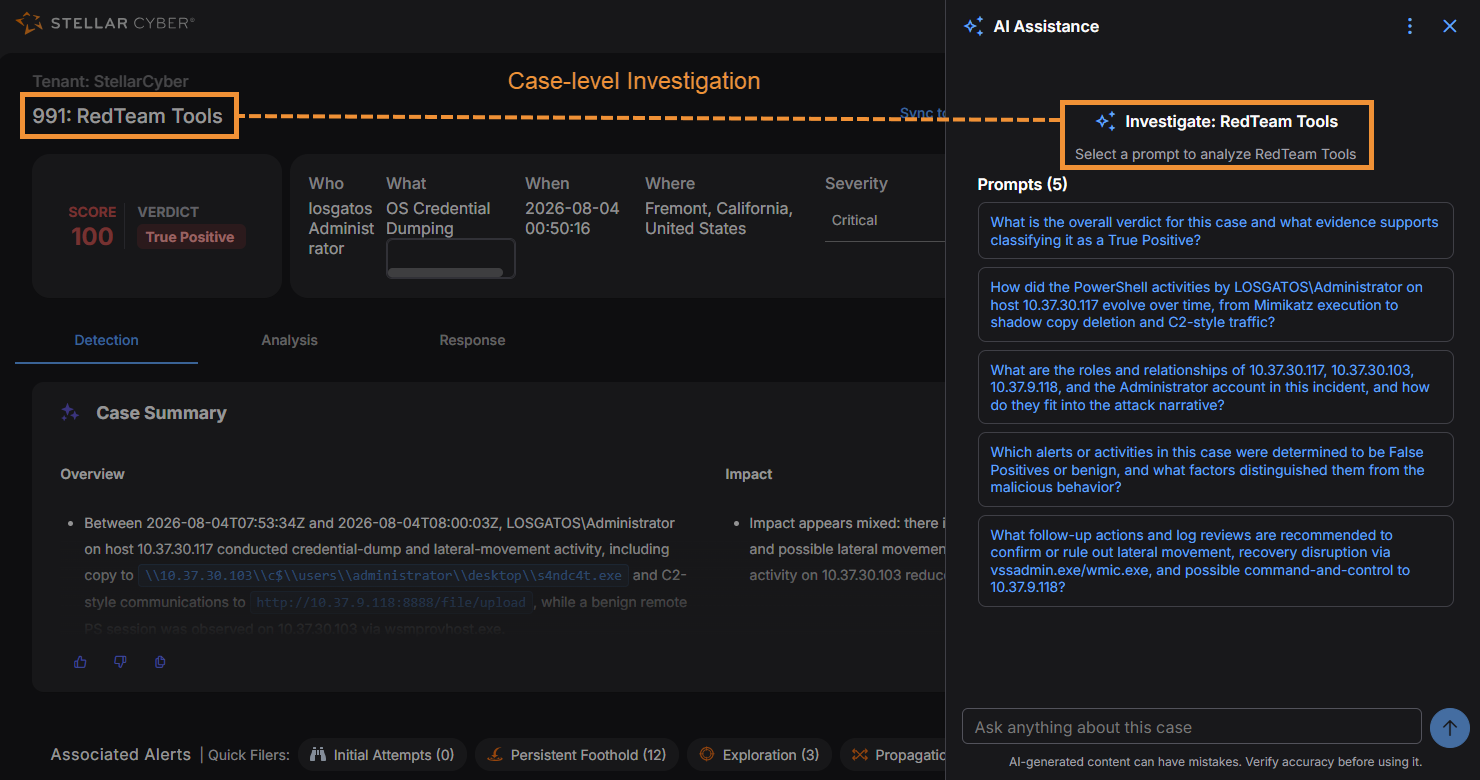
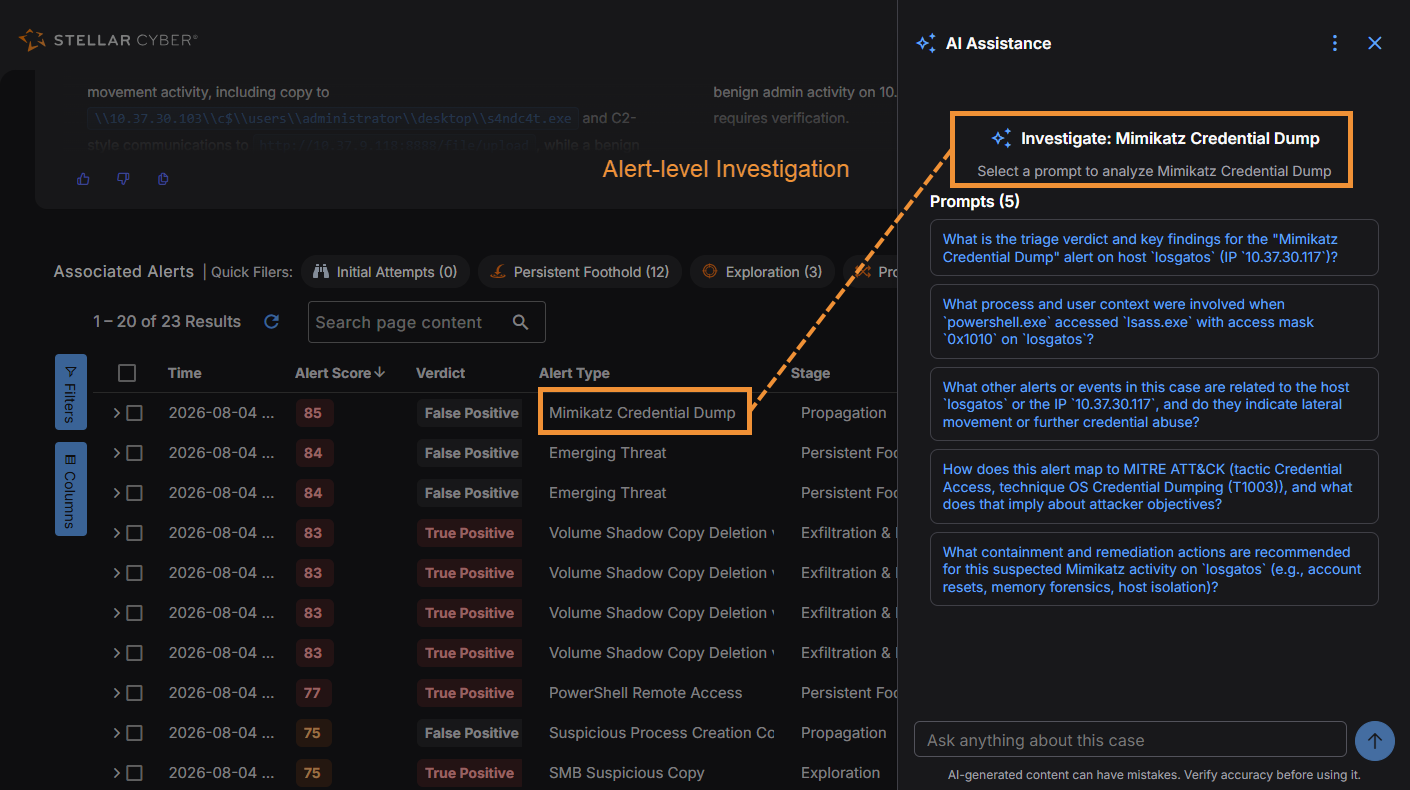
To ask your own question, enter it in the free-form input field at the bottom of the panel. The field accepts plain-language questions in the cybersecurity domain, with no query syntax to learn.
Your questions are not limited to the active case. You can also ask broader questions that query data outside the context of the case and aggregate the results. When you ask a question whose answer lives in your events and alerts rather than in the case summary and triage results, AI Assistance authors the right query, runs it against the security data in your environment, computes the answer over the matching records, and reports back with concrete numbers. A single question can take several query-and-analyze cycles as AI Assistance keeps refining automatically until it has the answer or until it tells you plainly that it could not get one. Every query is restricted to your own environment, and AI Assistance only reads data—it cannot change data, verdicts, or configurations.
These broader questions work best when the answer is a list, a count, a breakdown, a history, or a comparison over your data. For example:
-
What are the IP addresses used by this user in the past week? -
Is there a history of similar RDP tunneling alerts in our environment? -
The finding says 34 distinct login locations—list them. -
What did this host's traffic look like in the days before the alert?
To get the best answers, name the entity you are asking about—a username, IP address, hostname, or account—and state the time window if you have one. If you do not state a time window, AI Assistance defaults to the last 7 days and tells you so. Very open-ended requests, such as asking AI Assistance to analyze all of your data, prompt it to ask which data source and time range you mean.
AI Assistance and the AI Investigator both query live data from your environment, but they answer different needs. AI Investigator builds a search from your plain-language description and shows you the matching records as a results table. AI Assistance computes the specific answer that your question asks for, and refines its analysis until it has that answer. As a rule of thumb, use the AI Investigator when you want the records; ask AI Assistance when you want the answer.
Read a Response
Answers appear in the conversation thread above the input field. Identifiers in a response, such as user email addresses, IP addresses, file paths, and URLs, appear as highlighted entity chips, which make answers faster to scan and easier to connect to the underlying data. Where applicable, a response includes citations that identify the specific alerts, fields, or Verdict Signal Checks that informed it, so you can verify the evidence that AI Assistance drew on. To reuse a response, select the copy button to copy its full text to the clipboard for a ticket, runbook, or incident report.
When a response is produced from live data, it ends with an Analysis details footer that shows exactly what was queried: the data source, the query, the time range, and the number of records analyzed. If a question matches more records than the analysis covers, AI Assistance says so explicitly rather than presenting a partial result as complete. If a lookup cannot be completed, AI Assistance tells you so plainly rather than guessing; numbers in a response always come from a query that actually ran.
Every session displays the notice that AI-generated content can have mistakes and that you should verify accuracy before using it. Validate AI Assistance responses against the underlying alerts and telemetry before you act on them.
Manage Your Session
Each session is private to you and persists across visits, so you can return to a case and continue where you left off. To begin a fresh investigation thread, for example when another analyst wants to start an independent thread, select New Session in the panel menu to clear the conversation.
To hand off an active investigation, copy the conversation to the clipboard and paste it into the case ticket as an investigation note. The incoming analyst can then open the case, review the prior conversation thread in AI Assistance, and continue the investigation from where it was left off.
Example Workflows
The following examples illustrate how AI Assistance fits into typical investigation tasks.
Understand a High-Score Verdict
You open a case scored at 100 with a True Positive verdict. Rather than reviewing all of the associated alerts to reconstruct the reasoning, you open AI Assistance from the case-level entry point and ask it: Why did this case score 100?
AI Assistance explains that the case combines three high-confidence signals: a failed-login brute-force pattern from 57.129.64.10, an Impossible-Travel anomaly between Berlin and New York for michael.chen@techcorpinc.net, and an unusual OneDrive download volume of 2,847 files. Each signal is high-severity on its own, and together they form a complete account-takeover-to-exfiltration chain, which the verdict engine scores at the maximum.
You now have a clear picture of the case and can confirm the reasoning or ask follow-up questions. This is a useful starting point both for junior analysts building familiarity with verdict reasoning and for senior analysts validating the automated conclusion before acting.
Clarify a Detail Quickly
Continuing from the same case, you want to know which file storage resources were accessed, so you tell AI Assistance: Show me the SharePoint sites being accessed.
AI Assistance returns the relevant site path, the folder where files are being accessed, and an example file, all in a single response. The SharePoint/OneDrive activity in this case is against the following site: https://arrowinternational-my.sharepoint.com/personal/jfowler_arrowinternational_com/. Within that site, files are being accessed under Documents/VirtualMachines/Windows 11 x64/. One example file accessed: Windows 11 x64-s002.vmdk.
The same answer would otherwise require you to open the Cloud Drive Data Exfiltration Anomaly alert, expand the raw event fields, and locate the URL. Many investigation questions have short answers, and AI Assistance delivers them immediately.
Investigate an Inconclusive Case
You open a case marked Inconclusive for a Phishing URL Click alert. Stellar Cyber detected risk but lacked enough evidence to classify the activity as malicious or benign. You open AI Assistance from the case level and ask it: Is this login coming from the guest network?
AI Assistance confirms that the source IP belongs to the guest network VLAN, and notes that guest network activity is expected to show higher location variance and limited internal access, which you should weigh when interpreting the Impossible Travel signal.
With this context, you determine that the Impossible Travel signal reflects expected guest network behavior rather than a compromised account. You override the verdict to Benign True Positive at the alert level, add a comment explaining the guest network context, and close the case.
Check the History of an Entity Across Your Environment
You are investigating a case that involves the external IP address 51.89.125.18 and want to know whether the address has a history in your environment beyond this case. You open AI Assistance and ask it: Any historical alerts for 51.89.125.18 in the past 7 days? Are there any bursts of alerts over time?
AI Assistance queries the alert data in your environment and reports that the IP address appears in four alerts over the past 7 days, all within a single one-hour window—a single small burst, with no repeated bursts or sustained alert activity across the rest of the period. The response ends with an Analysis details footer showing the data source, the query, the time range, and the number of events analyzed.
Without leaving the panel or building a search yourself, you can conclude that the activity of the address is isolated to the incident you are investigating, and you can verify the conclusion from the query details in the footer.
Privacy and Data Handling
AI Assistance uses the same AI infrastructure, communication channel, and privacy controls as the Auto Triage verdict engine.
No Customer Data Used for Model Training
Stellar Cyber operates under a formal enterprise agreement with its AI provider. Customer data processed through AI Assistance is not used for AI model training, stored by the AI provider, or shared with third parties. All interactions occur through secure, ephemeral API calls.
Tenant Isolation
Each AI request is scoped to a single tenant data context. No data is shared, cached, reused, or exposed across tenants at any point.
Data Anonymization
Before data is passed to the AI model, Stellar Cyber applies anonymization on a best-effort basis. Full tokenization is not applied to all fields, because tokenizing entity identifiers such as usernames and email addresses can break the AI model ability to correlate related signals across alerts. This is a deliberate design choice that preserves investigative accuracy.
Structured, Curated Input
AI Assistance never ingests raw log streams. The platform extracts, normalizes, and structures security-relevant fields before they reach the model. This bounds the data surface and keeps AI interactions auditable.
Compliance
The Stellar Cyber AI capabilities align with GDPR, SOC 2 Type II, and TX-RAMP standards. The same compliance framework that applies to the Auto Triage verdict engine applies to AI Assistance. For complete details on data handling, retention behavior, and processing boundaries, see Privacy and Data Handling.
Known Limitations
AI Assistance is under active development. The following limitations apply to the current scope:
-
Suggested prompt quality, supported integrations, and session behavior can change between releases.
-
Prompts and responses are designed and tested in English. The underlying model might handle other languages, but accuracy and response quality are not guaranteed outside English.
-
AI Assistance is read-and-reason only. It cannot take response actions, change alert or case state, or trigger new Verdict Signal Checks. These actions remain in their existing workflows.
-
Live-data questions default to the last 7 days when you do not state a time window. For questions that match very large result sets, the analysis can cover the most-recent subset of the matching records; AI Assistance states the actual coverage in the Analysis details footer of the response.
-
AI-generated content can be incorrect. AI Assistance can make mistakes, misinterpret evidence, or miss context that you would catch. Always verify claims against the underlying alerts and telemetry before you act on them.
Provide Feedback
Your feedback is an important part of how Stellar Cyber improves AI Assistance.
-
To capture and share an individual response in a ticket, runbook, or post-incident report, select the copy button on the response.
-
When you override an AI-generated verdict at the alert level, Stellar Cyber logs the action and incorporates it into the continuous learning loop. Adding a comment when you override provides an additional learning signal. For more information about overriding verdicts, see Alert Auto Triage.
-
For broader feedback, such as feature requests, usability observations, or questions, contact your Stellar Cyber Technical Account Manager.
