Configuring Certificates for AD Connectors with LDAPS 
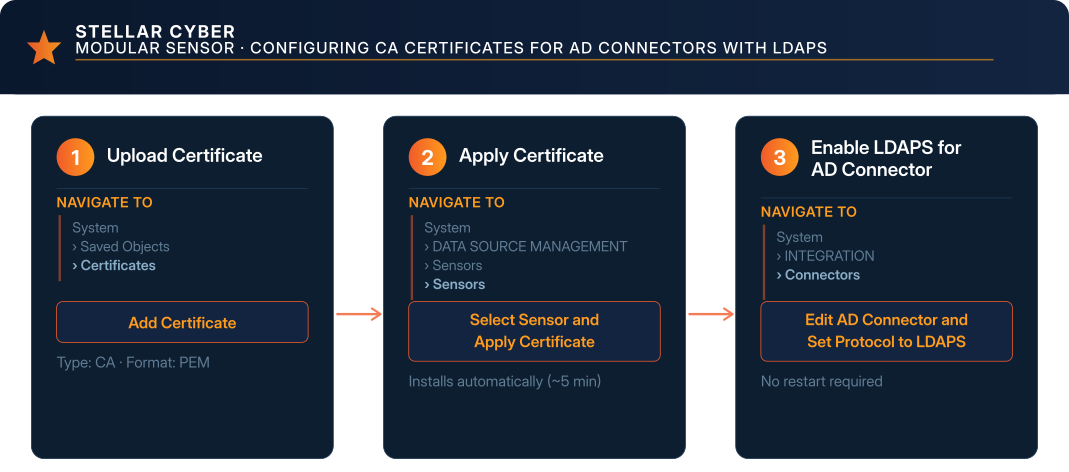
This topic describes how to configure Stellar Cyber so that an Active Directory connector can connect to a domain controller using LDAPS with a provided certificate.
When an Active Directory connector is configured to use LDAPS, the Modular Sensor where the connector runs validates the domain controller's TLS certificate against its system trust store. If the domain controller uses a self-signed certificate, you must add the certificate to the Modular Sensor before the connection can succeed.
To do this, upload the CA certificate to the Stellar Cyber Platform, assign it to the sensor that runs the AD connector, and configure the connector to use LDAPS. The sensor installs the certificate into its system trust store automatically, and the AD connector picks it up on its next connection attempt. No restart is required.
Do not use LDAPS (certificate validation disabled) as a workaround. That option disables all TLS certificate validation.
Before You Begin
Keep in mind the following rules when setting up an Active Directory connector to use LDAPS with a self-signed CA certificate:
- The CA certificate must be in PEM format.
- Only device sensors are supported. Server Sensors (agents) do not support certificate assignment.
- The sensor must be online when you assign the certificate. If the sensor is offline at assignment time, it picks up the certificate automatically on its next restart.
Procedure
-
Upload the domain controller's CA certificate using the standard workflow:
-
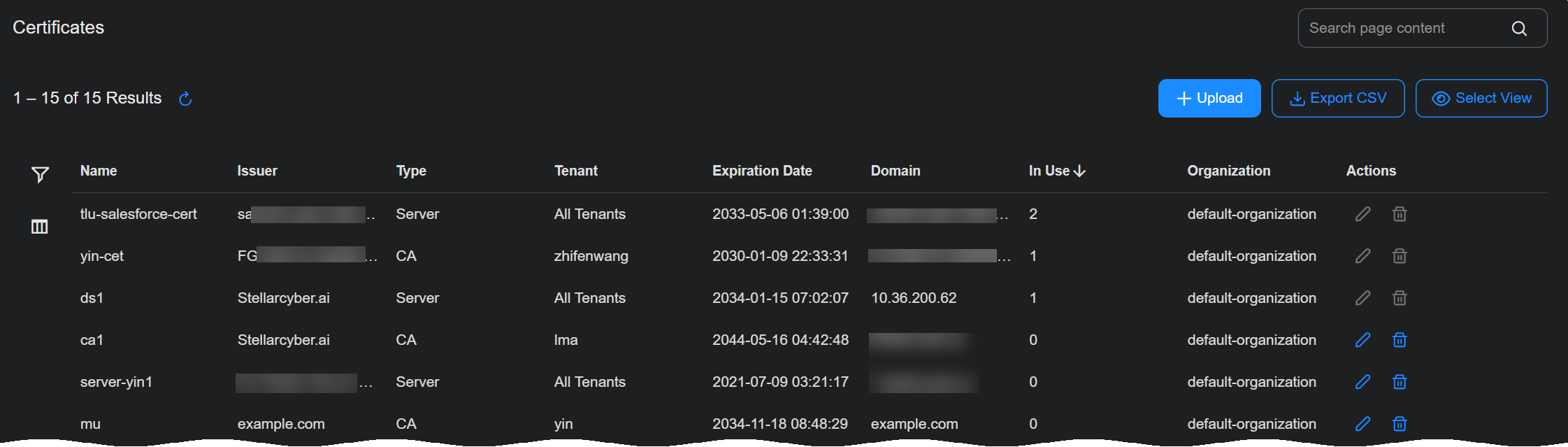
Go to System | Saved Objects | Certificates.
The Certificates page lists each of the Server and CA certificates you've uploaded to the system.
-
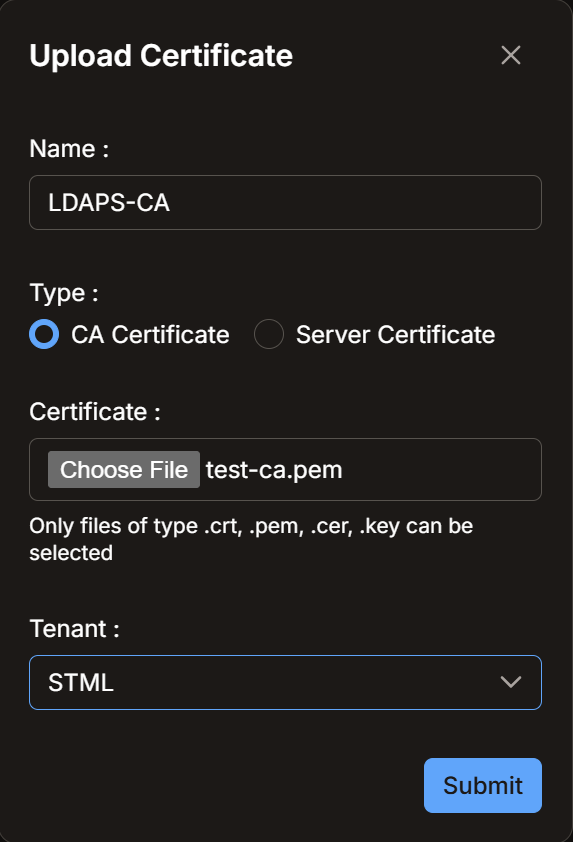
Click the Upload button to display the Upload Certificate dialog box.
-
Supply a Name for the certificate.
-
Select the CA Certificate option.
-
Use the Choose File button in the Certificate field to browse to the location of the PEM file for the certificate you want to upload.
-
Use the Tenant dropdown to select the tenant whose sensor will use this certificate.
-
Select Submit to upload the certificate to Stellar Cyber.
-
-
Assign the certificate to the sensor that will run the Active Directory connector with LDAPS:
-
Go to System | DATA SOURCE MANAGEMENT | Sensors | Sensors.
-
In the sensor list, select the sensor that will run the Active Directory connector by checking its box in the list. For example:
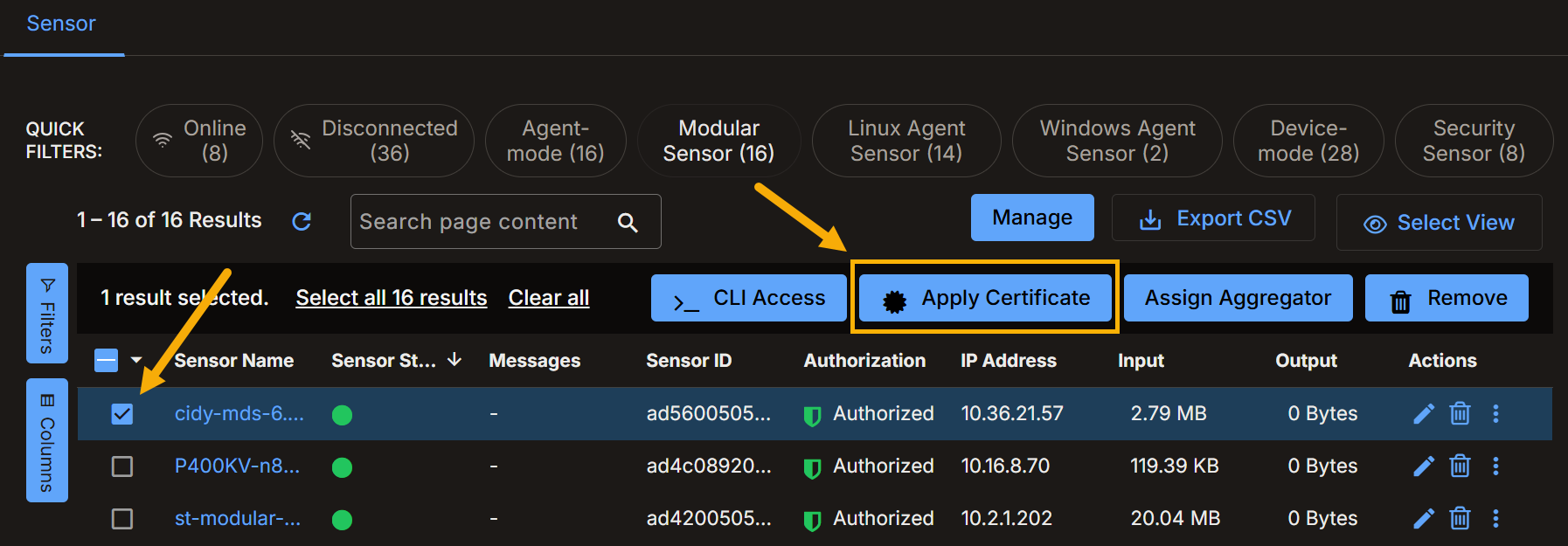
When you check a sensor's entry in the list, additional buttons appear at the top of the display, including the Apply Certificate button, as shown below.
-
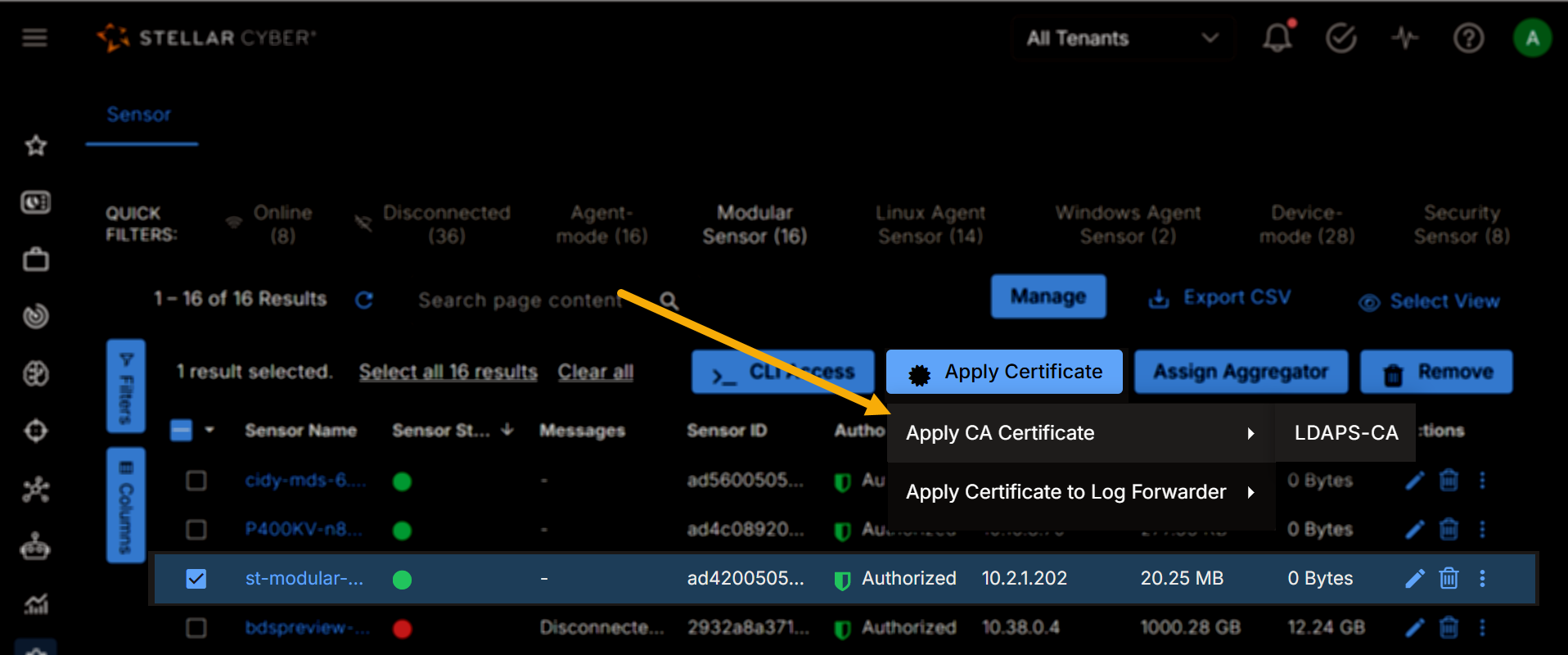
Select the Apply Certificate button to display the Apply CA Certificate option.
As shown below, the Apply CA Certificate menu entry includes all certificates that belong to the tenant for the selected sensor. In our example, this is only the LDAPS-CA certificate we uploaded in the first step of this procedure. Click the CA certificate to apply to the sensor.
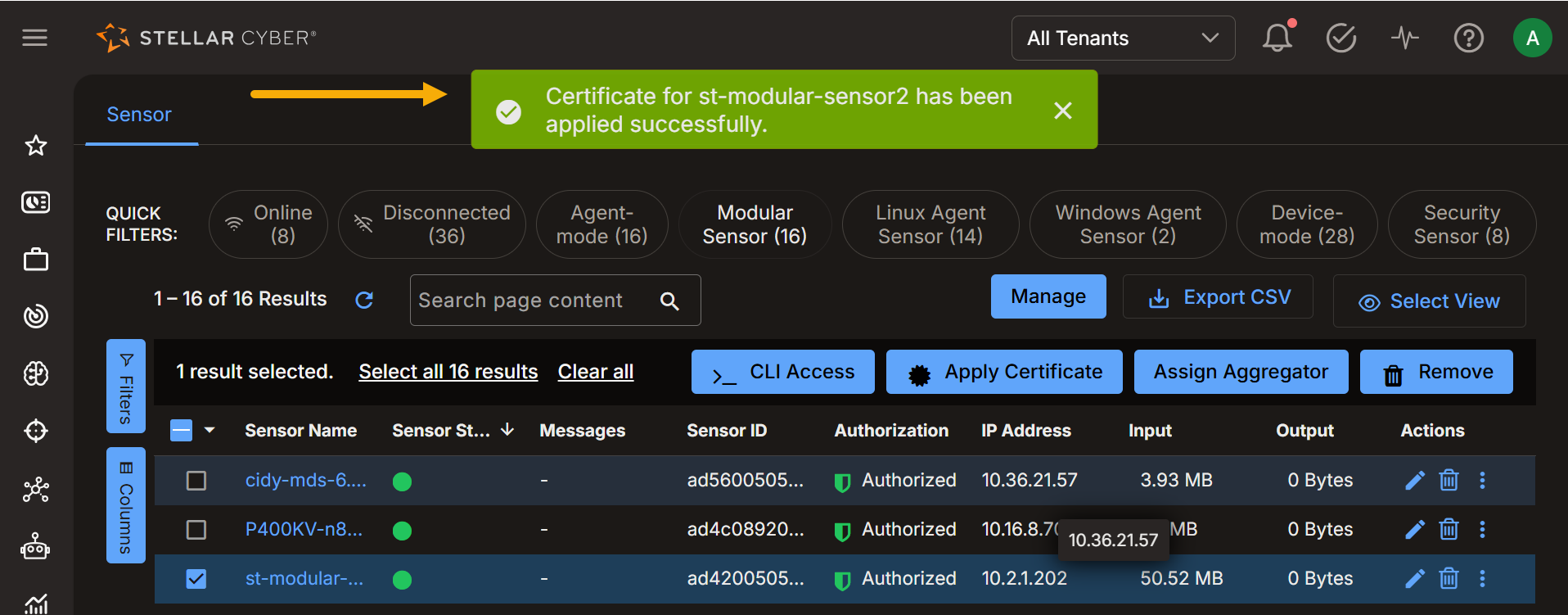
When you click the certificate, the sensor downloads and installs the certificate automatically by adding it to its system trust store. The success message shown below appears when certificate installation is complete. Allow approximately five minutes for the installation to complete.
-
-
Configure the Active Directory connector to use LDAPS:
-
Go to System | Integration | Connectors.
-
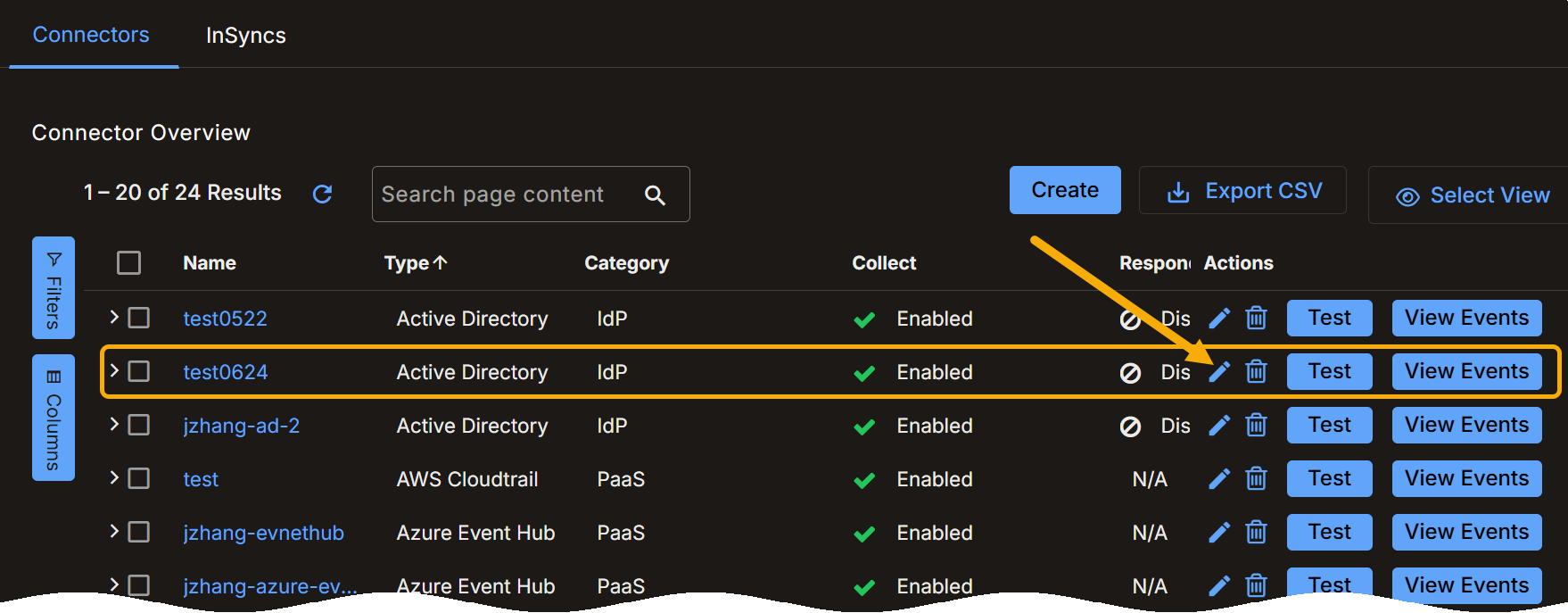
Locate the Active Directory connector running on the sensor to which you applied the certificate in the previous step and click its Edit button in the list. For example:
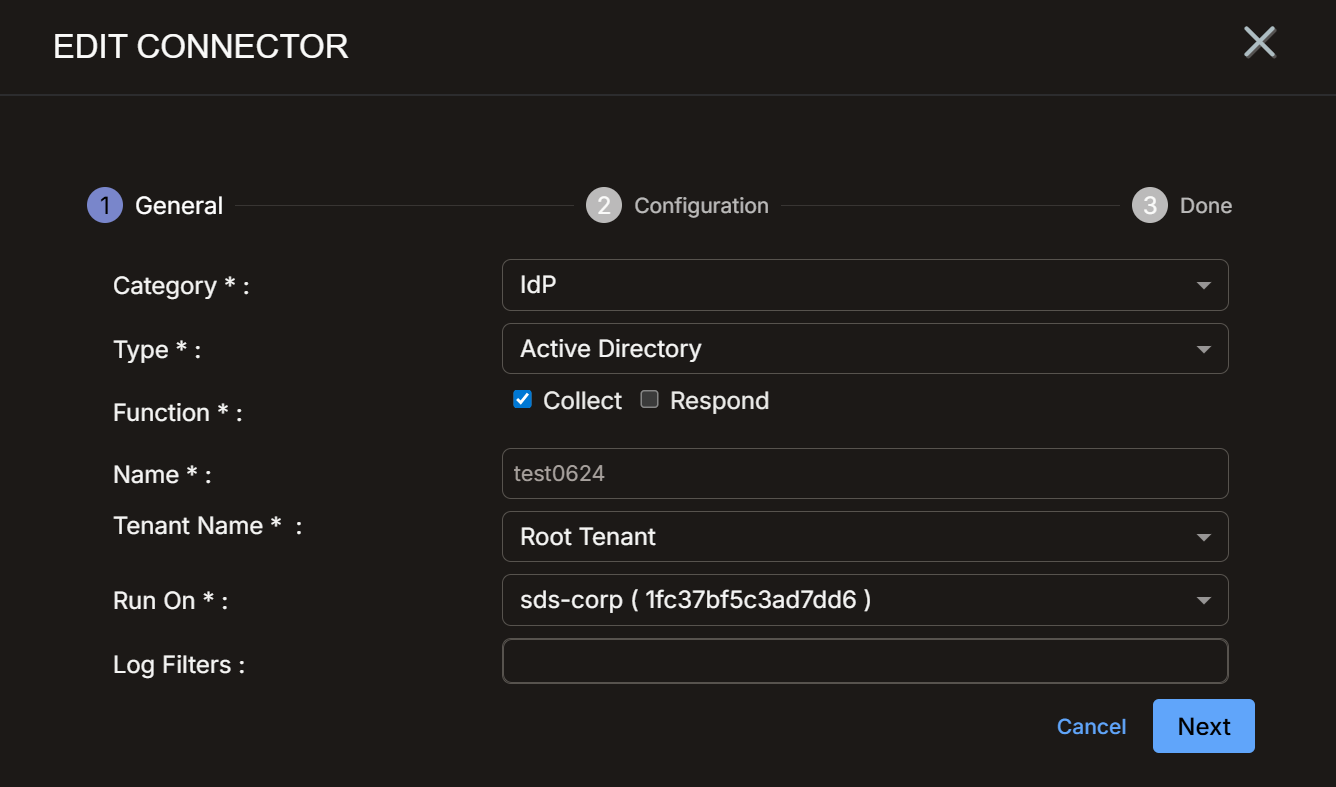
The Edit Connector dialog box appears.
-
Leave the settings in the General step as they are and click Next to proceed to the Configuration step.
-
Set the Protocol Type option to LDAPS and click Next to continue.
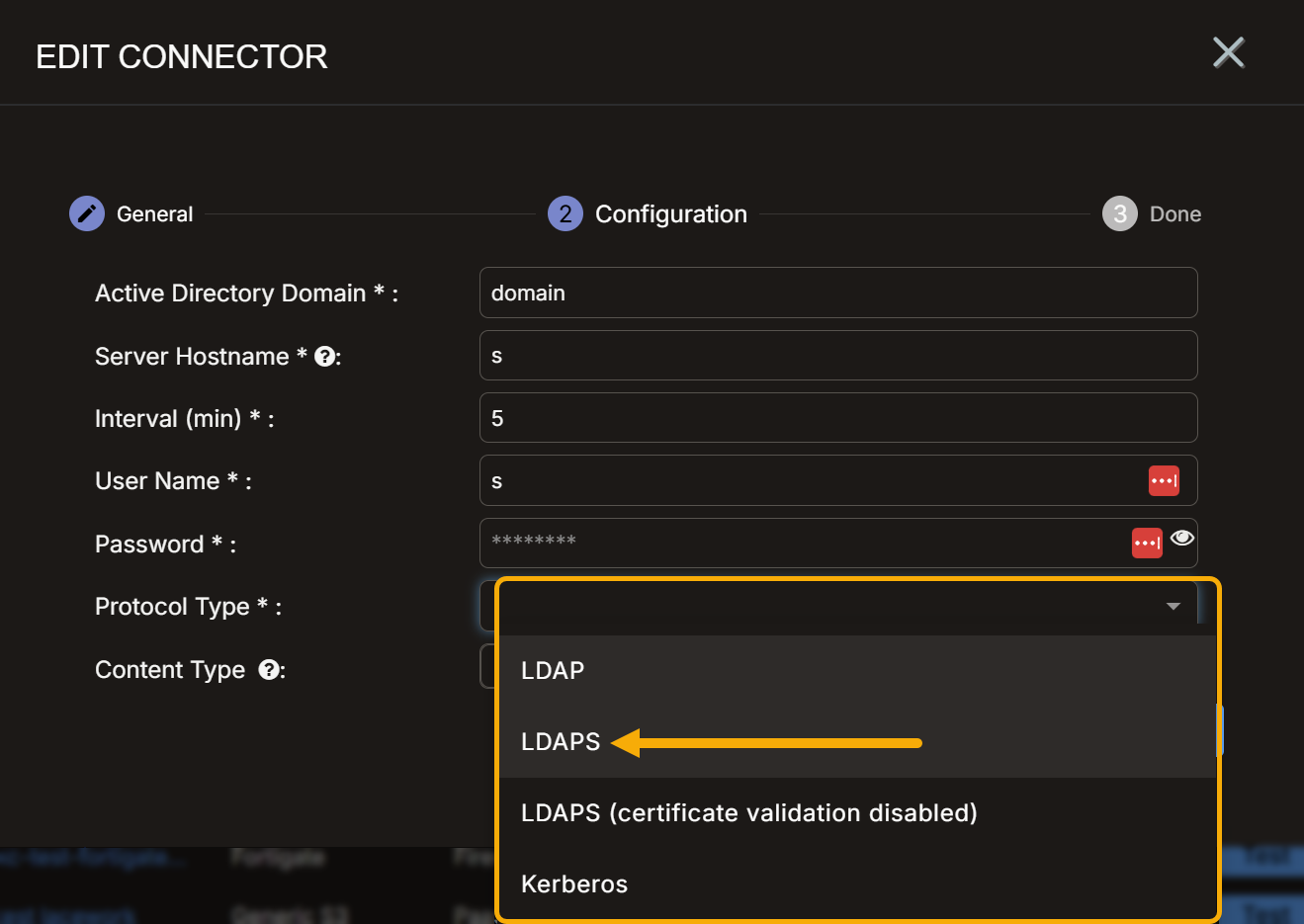
-
Click Submit to apply your changes.
On its next connection attempt, the connector validates the domain controller's certificate against the updated system trust store and completes the LDAPS handshake.
-
Limitations
|
Limitation |
Details |
|---|---|
|
One certificate per sensor |
Each sensor supports a single CA certificate assignment. If multiple AD domains use different self-signed CAs, bundle them into a single multi-CA PEM file before uploading. |
|
Expiry not monitored |
Certificate expiry is checked only at assignment time. When the certificate expires, LDAPS connections fail silently until you assign a renewed certificate to the sensor. |
|
System-wide trust |
The installed CA certificate is trusted for all TLS connections on the sensor, not only for the AD connector. |
|
Offline sensors |
If the sensor is offline when the certificate is assigned, the assignment notification is lost. The sensor retrieves the certificate automatically on its next restart. |
|
Agent-mode sensors not supported |
Certificate assignment is only supported for sensors running in device or container mode. |
