Licensing Overview
This page provides an overview of Stellar Cyber licensing, as well as details on how to use the tabs in System | ORGANIZATION MANAGEMENT | Licensing to keep track of it. See the following sections for details:
Only users with Root scope can see and work with the tabs in the Licensing page. This is where you keep track of all aspects of license provisioning and usage across your organization and its tenants.
About Stellar Cyber Licenses
Stellar Cyber services are provided using licenses. The fundamental license is a platform license for your organization that can be purchased using either a volume-based license or an asset-based usage license:
- Volume – The license lets you ingest a specified amount of data per day.
- Assets – The license allows you a specified number of daily active assets.
Each of these licenses are applied across all tenants in your organization, regardless of their region.
Supplemental Licenses
In addition to the platform license, you also purchase the following supplemental licenses, depending on your needs:
-
Support License – The Support license provides the following:
-
IDS signature updates
-
Threat intelligence updates
-
Access to the Malware Sandbox service
-
Sensor software updates
-
-
Add-on Licenses – Add-on Licenses include both Security Sensor licenses and licenses for AI-based features. Security Sensor licenses manage a specified number of active sensors, broken down by bandwidth (100 Mbps and 1,000 Mbps), and apply to either Security Device sensors or Modular Sensors with Security features enabled (IDS and/or Malware Sandbox). Feature licenses enable capabilities such as Alert Auto-Triage. Each license displays its type (Production or Trial), current status, expiration date, and capacity utilization. Add-on licenses enable specific supplemental features on the Stellar Cyber Platform beyond the base deployment. Each add-on license is tied to a particular capability (such as Alert Auto-Triage) and includes the license type (production or trial), its current status, and an expiration period.
About License Compliance Notifications
Every day, Stellar Cyber runs a report on the license usage for the previous day for your organization. Depending on the results, you might see different notification banners in the Stellar Cyber user interface. In addition, the account admin registered for your organization at the time of purchase receives an email each time there is a state change between the different compliance levels. Refer to Understanding License Compliance for details on the different compliance states, as well as tips you can use to stay in compliance.
Notification banners for license warnings and violations are visible only to users with Root scope and either the Super Admin or Platform Admin role assigned.
 Using the Licensing Tab
The Licenses tab appears when you first display the System | ORGANIZATION MANAGEMENT | Licensing page. As illustrated below, it provides separate sections with a summary of the Stellar Cyber Platform license settings and status, Security Sensor license usage, and a History of all events related to changes in license status or usage.
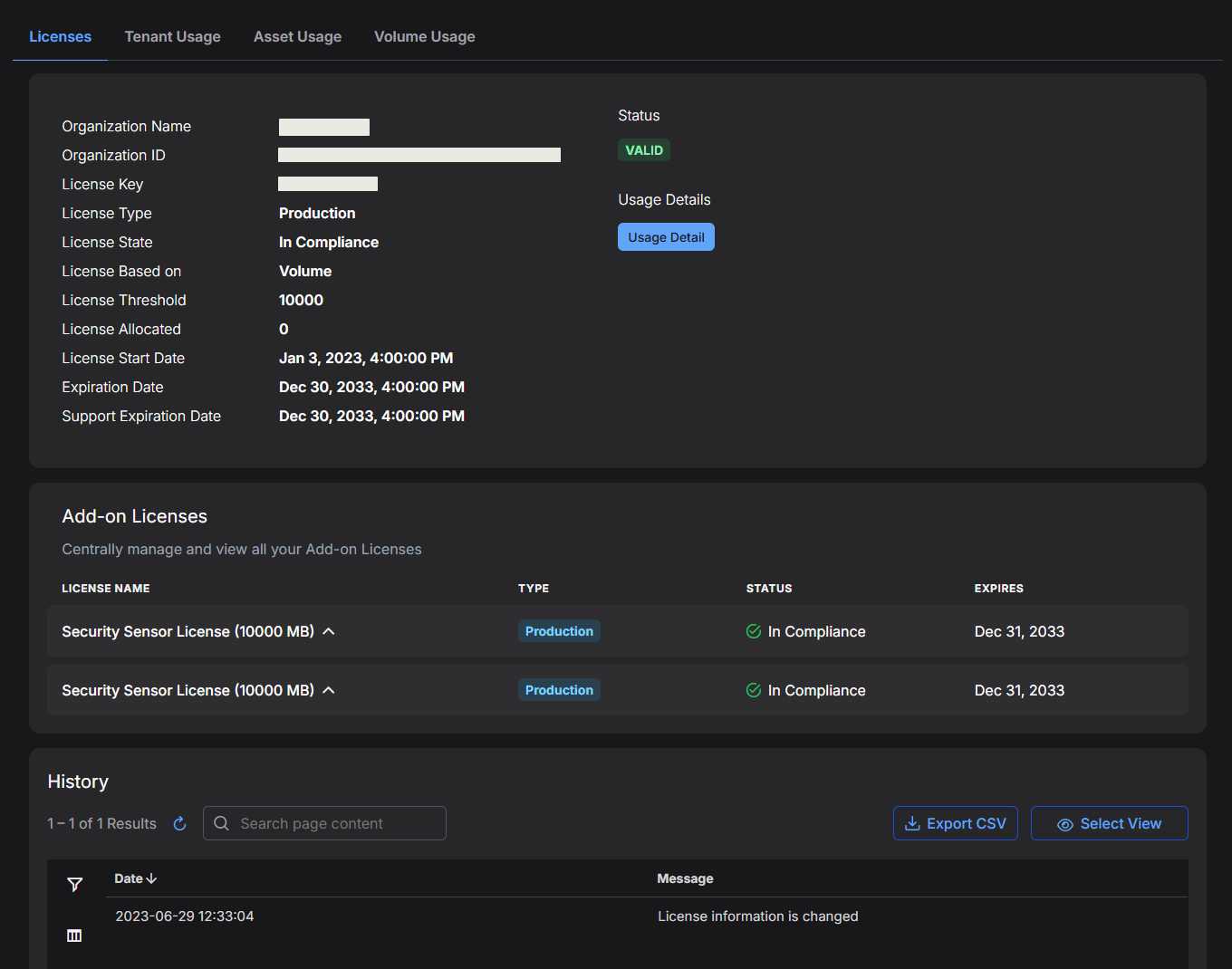
The following sections describe the Licenses tab:
License Summary
The Licenses tab provides the following information for the Platform license:
-
Organization Name – The name provided for your organization when you registered with Stellar Cyber.
-
Organization ID – The internal ID assigned to your organization when you registered with Stellar Cyber.
-
License Key – The license key assigned to your organization when you registered with Stellar Cyber.
-
License Type – The type of license. In most cases, this will be Production, indicating a regular, paid license. Options also exist for Trial and QA.
-
License State – The state of compliance for your Platform license at the time of the daily license report for the previous day's activities. For both asset-based and volume-based licenses, the compliance state can be any of the following:
License State
Trigger
Result
In Compliance Activity is within license limits Good vibes. Warning License limit has been exceeded by more than 10% for three days in a row Removable warning banner. Violation License limit has been exceeded by more than 10% for seven days in a row Non-removable violation banner. Email sent to account admin. Out of Compliance License limit has been in a violation state for more than 21 days Services cease. License bill sent to cover ingestion trends since first violation. Refer to Understanding License Compliance for details on bill calculation. Refer to Understanding License Compliance for details on the different compliance states, including consequences and tips you can use to stay in compliance.
-
License Threshold – Specifies the daily limit of either assets (quantity) or ingestion (in GB) for your Platform license.
-
License Allocated (Root level only) – Shows the amount of licensed capacity that is assigned to tenants (Allocated). Allocations are measured in the same units as the License Threshold. Allocated capacity can exceed the License Threshold if you intentionally over-subscribe.
-
License Start Date – The date your organization's Platform license took effect.
-
Expiration Date – The date your organization's Platform license expires.
-
Support Expiration Date – The date that the Support license for your organization expires. Stellar Cyber continues to operate without a Support license, but features that use definition updates are no longer updated (Threat Intelligence and IDS signatures). Similarly, sensor software is no longer updated and the Malware Sandbox is no longer available.
In addition, the License Summary includes a color-coded Status button that lets you see at a glance the current state of your Platform License, and a Usage Details button that takes you to the Usage tab corresponding to your Platform license type (Asset Usage or Volume Usage).
Add-on Licenses
The Add-on Licenses section appears on the Licenses tab. This section lists all add-on licenses associated with your deployment, including licenses for Security Sensors and licensed features such as Alert Auto-Triage. It provides visibility into their type, status, and expiration. Each add-on license can be expanded to show detailed usage metrics.
For Security Sensor licenses, keep in mind the following:
-
Licenses are broken out by Bandwidth. There are separate entries for 100 Mbps and 1,000 Mbps Security Sensors.
-
Security Sensors can be either physical Device sensors or Modular Sensors with Security features enabled in their Modular Sensor Profile (IDS and/or Malware Sandbox).
-
You can see which of your Sensors are Security Sensors in the System | DATA SOURCE MANAGEMENT | Sensors | Sensors list.
The information in this section is read-only. You can use it to monitor license allocation and expiration, but you cannot edit or reassign license capacity directly here.
When collapsed, the table displays the following information for each license:
-
License Name: The licensed feature or capability, such as a Security Sensor License or Alert Auto-Triage Capacity.
-
Type: Indicates whether the license is a Production or Trial license.
-
Status: Shows the compliance state of the license, such as In Compliance or Warning.
-
Expires: Displays the license expiration date.
When expanded, each license reveals its capacity and utilization details. The information shown depends on the license type. For example:
-
A Security Sensor License might show a capacity of 10,000 sensors with 1,200 sensors deployed, corresponding to 12% utilization. These details help you monitor license consumption and determine whether additional sensor capacity is required.
-
An Alert Auto-Triage Capacity license shows the monthly alert allowance, the consumption to date, and the daily burst usage across four tabs. Refer to Alert Auto-Triage Capacity – Licensing Model for details.
Alert Auto-Triage Capacity – Licensing Model 
Licensing for the Alert Auto-Triage feature is based on a monthly alert allowance that is shared across your entire organization. All tenants draw from the same pool. Stellar Cyber does not support allocating or reserving alert capacity for individual tenants. Refer to Distributing Alert Auto-Triage Capacity Across Tenants for approaches to managing the shared pool.
The allowance is calculated from the Starter pack and any Add-on packs that you purchase, and the packs stack additively. Refer to Alert Auto-Triage Add-on Packs for the available packs and the capacity that each one contributes.
Size the Alert Auto-Triage capacity to match the scope of your Stellar Cyber Platform license. Because Alert Auto-Triage processes the cases generated across your environment, aligning the coverage of the two licenses keeps them in operational balance.
Each Alert Auto-Triage pack is described in two equivalent dimensions:
-
Assets – For platform licenses based on asset count.
-
GB/day – For platform licenses based on ingestion volume.
Both dimensions of a pack deliver identical Alert Auto-Triage capacity. When you size Alert Auto-Triage, select the dimension that matches the way your platform license is expressed in your contract.
Sizing example – A platform license that covers 15,000 assets is typically sized for Alert Auto-Triage as follows:
-
One Stellar-AT-Starter-3000-Assets-100GB pack, which is the required first purchase and covers 3,000 assets.
-
Four Stellar-AT-Add-3000-Assets-100GB packs, which cover the remaining 12,000 assets.
The resulting capacity is 10,000 alerts per month across the entire organization, which matches the 15,000-asset platform footprint.
The following concepts determine how capacity is consumed and enforced:
-
Monthly alert allowance – The maximum number of alerts that Alert Auto-Triage processes during a calendar month. The allowance is a hard ceiling. It resets on the first day of each calendar month at 00:00 UTC, and unused capacity does not roll over.
-
Daily burst limit – The maximum number of alerts that the automated triage pipeline processes on a single day. The limit gives you controlled headroom for spikes in case volume without exhausting the monthly allowance prematurely. Stellar Cyber calculates the limit as the daily average multiplied by the burst multiplier, where the daily average is the monthly allowance divided by 30. Refer to Adjusting the Daily Burst Multiplier for details.
-
Manual triage – Analysis that an analyst starts explicitly with Run Analysis. Manual triage is not subject to the daily burst limit, but it does consume from the shared monthly allowance.
-
Case Queue – The configurable set of rules that determines which cases are eligible for Alert Auto-Triage. Cases that match the rules are triaged and count against the monthly allowance. Cases that do not match are analyzed with the free-tier Case Summary instead. Case Queue rules can filter by case severity or score, tenant, detection type, data source, or any custom case attribute. Refer to Working with Cases for configuration details.
-
Free-tier Case Summary – A lightweight, AI-generated case analysis included in the base Stellar Cyber Platform. Case Summary operates on an independent daily pool of 560 automated summaries and 40 manual summaries per day for each organization. These counters reset at 00:00 UTC each day, unused capacity does not roll over, and consumption is not counted against the Alert Auto-Triage monthly allowance.
Because the free-tier Case Summary pool is independent, you do not lose analysis coverage when the Alert Auto-Triage allowance is exhausted. Only the depth of the analysis changes.
Viewing Alert Auto-Triage Capacity
In the Add-on Licenses section of the Licenses tab, expand the Alert Auto-Triage Capacity entry to see consumption details. The header identifies the packs that make up the license and the resulting monthly allowance, along with the license type, status, and expiration date. The details are organized into four tabs: Today, 7-day trend, 30-day trend, and Settings.
Today tab – Provides a real-time view of the consumption for the current month and the burst usage for the current day.
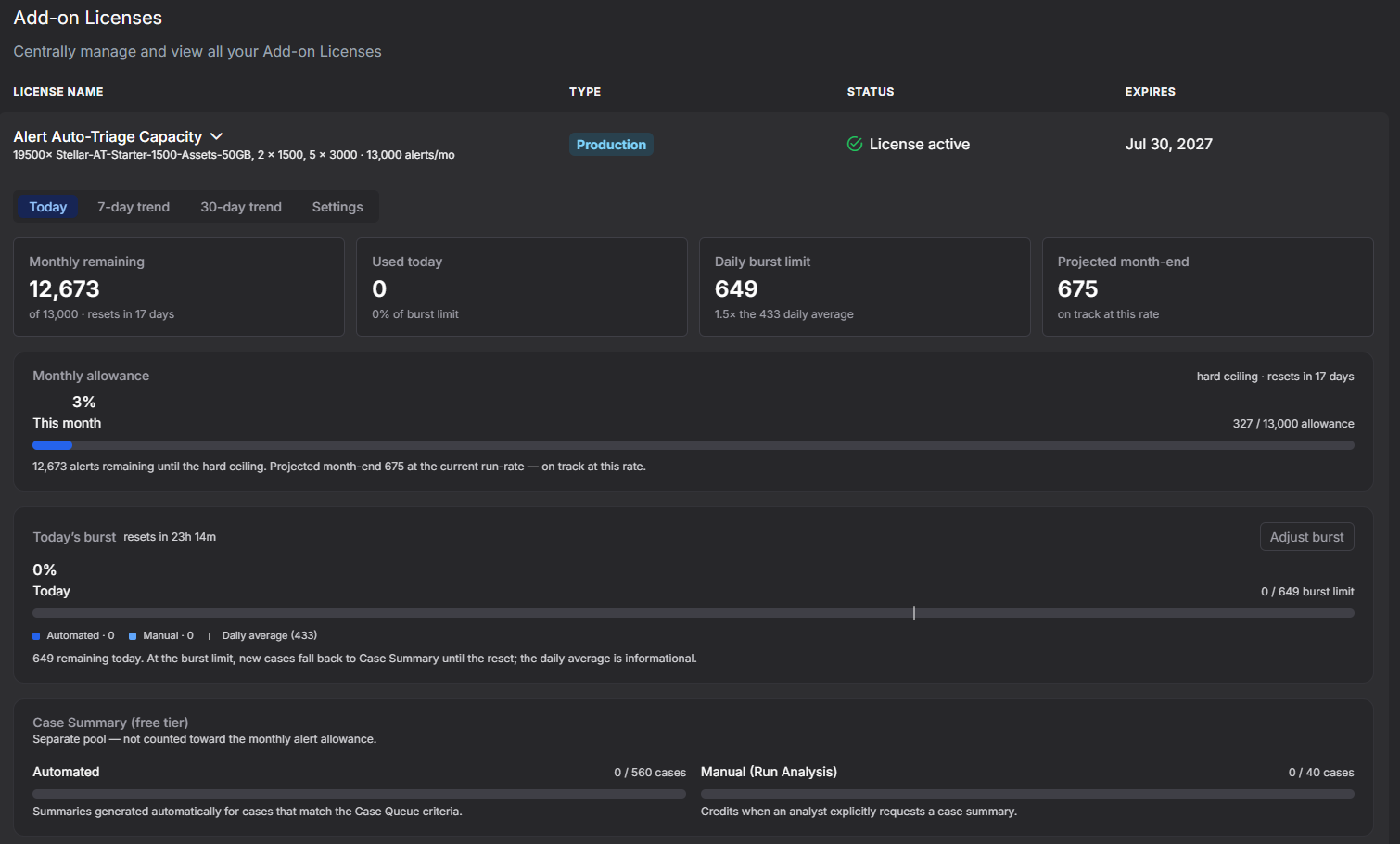
The metric cards across the top report the following:
-
Monthly remaining – The number of alerts remaining before the monthly allowance is exhausted, together with the number of days until the next monthly reset.
-
Used today – The number of alerts consumed so far today, shown as a percentage of the daily burst limit.
-
Daily burst limit – The maximum capacity for a single day, shown as a multiple of the daily average.
-
Projected month-end – The extrapolated total for the month at the current rate of consumption.
Beneath the metric cards, the Monthly allowance bar shows the month-to-date consumption against the total monthly allowance, along with the number of days until the reset.
The Today's burst bar shows the consumption of the automated pipeline for the current day against the daily burst limit. The legend distinguishes the following:
-
Automated – Alerts triaged by the automated pipeline. These alerts are subject to the daily burst limit.
-
Manual – Alerts triaged by analyst Run Analysis. These alerts are not subject to the daily burst limit.
-
Daily average – The reference sustainable rate. This value is informational and is not enforced.
Select Adjust burst to open the Settings tab, described in Adjusting the Daily Burst Multiplier.
The Case Summary (free tier) section at the bottom of the tab shows the consumption of the free-tier pool for the current day. This pool is separate from the Alert Auto-Triage monthly allowance and continues to operate regardless of the Alert Auto-Triage state.

-
Automated – Up to 560 case summaries per day, generated automatically for cases that match the Case Queue criteria.
-
Manual (Run Analysis) – Up to 40 case summaries per day, generated when an analyst explicitly requests a case summary.
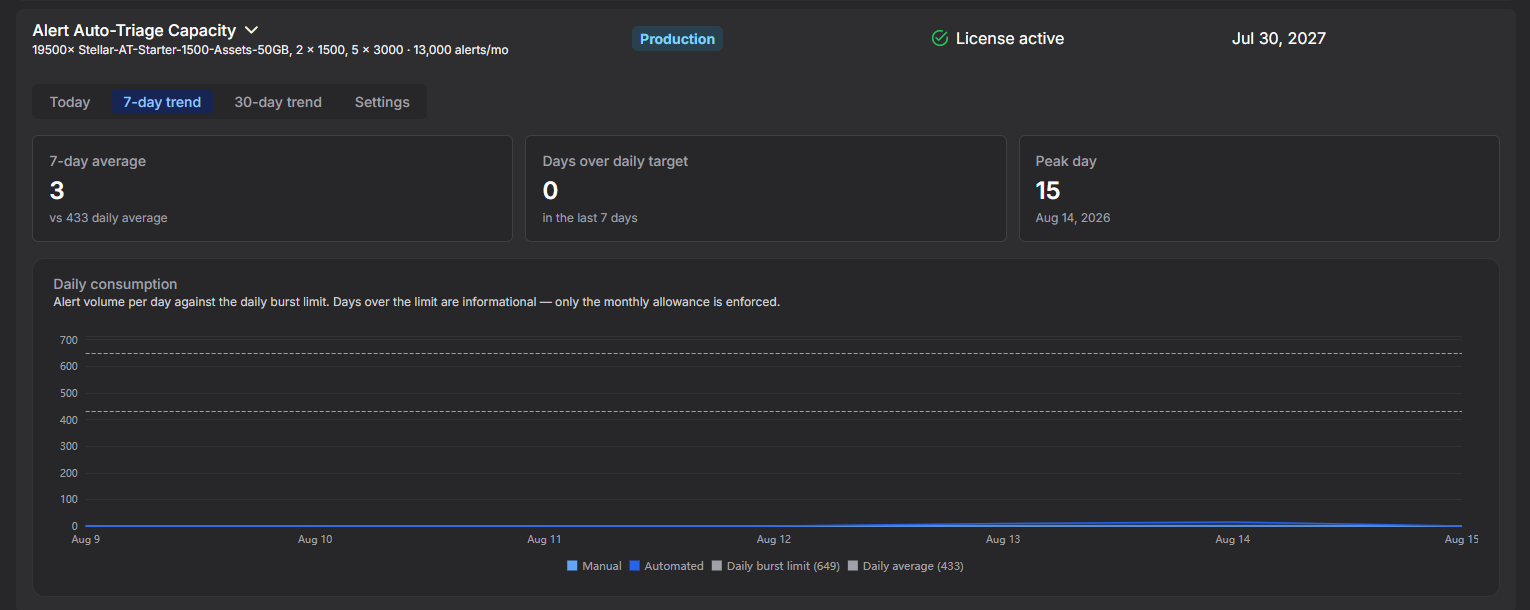
7-day trend tab – Shows recent daily consumption for short-term operational awareness.
-
7-day average – The average number of alerts triaged per day over the last seven days, compared against the daily average target.
-
Days over daily target – The number of days in the last seven that exceeded the daily average target.
-
Peak day – The highest single-day consumption in the window, along with the date on which it occurred.
The Daily consumption chart plots the daily alert volume against reference lines for the daily burst limit and the daily average. Days that exceed the daily average target are informational. Only the monthly allowance is enforced.
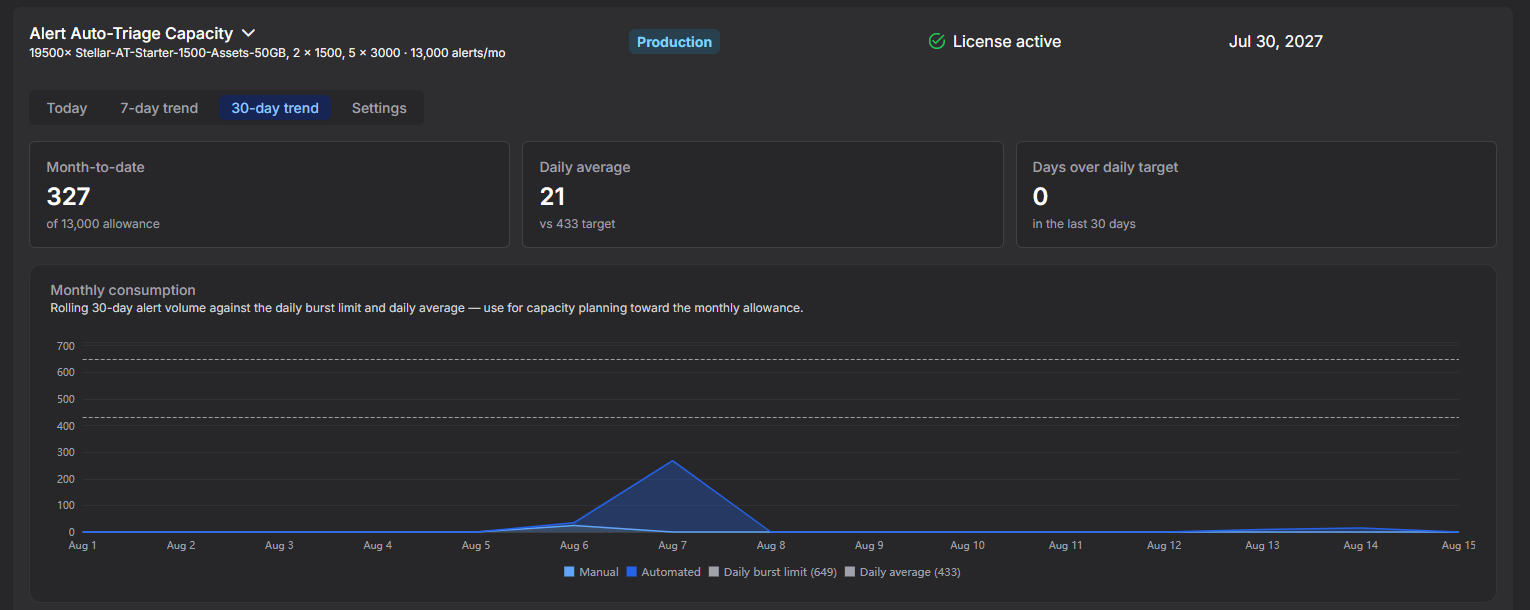
30-day trend tab – Shows rolling monthly consumption, which you can use to plan capacity against the monthly allowance.
-
Month-to-date – The cumulative number of alerts consumed during the current calendar month, shown against the total monthly allowance.
-
Daily average – The actual observed daily average over the last 30 days.
-
Days over daily target – The number of days in the last 30 that exceeded the daily average target.
The Monthly consumption chart plots the rolling 30-day alert volume against the daily burst limit and the daily average. Use this view to identify sustained trends as opposed to one-time spikes.
Adjusting the Daily Burst Multiplier
Use the Settings tab to set the burst multiplier that Stellar Cyber applies to the automated pipeline. The multiplier determines how far the consumption for a single day can exceed the daily average.
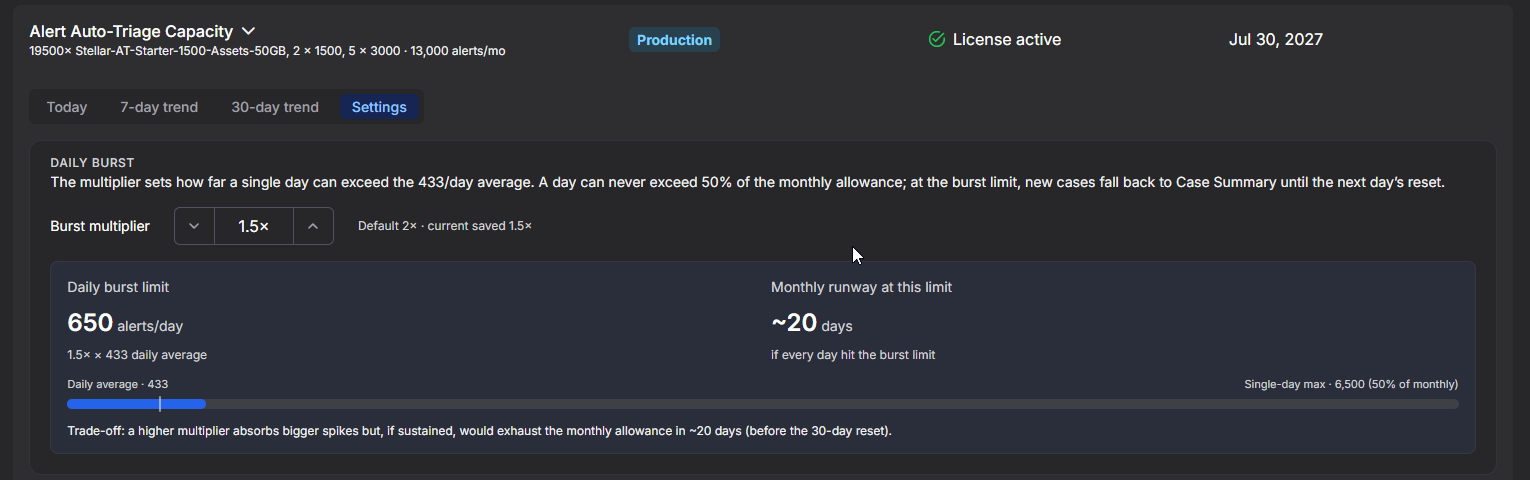
To adjust the burst multiplier:
-
On the Settings tab, use the up and down controls next to Burst multiplier to set the value you want.
-
Review the calculated Daily burst limit and the Monthly runway at this limit, which is the number of days that the monthly allowance would last if every day reached the new burst limit.
-
Select Save. The new value takes effect immediately.
The following limits apply to the multiplier:
-
Minimum – 1×, which is equivalent to the daily average and provides no burst tolerance.
-
Default – 2×.
-
Maximum – The highest multiplier that keeps the consumption for a single day at or below 50% of the monthly allowance.
A higher multiplier absorbs larger spikes, but it also exhausts the monthly allowance faster when the higher volume is sustained across all days. The Settings tab shows the monthly runway for the selected multiplier so that you can weigh the trade-off before you save.
Behavior When Alert Auto-Triage Capacity Is Exhausted
Alert Auto-Triage enforces two limits: the daily burst limit, which applies to the automated pipeline only, and the monthly allowance, which applies to both the automated pipeline and manual triage. The following table describes the behavior when either limit is reached:
|
Condition |
Automated Pipeline |
Manual Triage (Run Analysis) |
|---|---|---|
| Neither limit exhausted | Alerts are triaged. Both the monthly and daily counters decrement. | Alerts are triaged. The monthly counter decrements. |
| Daily burst limit exhausted, monthly allowance available | Pauses for the rest of the day. New cases fall back to the free-tier Case Summary. | Continues to consume from the monthly allowance. |
| Monthly allowance exhausted | Pauses for the rest of the month. New cases fall back to the free-tier Case Summary. | Pauses for the rest of the month. New cases fall back to the free-tier Case Summary. |
In all cases, the free-tier Case Summary continues to operate within its own daily limits of 560 automated summaries and 40 manual summaries, unaffected by the Alert Auto-Triage state.
Stellar Cyber generates a notification when the consumption reaches 80% of the monthly allowance, when it reaches 100% of the monthly allowance, and when the daily burst limit is exhausted. Select the Notifications icon at the top of the user interface to see these notifications alongside other license events.
Distributing Alert Auto-Triage Capacity Across Tenants
Alert Auto-Triage capacity is licensed to your Stellar Cyber organization as a single pool that is shared across all tenants, and Stellar Cyber does not enforce per-tenant capacity quotas. If you are a Managed Security Service Provider (MSSP) or a Managed Detection and Response (MDR) provider, you can distribute this shared capacity to your tenants with one of the following patterns:
-
Pattern A: Bundled service tier – Include Alert Auto-Triage in your standard managed service offering, with no separate line item for the end customer. Use Case Queue rules to prioritize consumption across the tenants that generate the highest-value cases. Size the license to match the aggregate footprint of your managed tenant base.
-
Pattern B: Premium service tier – Offer Alert Auto-Triage as an optional uplift on top of your standard managed service. Configure Case Queue to include only the cases from tenants that subscribe to the premium tier. Tenants on the standard tier receive free-tier Case Summary analysis automatically. Size the license to match the aggregate footprint of your premium-tier tenant base.
-
Pattern C: Per-tenant capacity commitment – Provide each tenant with a defined Alert Auto-Triage capacity as part of your commercial agreement, such as up to 500 alerts triaged per month for each tenant. Because Stellar Cyber does not enforce per-tenant sub-caps, this pattern relies on Case Queue configuration and monitoring.
When you implement Pattern C, follow these practices:
-
Use Case Queue rules and score thresholds to shape the consumption for each tenant toward the committed volume.
-
Purchase capacity with headroom above the sum of the committed per-tenant capacities. A common approach is to size the total license at 120% to 140% of that sum.
-
Monitor the consumption for each tenant regularly and adjust either the Case Queue rules or the total license capacity at renewal.
-
Structure end-customer commitments as monitored, best-effort targets rather than as limits that Stellar Cyber enforces.
The following guidance applies to all three patterns:
-
Size Alert Auto-Triage against the total footprint that you manage, even though the pool is shared across tenants.
-
Case Queue is the primary control for directing shared capacity toward specific tenants or case populations. Refer to Working with Cases for configuration details.
-
Alert top-up packs are useful for absorbing short-term spikes in consumption, such as when you onboard a new tenant mid-term or when a specific tenant consumes more capacity than expected.
Alert Auto-Triage Add-on Packs
Add-on capacity extends an existing Alert Auto-Triage license without requiring a full re-quote. There are two categories:
-
Asset and GB packs – Extend both the licensed environment coverage (assets or ingestion) and the monthly alert allowance.
-
Alert top-up packs – Extend the monthly alert allowance without adding environment coverage.
A Starter pack is required for the first purchase, and each organization can have only one. The following Starter packs are available:
|
Pack |
Coverage |
Alerts per Month |
|---|---|---|
| Stellar-AT-Starter-750-Assets-25GB | Up to 750 assets or 25 GB/day | 500 |
| Stellar-AT-Starter-1500-Assets-50GB | Up to 1,500 assets or 50 GB/day | 1,000 |
| Stellar-AT-Starter-3000-Assets-100GB | Up to 3,000 assets or 100 GB/day | 2,000 |
Add-on capacity packs require a Starter pack. You can purchase any quantity of the following packs, and their contributions to the monthly allowance are cumulative:
|
Pack |
Coverage |
Alerts per Month |
|---|---|---|
| Stellar-AT-Add-750-Assets-25GB | +750 assets or +25 GB/day | +500 |
| Stellar-AT-Add-1500-Assets-50GB | +1,500 assets or +50 GB/day | +1,000 |
| Stellar-AT-Add-3000-Assets-100GB | +3,000 assets or +100 GB/day | +2,000 |
| Stellar-AT-Add-500-Alerts | Supplemental alerts only, with no environment coverage | +500 |
Choosing between the two categories – The categories are not interchangeable. Use Asset and GB packs when the environment covered by your platform license grows, such as when you onboard more assets or when your ingestion volume increases. Use Alert top-up packs when the environment is unchanged but you need additional alert capacity, such as when you widen the Case Queue criteria and observe higher consumption than the current allowance supports.
Alert top-up packs carry a premium for each alert compared with Asset and GB packs of equivalent capacity. When growth in the environment is the underlying driver of higher consumption, Asset and GB packs are the more cost-effective option. Alert top-up packs are appropriate when the environment is stable but the capacity needs to flex.
Contact your Stellar Cyber account team or partner to add capacity, or if you are not sure which category applies to your situation.
History
The History table tracks any changes in license status, including application of new licenses, expirations, and transitions in state of compliance.
Using the Tenant Usage Tab
The Tenant Usage tab (System | ORGANIZATION MANAGEMENT | Licensing) displays usage metrics by tenant in the following section:
-
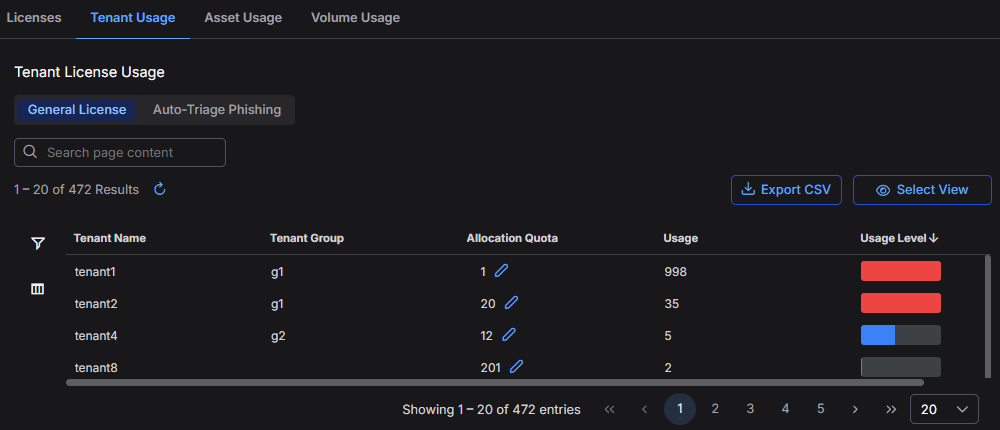
General License: See an overview of license utilization by tenant, including the tenant name, tenant group, and the total usage volume. You can view and manage how the licensed capacity for your Platform license is distributed among tenants. The volume usage shown here comes from the License Threshold in the Licenses tab.
The data in this tab is read-only and updated automatically based on system activity.
General License Table
The following are the columns that appear in the Tenant Allocation table:
-
Tenant Name – Name of the tenant.
-
Tenant Group – Tenant group that the tenant belongs to.
-
Allocation Quota – The licensed capacity assigned to the tenant. A dash ( – ) means no specific quota is set. Values are in the same units as the License Threshold (GB/day for ingestion-based licenses or asset count for asset-based licenses).
-
Usage – The actual daily usage for the tenant.
-
Usage Level – A color-coded bar showing the tenant’s usage as a percentage of its allocation quota:
Blue – Usage is within allocation.
Red – Usage exceeds allocation.
Tenants without a quota display a blue bar showing usage relative to their own peak usage.
Allocating Capacity to Tenants
To set or change the capacity allocated to a tenant:
-
In the Allocation Quota column, select the Edit icon next to the tenant’s current value (or dash).
-
Enter a capacity quota in the same units as your License Threshold (GB/day or asset count).
-
Save your changes.
Guidelines for Determining Allocations
When deciding how much capacity to allocate to each tenant:
-
Analyze historical usage – Review the Usage column and Volume Usage or Asset Usage tabs to see each tenant’s recent trends.
-
Use the Ingestion Target as a reference – If set when creating the tenant, the Ingestion Target value can serve as a reference point for allocation decisions. This value is for informational purposes only and does not enforce or automatically set the Allocation Quota.
-
Account for growth – Add buffer capacity for tenants expected to grow in assets or ingestion volume.
-
Prioritize critical tenants – Ensure mission-critical tenants receive enough allocation to handle peak load without exceeding their quota.
-
Avoid excessive over-subscription – While over-subscription can improve flexibility, it increases the risk of exceeding the license threshold and triggering warnings.
-
Review regularly – Revisit allocations periodically to adjust for changes in tenant usage patterns.
Role-Based Access Control (RBAC) for Tenant Allocation
Access to the Tenant Allocation tab is governed by both scope and role:
-
Scope levels – Root/Organization, Tenant Group, and Tenant. Users can only view and manage allocations within their assigned scope.
-
Roles – Four default privilege profiles determine the level of access within a scope:
-
Super Admin – Full access, including changing allocations for all tenants in scope.
-
Platform Admin – Subset of Super Admin permissions, can edit allocations within scope.
-
Security Admin – More limited permissions; may have read-only access to this tab depending on configuration.
-
User – Typically view-only access.
Partner users operate at the Tenant Group scope and can manage allocations for tenants in that group. Only root-level users can manage allocations across all tenants in the platform.
Using the Asset Usage Tab
The Asset Usage tab shows you the maximum active assets counted for licensing purposes. Separate tabs let you view asset usage for the Past 30 Days or the Past 12 Months: 
-
Past 12 Months – The monthly asset count for each of the preceding 12 months.
-
Past 30 Days – The daily maximum active assets over the preceding 30 days. If you have an asset-based license, your license limit is based on that average.
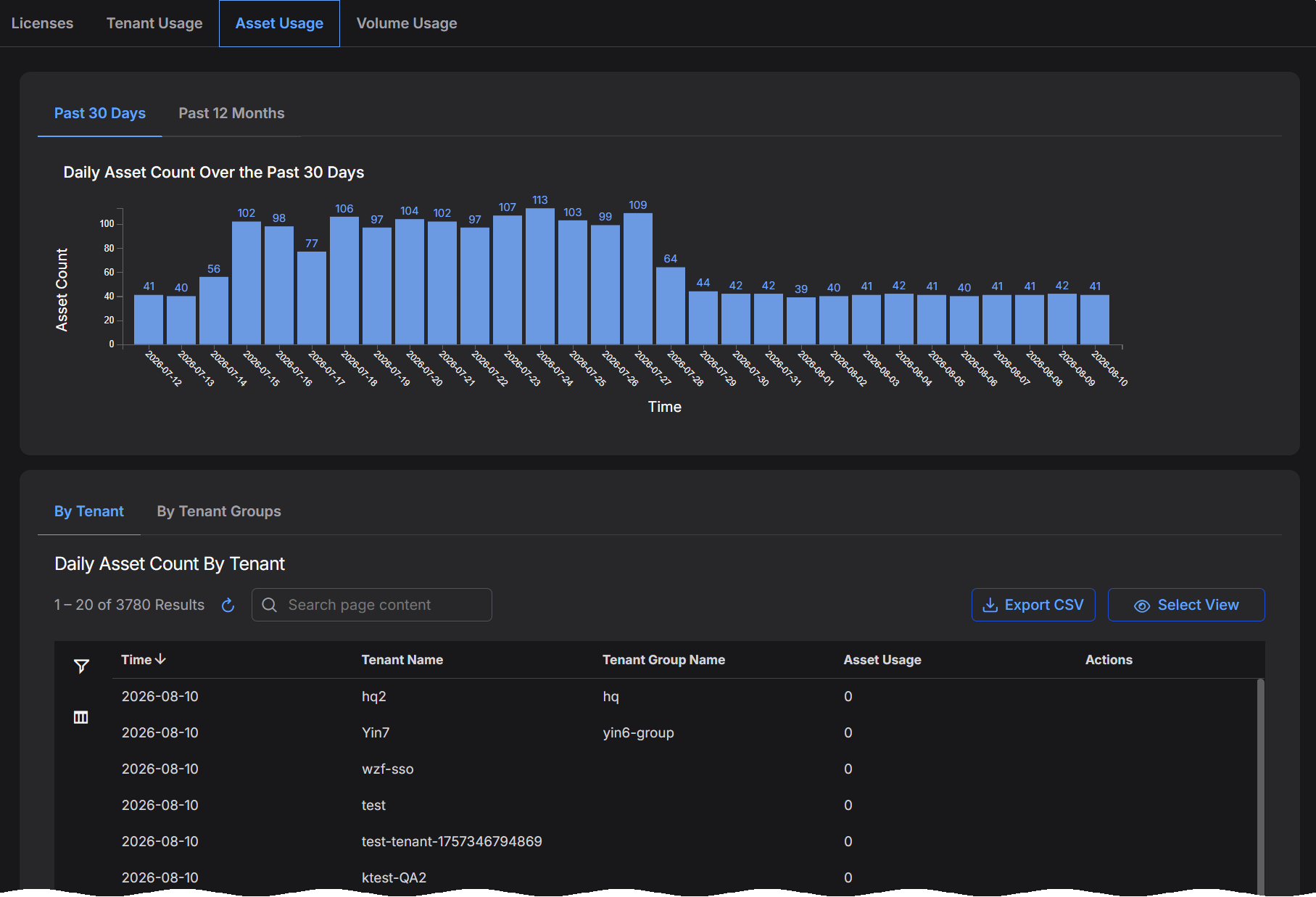
The table beneath the chart breaks out the same data by tenant, with separate tabs that let you view asset usage By Tenant or By Tenant Groups. The table title reflects the view you selected — Daily Asset Count By Tenant or Monthly Asset Count By Tenant — and its columns report the time period, tenant name, tenant group name, and asset usage. Select Export CSV to download the contents of the table.
Each entry with a non-zero count includes a View Assets action in the Actions column that pops up an Asset Details view filtered on the Assets index for the selected tenant and time range. This gives you an easy way to see the exact assets counted for licensing purposes in a given window of time.
Refer to Understanding Asset-Based Licensing for details on how assets are discovered, managed, and counted for licensing purposes.
Using the Volume Usage Tab
The Volume Usage tab shows you the data volume consumed for licensing purposes by the top tenants in your organization. Separate tabs let you view volume usage by tenant for the Past 30 Days or the Past 12 Months.
Keep in mind that licensing volume is different than ingestion:
Ingestion – Ingestion refers to the quantity of data sent by connectors and sensors to the DP prior to enrichment and compression.
Licensing Volume – Once data arrives at the DP, it undergoes additional enrichment and compression before it is stored on disk in the DP. Licensing volume refers to the quantity of actual data stored on disk, post-enrichment and compression. These are the counts used for licensing purposes.
Because of this distinction, the byte counts shown in the System | ORGANIZATION MANAGEMENT | Licensing | Volume Usage tab will not match those shown in the Dashboards | PREDEFINED | Ingestion Dashboard.
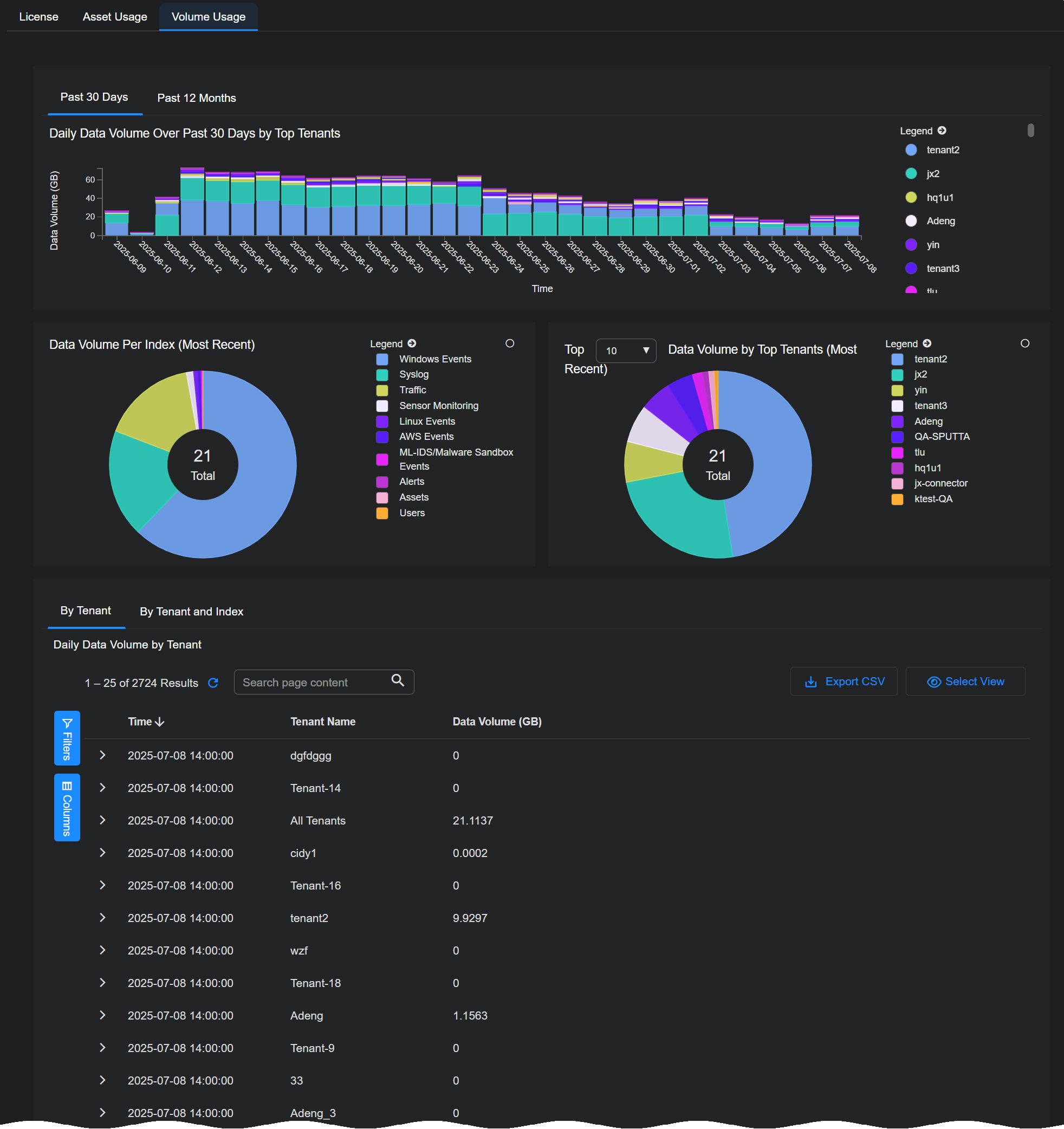
The Daily Data Volume table at the bottom provides similar information on a daily basis. Separate tabs let you see daily data volume By Tenant or By Tenant and Index.
Sorting the table by tenant makes it easy to see trends for each tenant.
Volume Usage Calculations Require 24 Hours for Completion
Keep in mind that it takes 24 hours to complete the volume usage calculations for a given UTC day. When a day ends in UTC time, its volume calculations are not final and may show small changes until the end of the next day in UTC time.
For example, consider the day of March 15, 2023. Stellar Cyber shows ingestion values for this day as soon as it concludes in UTC time. However, those values can and will show small changes for another 24 hours and are not complete until the end of March 16, 2023 in UTC time.
