Licensing Overview
This page provides an overview of Stellar Cyber licensing, as well as details on how to use the tabs in System | ORGANIZATION MANAGEMENT | Licensing to keep track of it. See the following sections for details:
Only users with Root scope can see and work with the tabs in the Licensing page.
About Stellar Cyber Licenses
Stellar Cyber services are provided using licenses. The fundamental license is a platform license for your organization that can be purchased using either a volume-based license or an asset-based usage license:
- Volume – The license allows you to ingest a specified amount of data per day.
- Assets – The license allows you a specified number of daily active assets.
Each of these licenses are applied across all tenants in your organization, regardless of their region.
Supplemental Licenses
In addition to the platform license, you also purchase the following supplemental licenses, depending on your needs:
-
Security Sensor Licenses – Security Sensor licenses allow you to manage a specified number of active sensors, broken down by speed (100 MB and 1,000 MB). A Security Sensor can be either a Modular Sensor with Security features enabled in its profile (IDS and/or Malware Sandbox) or a Security device sensor.
-
Support License – The Support license provides the following:
-
IDS signature updates
-
Threat intelligence updates
-
Access to the Malware Sandbox service
-
Sensor software updates
-
-
Add-on Licenses – Add-on licenses enable specific supplemental features on the Stellar Cyber Platform beyond the base deployment. Each add-on license is tied to a particular capability (such as Auto-Triage Phishing) and includes the license type (production or trial), its current status, and an expiration period.
About License Compliance Notifications
Every day, Stellar Cyber runs a report on the license usage for the previous day for your organization. Depending on the results, you might see different notification banners in the Stellar Cyber user interface. In addition, the account admin registered for your organization at the time of purchase receives an email each time there is a state change between the different compliance levels. Refer to Understanding License Compliance for details on the different compliance states, as well as tips you can use to stay in compliance.
Notification banners for license warnings and violations are visible only to users with Root scope and either the Super Admin or Platform Admin role assigned.
Using the Licensing Page
Users with Root scope can use the Licensing page to keep track of all aspects of license provisioning and usage across your organization and its tenants. The Licensing page contains the following tabs:
-
Licenses tab (described in this section)
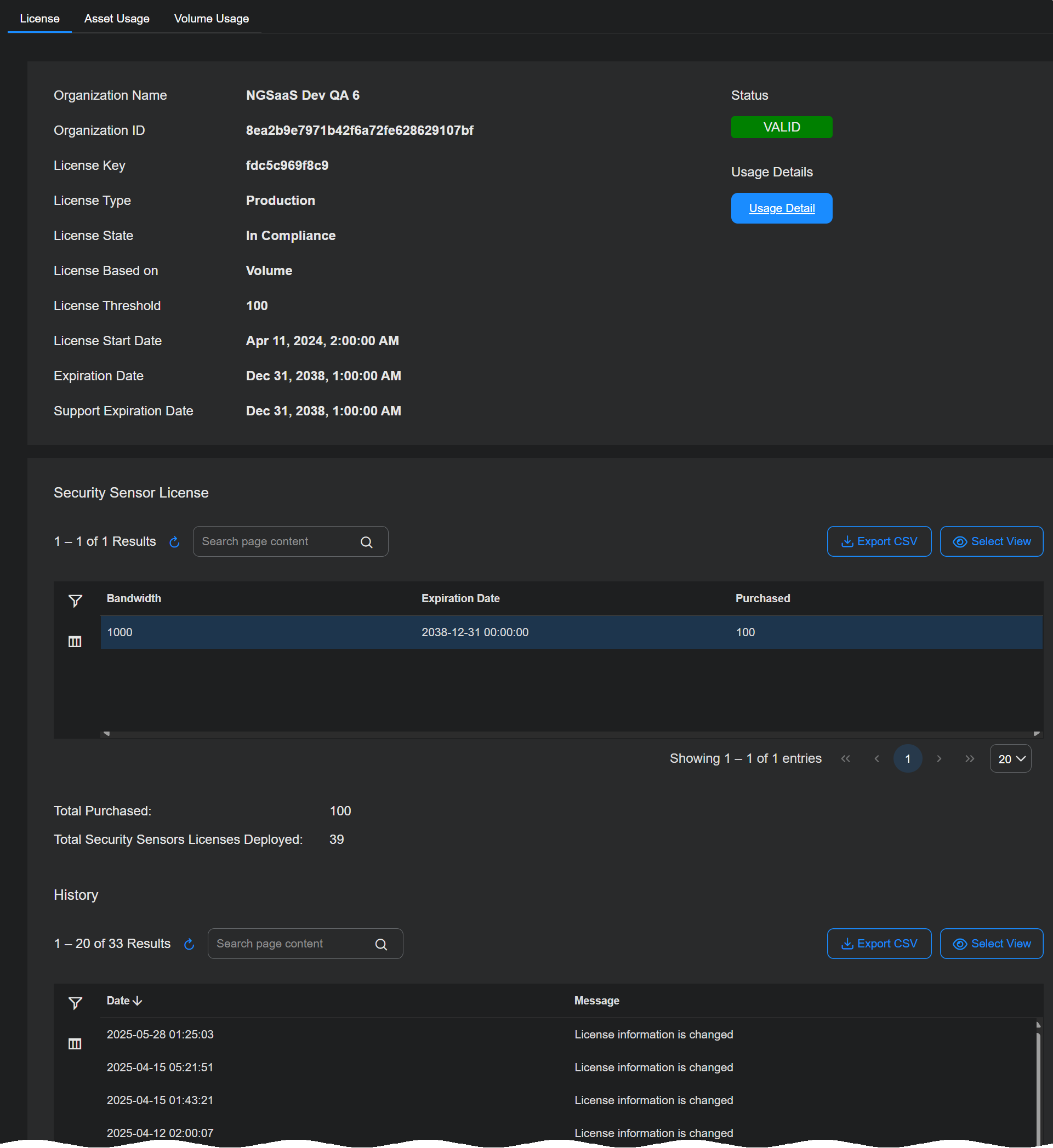
The Licenses tab appears when you first display the System | ORGANIZATION MANAGEMENT | Licensing page. As illustrated below, it provides separate sections with a summary of the Stellar Cyber Platform license settings and status, Security Sensor license usage, and a History of all events related to changes in license status or usage.
License Summary
The Licenses tab provides the following information for the Platform license:
-
Organization Name – The name provided for your organization when you registered with Stellar Cyber.
-
Organization ID – The internal ID assigned to your organization when you registered with Stellar Cyber.
-
License Key – The license key assigned to your organization when you registered with Stellar Cyber.
-
License Type – The type of license. In most cases, this will be Production, indicating a regular, paid license. Options also exist for Trial and QA.
-
License State – The state of compliance for your Platform license at the time of the daily license report for the previous day's activities. For both asset-based and volume-based licenses, the compliance state can be any of the following:
License State
Trigger
Result
In Compliance Activity is within license limits Good vibes. Warning License limit has been exceeded by more than 10% for three days in a row Removable warning banner. Violation License limit has been exceeded by more than 10% for seven days in a row Non-removable violation banner. Email sent to account admin. Out of Compliance License limit has been in a violation state for more than 21 days Services cease. License bill sent to cover ingestion trends since first violation. Refer to Understanding License Compliance for details on bill calculation. Refer to Understanding License Compliance for details on the different compliance states, including consequences and tips you can use to stay in compliance.
-
License Threshold – Specifies the daily limit of either assets (quantity) or ingestion (in GB) for your Platform license.
-
License Allocated (Root level only) – Shows the amount of licensed capacity that is assigned to tenants (Allocated). Allocations are measured in the same units as the License Threshold. Allocated capacity can exceed the License Threshold if you intentionally over-subscribe.
-
License Start Date – The date your organization's Platform license took effect.
-
Expiration Date – The date your organization's Platform license expires.
-
Support Expiration Date – The date that the Support license for your organization expires. Stellar Cyber continues to operate without a Support license, but features that use definition updates are no longer updated (Threat Intelligence and IDS signatures). Similarly, sensor software is no longer updated and the Malware Sandbox is no longer available.
In addition, the License Summary includes a color-coded Status button that lets you see at a glance the current state of your Platform License, and a Usage Details button that takes you to the Usage tab corresponding to your Platform license type (Asset Usage or Volume Usage).
Security Sensor License
The Security Sensor License table lists the current status of your licenses for Security Sensors, including the number purchased, their expiration dates, and the number in use. Keep in mind the following:
-
Licenses are broken out by Bandwidth. There are separate entries for 100 Mbps and 1,000 Mbps Security Sensors.
-
Security Sensors can be either physical Device sensors or Modular Sensors with Security features enabled in their Modular Sensor Profile (IDS and/or Malware Sandbox).
-
You can see which of your Sensors are Security Sensors in the System | DATA SOURCE MANAGEMENT | Sensors | Sensors list.
Add-on Licenses
The Add-on Licenses section appears on the Licenses tab. This section lists all add-on licenses associated with your deployment and provides visibility into their type, status, and expiration. Each add-on license can be expanded to show detailed usage metrics.
The information in this section is read-only. You can use it to monitor license allocation and expiration, but you cannot edit or reassign license capacity directly here.
When collapsed, the table displays the following information for each license:
-
License Name: The feature associated with the add-on license, such as Auto-Triage Phishing.
-
Type: Indicates whether the license is a Production or Trial license.
-
Status: Shows the compliance state of the license, such as In Compliance or Warning.
-
Expires: Displays the license expiration date.
When expanded, each license reveals its capacity and utilization details. For example, an Auto-Triage Phishing license might show a capacity of 1,000 inboxes with 940 inboxes deployed, corresponding to 94% utilization. These details let you assess license usage at a glance and determine whether additional capacity is required.
Auto-Triage for User-Reported Phishing Email – Licensing Model
Licensing for the Auto-Triage for User-Reported Phishing Email feature is based on the number of protected mailboxes. In MSSP deployments, the license is purchased as a shared mailbox capacity pool at the platform level. This pool defines the total number of mailboxes that the phishing auto-triage service can protect across all tenants managed by the MSSP within the Stellar Cyber Platform.
An MSSP purchases a fixed number of mailbox licenses, such as 1,000 mailboxes, which are available to the entire deployment. All tenants share this capacity pool. When you enable the feature for a tenant, every mailbox configured for phishing reporting in that tenant consumes licenses from the shared pool. Stellar Cyber does not support allocating or reserving mailbox capacity for individual tenants.
Because tenant-level allocation is not available, mailbox consumption operates on an all-or-nothing model. After you enable the feature for a tenant, all configured mailboxes count against the shared mailbox pool in the Stellar Cyber Platform.
How to find the number of inboxes in Microsoft 365 / Exchange
To size the Phishing Email Auto-Triage add-on license, Stellar Cyber requires the total number of mailboxes (inboxes) in your Microsoft 365 tenant. This information is available in the Microsoft Exchange Admin Center. Navigate to Recipients | Mailboxes, where the list view shows all user mailboxes in the tenant. The total count of mailboxes represents the number of inboxes to be covered by the Auto-Triage Phishing license. Provide this number to your Stellar Cyber sales representative for proposal sizing. Once licensed, this capacity and usage will be reflected in the Add-on Licenses section.
History
The History table tracks any changes in license status, including application of new licenses, expirations, and transitions in state of compliance.
Using the Tenant Usage Tab
The Tenant Usage tab (System | ORGANIZATION MANAGEMENT | Licensing) displays usage metrics by tenant and is divided into two sections:
-
General License: See an overview of license utilization by tenant, including the tenant name, tenant group, and the total usage volume. You can view and manage how the licensed capacity for your Platform license is distributed among tenants. The volume usage shown here comes from the License Threshold in the Licenses tab.
-
Auto-Triage Phishing: See more granular information about mailbox coverage for phishing detection. The table lists each tenant, its assigned tenant group, and the number and percentage of inboxes used relative to total capacity. This helps you understand how auto-triage phishing licenses are being consumed across tenants.
The data in this tab is read-only and updated automatically based on system activity.
General License Table
The following are the columns that appear in the Tenant Allocation table:
-
Tenant Name – Name of the tenant.
-
Tenant Group – Tenant group that the tenant belongs to.
-
Volume Usage – The actual daily usage for the tenant.
Auto-Triage Phishing Table
The Auto-Triage Phishing table shows mailbox utilization details for each tenant using the Auto-Triage Phishing feature. The table includes the following columns:
-
Tenant: The name of the tenant with active mailbox coverage.
-
Tenant Group: The name of the tenant group with active mailbox coverage.
-
Inbox Usage: The number and percentage of inboxes used compared to the licensed capacity.
This table lets you monitor how mailbox coverage is distributed across tenants. The usage percentage helps identify tenants that are approaching their capacity limits or underutilizing available inboxes. The information is read-only and updates automatically based on mailbox usage data that Stellar Cyber collects.
Using the Asset Usage Tab
The Asset Usage tab shows you the daily maximum active assets over the preceding 30 days. If you have an asset-based license, your license limit is based on that average.
As shown in the image below, separate tabs in the Daily Asset Count By Tenant table let you view asset usage By Tenant or By Tenant Groups.
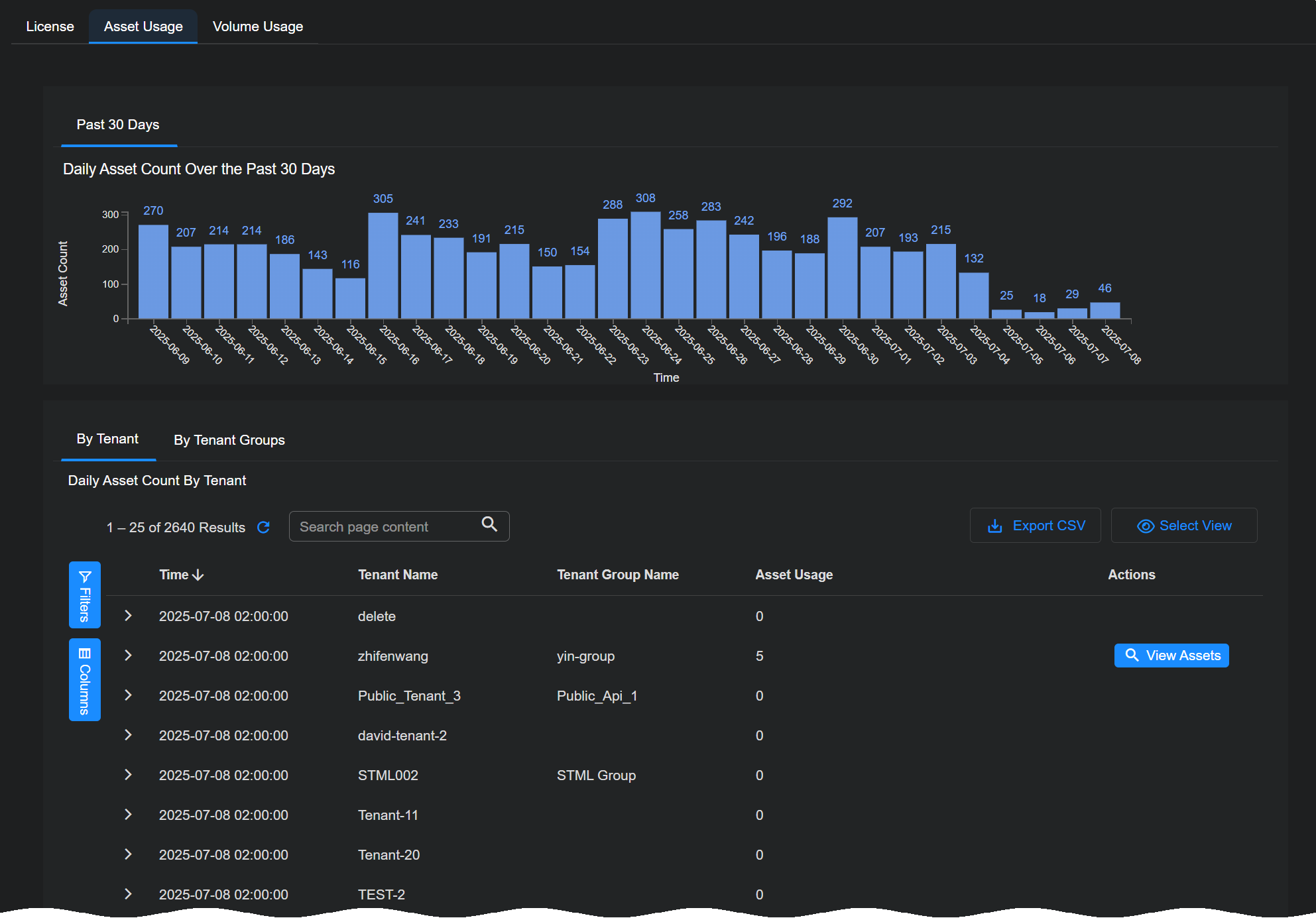
Each entry in the Daily Asset Count By Tenant table includes a View Assets button that pops up an Asset Details view filtered on the Assets index for the selected tenant and time range. This gives you an easy way to see the exact assets counted for licensing purposes in a given window of time.
Refer to Understanding Asset-Based Licensing for details on how assets are discovered, managed, and counted for licensing purposes.
Using the Volume Usage Tab
The Volume Usage tab shows you the data volume consumed for licensing purposes by the top tenants in your organization. Separate tabs let you view volume usage by tenant for the Past 30 Days or the Past 12 Months.
Keep in mind that licensing volume is different than ingestion:
Ingestion – Ingestion refers to the quantity of data sent by connectors and sensors to the DP prior to enrichment and compression.
Licensing Volume – Once data arrives at the DP, it undergoes additional enrichment and compression before it is stored on disk in the DP. Licensing volume refers to the quantity of actual data stored on disk, post-enrichment and compression. These are the counts used for licensing purposes.
Because of this distinction, the byte counts shown in the System | ORGANIZATION MANAGEMENT | Licensing | Volume Usage tab will not match those shown in the Dashboards | PREDEFINED | Ingestion Dashboard.
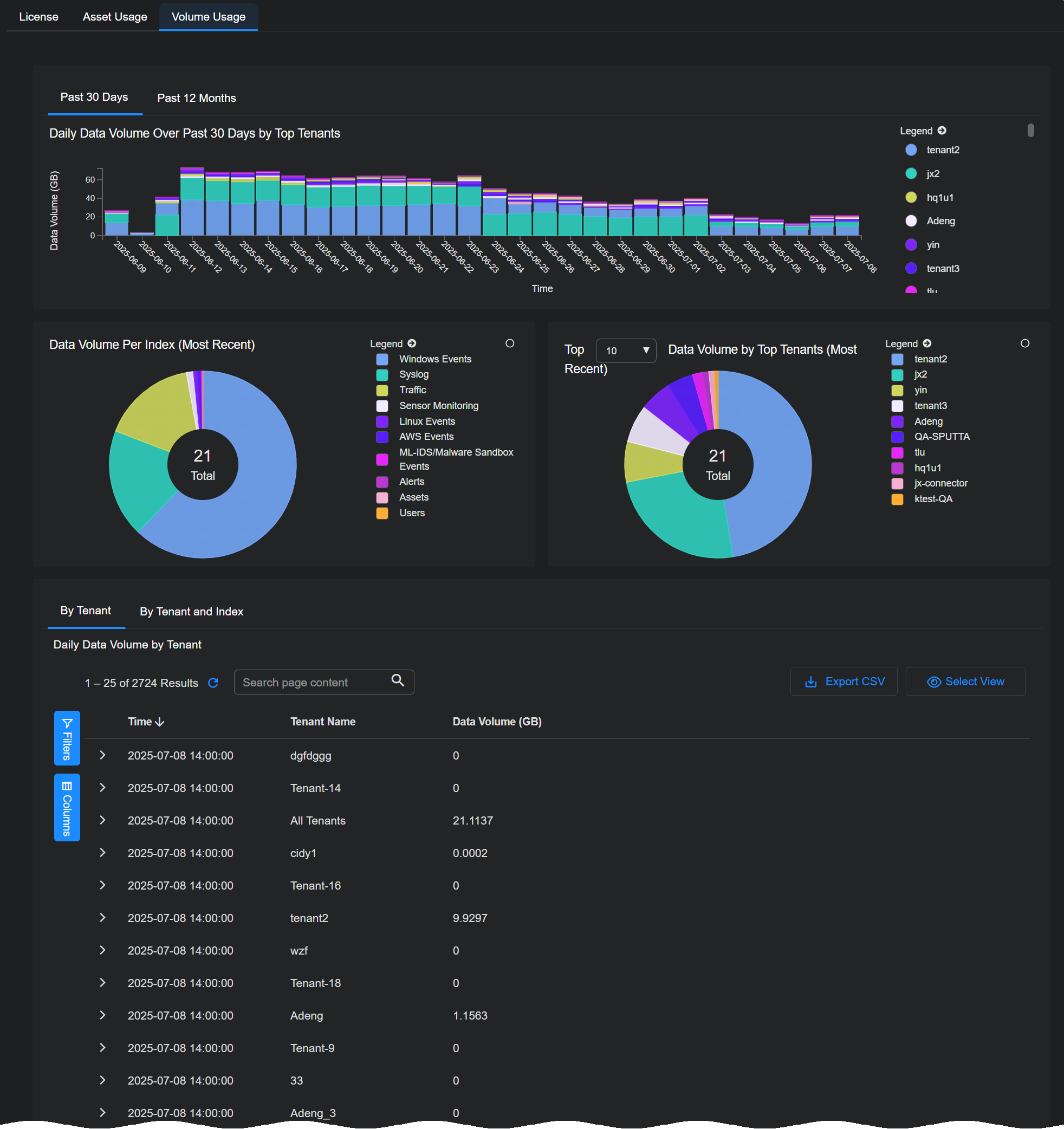
The Daily Data Volume table at the bottom provides similar information on a daily basis. Separate tabs let you see daily data volume By Tenant or By Tenant and Index.
Sorting the table by tenant makes it easy to see trends for each tenant.
Volume Usage Calculations Require 24 Hours for Completion
Keep in mind that it takes 24 hours to complete the volume usage calculations for a given UTC day. When a day ends in UTC time, its volume calculations are not final and may show small changes until the end of the next day in UTC time.
For example, consider the day of March 15, 2023. Stellar Cyber shows ingestion values for this day as soon as it concludes in UTC time. However, those values can and will show small changes for another 24 hours and are not complete until the end of March 16, 2023 in UTC time.
