Adding a Snowflake Data Sink 
You must have Root scope to use this feature.
You can add a Snowflake Data Sink from the System | DATA MANAGEMENT | Data Sinks page using the instructions in this topic.
Adding a Snowflake Data Sink requires you to complete several configuration steps in your Snowflake environment and then supply the required connection information in Stellar Cyber. The recommended approach is to open two browser windows, one connected to Stellar Cyber and the other to your Snowflake environment, so that you can copy required values directly from Snowflake and paste them into Stellar Cyber.
Summary of Required Information from Snowflake
Before you add the Snowflake Data Sink in Stellar Cyber, you must complete the following tasks in your Snowflake environment:
-
Create the required role, database, schema, and service account, and grant the service account the required privileges to create and manage ingestion-related objects in the
STELLARCYBERdatabase and schema (a logical container for tables and related objects). -
Generate an RSA key pair, including a private key and a public key, and assign the public key to the Snowflake service account.
-
Initialize the required tables in the
STELLARCYBER.DEFAULTschema to store the data that Stellar Cyber sends to Snowflake. -
Grant the service account permission to access schemas and read from and write to tables in the STELLARCYBER database
You must confirm that all of these steps are complete before configuring the data sink in Stellar Cyber.
Prepare the Snowflake Environment
This section describes how to prepare your Snowflake environment for use with a Snowflake Data Sink.
Create the Role, Database, Schema, and Service Account
Log in to Snowflake and open an SQL worksheet. Run the following commands to create the required role, database, schema, and service account.
CREATE ROLE stellarcyber_connector;

CREATE DATABASE STELLARCYBER;
CREATE SCHEMA STELLARCYBER.DEFAULT;

GRANT USAGE ON DATABASE STELLARCYBER TO ROLE stellarcyber_connector;
GRANT USAGE ON SCHEMA STELLARCYBER.DEFAULT TO ROLE stellarcyber_connector;
GRANT USAGE ON WAREHOUSE COMPUTE_WH TO ROLE stellarcyber_connector;

GRANT CREATE TABLE ON SCHEMA STELLARCYBER.DEFAULT TO ROLE stellarcyber_connector;
GRANT CREATE STAGE ON SCHEMA STELLARCYBER.DEFAULT TO ROLE stellarcyber_connector;
GRANT CREATE PIPE ON SCHEMA STELLARCYBER.DEFAULT TO ROLE stellarcyber_connector;

CREATE USER stellarcyber_service_account
  DEFAULT_ROLE = stellarcyber_connector
  DEFAULT_WAREHOUSE = COMPUTE_WH
  MUST_CHANGE_PASSWORD = FALSE
  COMMENT = 'Service account for Stellar Cyber Snowflake data ingestion';

GRANT ROLE stellarcyber_connector TO USER stellarcyber_service_account;
The commands above perform the following actions:
-
Create a dedicated Snowflake role named
stellarcyber_connectorthat's used exclusively for data ingestion from Stellar Cyber. -
Create the
STELLARCYBERdatabase and theDEFAULTschema that store data sent through the Snowflake Data Sink. -
Grant the
stellarcyber_connectorrole permission to use theSTELLARCYBERdatabase, theDEFAULTschema, and the specified Snowflake warehouse. These permissions allow the service account to execute queries and perform ingestion operations. -
Grant the
stellarcyber_connectorrole permission to create tables, stages, and pipes in theSTELLARCYBER.DEFAULTschema. These privileges provide the required administrative access for Stellar Cyber to manage ingestion-related objects and write data into Snowflake. -
Create a Snowflake user account that serves as the Stellar Cyber service account and assign
stellarcyber_connectoras its default role.
Together, these steps ensure that the Snowflake service account has the required scoped privileges to receive data from Stellar Cyber without granting broader account-level administrative access.
Generate and Assign the RSA Key Pair
Generate an RSA key pair on a secure system. The private key must be an unencrypted PEM-formatted RSA private key.
Example commands:
openssl genpkey -algorithm RSA -out private_key.pem -pkeyopt rsa_keygen_bits:2048
openssl rsa -in private_key.pem -pubout -out public_key.pem
openssl rsa -in private_key.pem -out private_key_unencrypted.pem
Assign the public key to the Snowflake service account by running the following command in Snowflake, replacing the key value with the contents of the public key file:
ALTER USER stellarcyber_service_account
SET RSA_PUBLIC_KEY = '<public_key_contents>';
See the Snowflake key-pair authentication documentation for details on generating and assigning keys.
Initialize Required Tables
Using the same Snowflake SQL worksheet you created previously, add the required tables that Stellar Cyber uses to store the data it sends to Snowflake through the Snowflake Data Sink. These are the database tables in Snowflake that will receive data sent by Stellar Cyber. Stellar Cyber does not create these tables automatically. The tables must exist before Stellar Cyber can write any data to Snowflake.
Stellar Cyber writes JSON-based data to tables in the STELLARCYBER.DEFAULT schema. Each table corresponds to a specific data type selected when configuring the data sink, such as Raw Data, Alerts, Assets, or Users. These tables store ingested records in a semi-structured format to support flexible querying and downstream analytics.
Create the required tables by running CREATE TABLE statements in Snowflake. Each table must include a column of type VARIANT to store the ingested record, along with a timestamp column to record when the data was received. The following example shows how to create tables for all supported data types:
create or replace TABLE STELLARCYBER.DEFAULT.ADE (
    DOC VARIANT,
    TIMESTAMP TIMESTAMP_NTZ(9),
    TENANTID VARCHAR(1024)
);
create or replace TABLE STELLARCYBER.DEFAULT.ADR (
    DOC VARIANT,
    TIMESTAMP TIMESTAMP_NTZ(9),
    TENANTID VARCHAR(1024)
);
create or replace TABLE STELLARCYBER.DEFAULT.ASSETS (
    DOC VARIANT,
    TIMESTAMP TIMESTAMP_NTZ(9),
    TENANTID VARCHAR(1024)
);
create or replace TABLE STELLARCYBER.DEFAULT.AUDIT (
    DOC VARIANT,
    TIMESTAMP TIMESTAMP_NTZ(9),
    TENANTID VARCHAR(1024)
);
create or replace TABLE STELLARCYBER.DEFAULT.CLOUDTRAIL (
    DOC VARIANT,
    TIMESTAMP TIMESTAMP_NTZ(9),
    TENANTID VARCHAR(1024)
);
create or replace TABLE STELLARCYBER.DEFAULT.MALTRACE (
    DOC VARIANT,
    TIMESTAMP TIMESTAMP_NTZ(9),
    TENANTID VARCHAR(1024)
);
create or replace TABLE STELLARCYBER.DEFAULT.PERF (
    DOC VARIANT,
    TIMESTAMP TIMESTAMP_NTZ(9),
    TENANTID VARCHAR(1024)
);
create or replace TABLE STELLARCYBER.DEFAULT.SCAN (
    DOC VARIANT,
    TIMESTAMP TIMESTAMP_NTZ(9),
    TENANTID VARCHAR(1024)
);
create or replace TABLE STELLARCYBER.DEFAULT.SER (
    DOC VARIANT,
    TIMESTAMP TIMESTAMP_NTZ(9),
    TENANTID VARCHAR(1024)
);
create or replace TABLE STELLARCYBER.DEFAULT.SIGNALS (
    DOC VARIANT,
    TIMESTAMP TIMESTAMP_NTZ(9),
    TENANTID VARCHAR(1024)
);
create or replace TABLE STELLARCYBER.DEFAULT.SYSLOG (
    DOC VARIANT,
    TIMESTAMP TIMESTAMP_NTZ(9),
    TENANTID VARCHAR(1024)
);
create or replace TABLE STELLARCYBER.DEFAULT.USERS (
    DOC VARIANT,
    TIMESTAMP TIMESTAMP_NTZ(9),
    TENANTID VARCHAR(1024)
);
create or replace TABLE STELLARCYBER.DEFAULT.WINEVENTLOG (
    DOC VARIANT,
    TIMESTAMP TIMESTAMP_NTZ(9),
    TENANTID VARCHAR(1024)
);
Ensure that all required tables are created successfully and confirm that the Snowflake service account has permission to insert data into each table in the STELLARCYBER.DEFAULT schema. These tables must exist before you configure the Snowflake Data Sink configuration in Stellar Cyber.
Grant Permissions for the STELLARCYBER Database
The privileges granted previously allow the service account to create and manage ingestion-related objects. The following permissions are also required to allow the service account to access schemas and read from and write to tables in the STELLARCYBER database.
These grants provide the Snowflake service account with the following capabilities:
-
Access all existing and future schemas in the
STELLARCYBERdatabase. -
Read metadata and table definitions.
-
Insert data into both existing and newly created tables.
Without these permissions, Stellar Cyber cannot reliably discover tables or write data to Snowflake.
GRANT USAGE ON DATABASE STELLARCYBER TO ROLE STELLARCYBER_CONNECTOR;

GRANT USAGE ON ALL SCHEMAS IN DATABASE STELLARCYBER TO ROLE STELLARCYBER_CONNECTOR;
GRANT USAGE ON FUTURE SCHEMAS IN DATABASE STELLARCYBER TO ROLE STELLARCYBER_CONNECTOR;

GRANT SELECT ON ALL TABLES IN DATABASE STELLARCYBER TO ROLE STELLARCYBER_CONNECTOR;
GRANT SELECT ON FUTURE TABLES IN DATABASE STELLARCYBER TO ROLE STELLARCYBER_CONNECTOR;

GRANT INSERT ON ALL TABLES IN DATABASE STELLARCYBER TO ROLE STELLARCYBER_CONNECTOR;
GRANT INSERT ON FUTURE TABLES IN DATABASE STELLARCYBER TO ROLE STELLARCYBER_CONNECTOR;
Ensure that all commands complete successfully before continuing with the Snowflake Data Sink configuration in Stellar Cyber.
Add the Snowflake Data Sink in Stellar Cyber
After the Snowflake environment is prepared, add the Snowflake Data Sink in Stellar Cyber.
Open the Data Sink Configuration
-
Log in to Stellar Cyber.
-
Navigate to System | DATA MANAGEMENT | Data Sinks.
The Data Sink list appears.
-
Select + Create.
The Data Sink panel appears with the General tab displayed.
Configure the General Settings
-
Enter a Name for the data sink.
This field does not support multibyte characters.
-
Set Type to Snowflake.
-
Review the confirmation checklist displayed on the panel and confirm that all required Snowflake steps are complete and then select I confirm I have completed all the above steps.
-
Enter the Instance URL for your Snowflake account; for example:
https://<account>.snowflakecomputing.com -
Enter the Account Name exactly as defined in Snowflake.
-
Enter the Username for the Snowflake service account; for example
stellarcyber_service_account -
Paste the unencrypted RSA Private Key in PEM format.
-
Select Next.
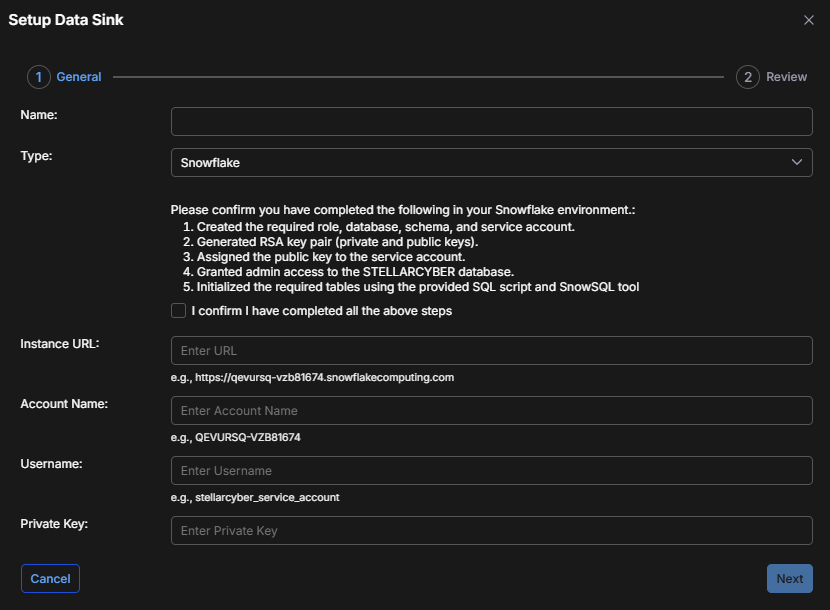
After you select Next, Stellar Cyber validates connectivity and credentials using the information you provided.
-
If Stellar Cyber cannot connect to Snowflake, an error message appears and you must correct the configuration.
-
If validation succeeds, the Review tab appears.
Review and Submit
The Review tab displays a read-only summary of the Snowflake Data Sink configuration.
-
Review all configuration values.
-
If changes are required, select Back to return to the General settings.
-
When the configuration is correct, select Submit.
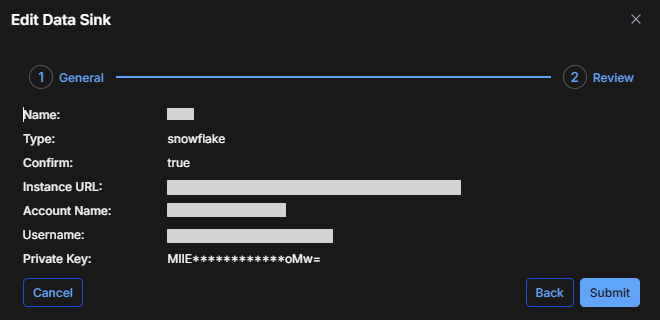
The new Snowflake Data Sink is added to the Data Sink list and begins sending data to Snowflake.
