Windows Server Sensor Deployment Tools (MSI and MST Files)
This topic describes how to use the Windows tab in the System | DATA SOURCE MANAGEMENT | Sensors | Agents page to deploy Windows Server Sensors by creating a custom MSI or MST file.
Refer to Deploying Linux Server Sensors Using Ansible for information on using the options in the Linux tab to deploy Linux Server Sensors using an Ansible playbook.
Windows Deployment Options
The figure below shows the Windows tab in the System | DATA SOURCE MANAGEMENT | Sensors | Agents page.
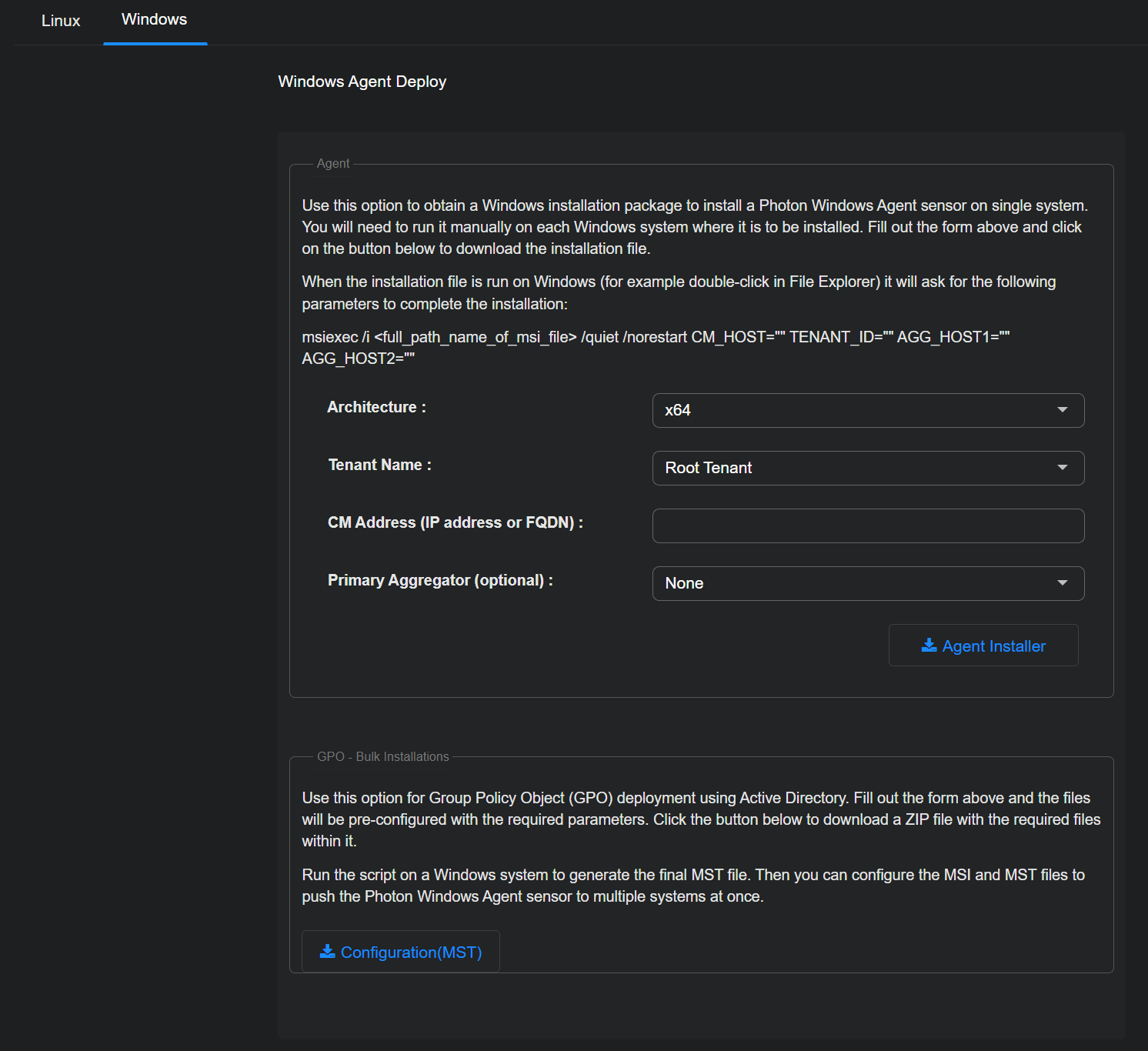
There are two independent functions on this page.
- Agent – This section configures an MSI image and downloads it to the local browser environment as an MSI file.
- GPO - Bulk Installations – This section downloads an MST image to the local browser environment which can be used in a Windows Active Directory installation.
Agent
Supply the following information to download a customized Agent installer:
- Architecture – Only 64-bit is supported.
- Tenant Name – The Tenant to which the sensor will be assigned.
- CM Address – This field accepts either an IP address or a DNS address of the Data Processor. The installed sensor will connect to this address.
- Primary Aggregator (optional) – Select an optional primary aggregator to be used for this Server Sensor, if any. The dropdown list includes all configured aggregators.

- Secondary Aggregator (optional) – This field appears if you select a primary aggregator. You use it to select an optional secondary aggregator to be used for this Server Sensor, if any. The dropdown list includes all configured aggregators except for the one selected as the primary aggregator.
When the form values are set, you can select the Agent Installer button. The MSI installation file will be downloaded into the download directory in the browser environment.
The form values Tenant Name and CM Address update the instructions that appear on the screen in the section. Specifically the Tenant ID number is provided, which is needed when the agent is installed.
The downloaded file can then be transferred to a target system and either executed by double-clicking it in the File Explorer or from a command line such as the one that follows.
msiexec /i <full_path_name_of_msi_file> /quiet /norestart CM_HOST=myportal.mydomain.com TENANT_ID=62802740 TENANT_NAME=CompanyABCD
See the Windows Agent installation page for more information on working with these files.
Arguments for Command Line Installations Using msiexec
You can use the following arguments when installing the Windows Server Sensor using msiexec. As indicated in the table below, all supplied values must be enclosed in quotation marks.
|
Argument (Short) |
Description |
|---|---|
CM_HOST=
|
Optional. You can use this argument to specify the IP address of the managing Stellar Cyber DP for this server sensor. Alternatively, you can do it after sensor installation using the instructions in Configuring the Server Sensor in the CLI. |
|
|
Optional. You can use this argument to specify the tenant ID for this server sensor. Alternatively, you can do it after sensor installation using the instructions in Configuring the Server Sensor in the CLI. |
|
|
Optional. You can use these arguments to specify the primary and secondary aggregators for this server sensor. Alternatively, you can do it after sensor installation using the instructions in Configuring the Server Sensor in the CLI. |
|
|
Optional. You can use this argument to specify the HTTP proxy used by the server sensor's host system, if any. If you do not specify a value for this option, the installation script attempts to determine if the host is using an HTTP proxy and automatically uses the IP address it locates, if successful. |
GPO - Bulk Installations
This section provides no options. You can click the Configuration(MST) button to download the MST file into the browser environment's local download folder.
Refer to the Microsoft Active Directory Administrator's manual for further information on working with MST files.
Windows Server Sensor Installation Directory
The Windows Server Sensor is always installed to C:\Program Files\Aella\. Custom paths are not supported. Silent installations and scripts ignore path parameters such as INSTALLDIR and TARGETDIR.
