Parser Studio – Log Sources 
Root-level users, partners, and tenant users
The Log Sources tab in Parser Studio (System | DATA SOURCE MANAGEMENT | Parser Studio | Log Sources) lets you map logs arriving from specified IP addresses on ports 514, 6514, or 443 to their matching vendor-specific parsers on the sensor.
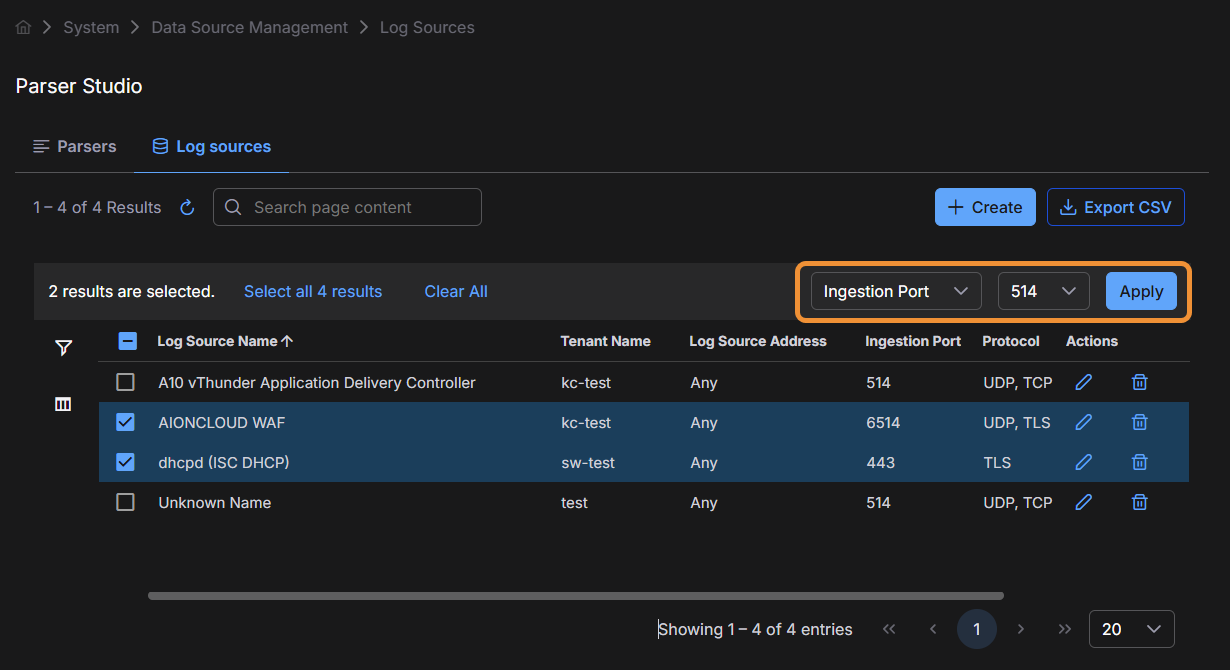
The Log Sources page lists each log source you have already configured. Each entry shows its Log Source Name, Tenant Name, Log Source Address, Ingestion Port, and transport Protocol.
Why Configure Log Sources?
It's a best practice in Stellar Cyber to send logs to their vendor-specific parsers, when available. One approach is to refer to the list of supported vendor-specific ports, point your log source to the appropriate port on the sensor IP address, and open that port in your firewall.
As an alternative, you can use the Log Sources page to configure the sensor to relay traffic arriving on the generic syslog ports of 514 (non-TLS), 6514 (TLS), or 443 (TLS) to a specific log parser internally, based on the source IP address of the traffic. This approach minimizes the ports you need to open in your firewall while still ensuring that logs reach their native parser on the sensor.
Log source entries for TLS-encrypted logs override the Syslog TLS Enabled option set on a Modular Sensor.
Port Relay Prerequisites
Keep in mind the following prerequisites when configuring port relay:
-
The sending log source must be on the same subnet as the receiving sensor.
-
There must be no proxy between the sending log source and the receiving sensor that could change the source IP address.
Meeting these requirements ensures that the sending log source's IP address matches the entries in the Log Sources table.
Creating a Log Source Entry
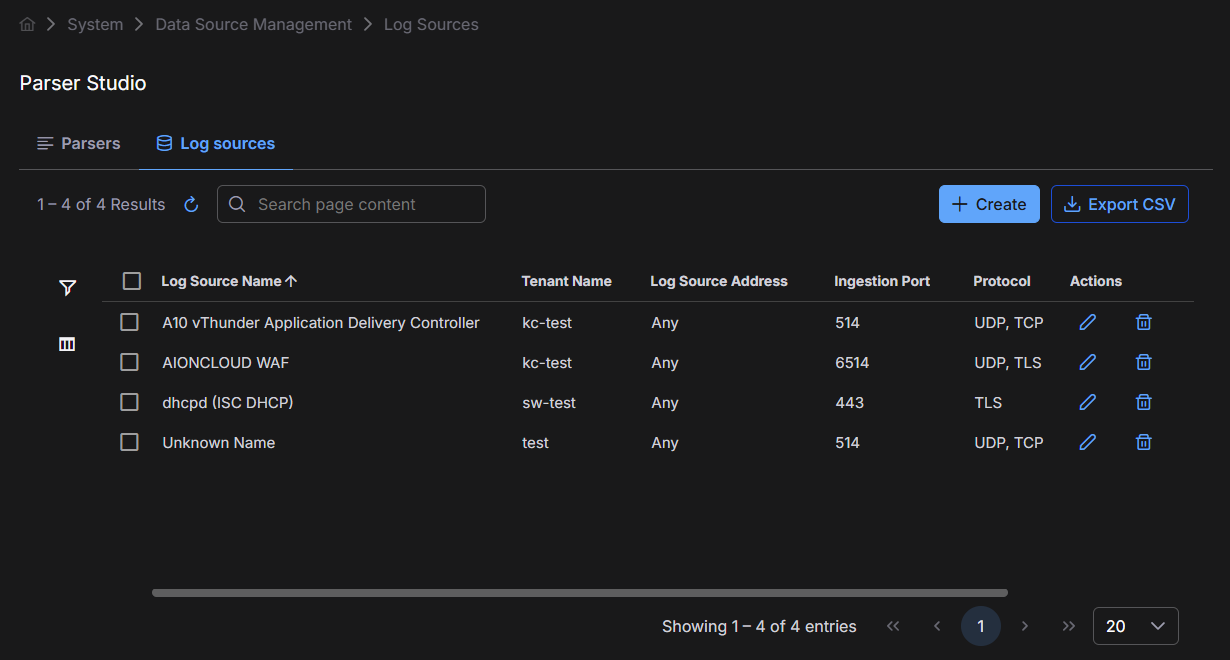
To add a new log source entry:
-
Determine the IP address of your log source.
-
Navigate to System | DATA SOURCE MANAGEMENT | Parser Studio | Log Sources and select Create.
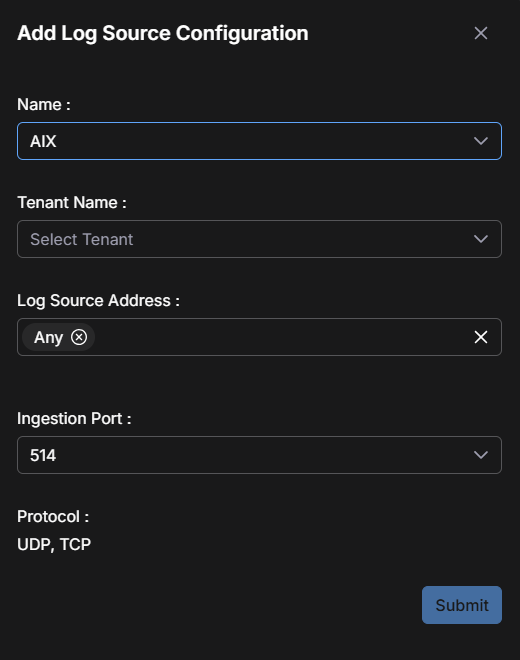
The Add Log Source Configuration dialog box appears.
-
Use the Name drop-down list to select the type of log source traffic arriving from this IP address.
Refer to the Log Parser Portstopic for a detailed list of parsers available in Stellar Cyber, along with their native ports.
-
Use the Tenant Name drop-down list to associate this entry with a specific tenant.
-
Use the Log Source Address field to supply the IP addresses for this log source type.
Note the following when configuring the IP addresses for a log source:
-
You can supply more than one IP address for a given log source type.
-
You can also use the special, catch-all Any address to direct log traffic from any IP address without an explicit entry in the Log Sources table to a specific parser.
You typically use this as a catch-all for traffic arriving at sensors on port 514, 6514, or 443 from IP addresses without explicit entries. For example, Tenant X may have entries for logs sent from several specific IP addresses. You could create a final Any entry for Tenant X that routes any remaining logs arriving at the tenant's sensors to, for example, the generic CEF parser.
The user interface does not prevent you from having a tenant with only a single Any entry in this table. In that scenario, all log traffic for the tenant on port 514, 6514, or 443 would be sent to a single parser.
-
-
Use the Ingestion Port drop-down list to specify whether this entry is for logs arriving on the standard syslog port of 514, the secure syslog port of 6514, or the secure HTTP port of 443.
The read-only Protocol field updates automatically based on the selected port:
-
UDP, TCP appears when you choose 514 as the ingestion port. The sensor listens for both UDP and TCP traffic from the specified source.
-
UDP, TLS appears when you choose 6514 as the ingestion port. The sensor accepts both UDP and TLS protocols.
-
TLS appears when you choose 443 as the ingestion port. The sensor accepts only TLS.
-
Notes on Configuring Log Sources
Be aware of the following when working with log sources:
-
The Log Sources page does not let you create more than one entry for a given IP address for the same tenant.
-
The
show logforwarder port-ingestionCLI command is a useful tool for troubleshooting port relay entries. It shows packet and byte counts for relayed traffic, helping you determine whether traffic is reaching the sensor. You can run this command in a CLI session connected directly to the sensor or in the remote CLI available from the Sensor List. For example: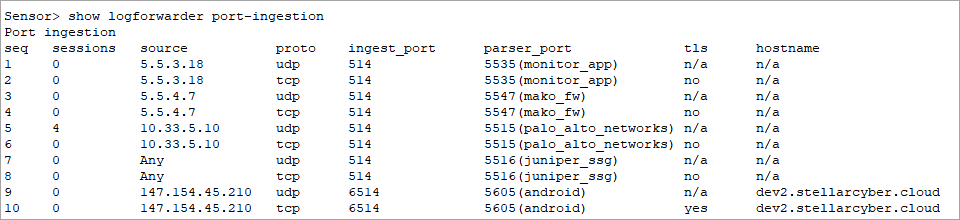
-
The Log Sources page supports standard Stellar Cyber table functionality, including edit and delete capabilities.
-
You can perform bulk edits of the ingestion port by selecting the checkboxes for multiple log sources and then using the Ingestion Port drop-down list and Apply button that appear at the top of the table.