Credential Management
The System | INTEGRATIONS | Credential Management page lets you configure third-party credentials that the Stellar Cyber Platform uses for threat enrichment. For Alert Auto Triage, the primary use is to enable integration with VirusTotal, a widely used threat intelligence provider that Alert Auto Triage queries to check the reputation of IP addresses, URLs, domains, and file hashes.
When a credential for VirusTotal is configured and assigned to a tenant, Alert Auto Triage uses it to query the VirusTotal Premium API during triage. This enhances observables—such as URLs, domains, and attachments—with additional context, increasing the accuracy and confidence of threat assessments.
A VirusTotal Premium API account is required. Free-tier API keys are not supported for Auto Triage enrichment.
Adding a VirusTotal Credential
To configure a new VirusTotal credential:
-
Navigate to System | INTEGRATIONS | Credential Management and select + Create.
-
On the Create Credential page that appears, select Create under VirusTotal.
This opens the Create Credential dialog box.
-
Enter the following and then select Create:
Name: Enter a unique, descriptive name for the credential. This name identifies the credential within the Stellar Cyber UI.
Tenant: Select the tenant to which this credential applies. If you are a super admin, you can assign the credential to All Tenants.
API Key: Enter your VirusTotal Premium API key into this field. This key is required for the Stellar Cyber Platform to perform external enrichment through VirusTotal.
A VirusTotal Premium API account is required. Free-tier API keys are not supported for Auto Triage enrichment.
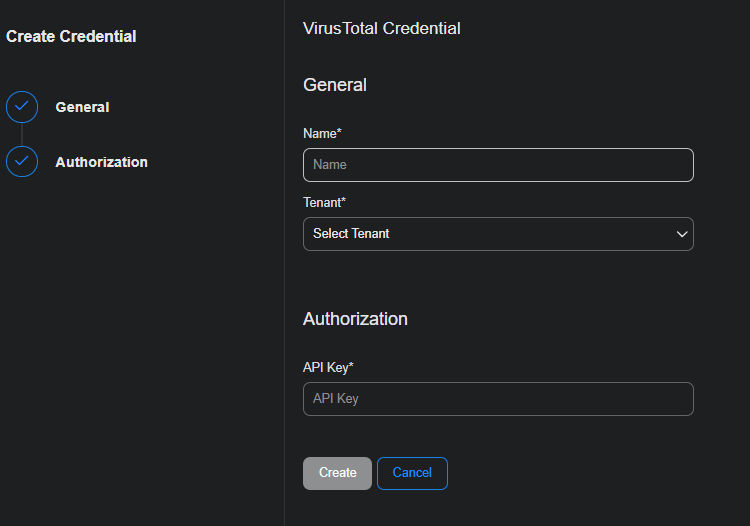
The new credential appears in the Credential Management table, and Alert Auto Triage uses it for enrichment through VirusTotal for the assigned tenant.
Using the Credential Management Table
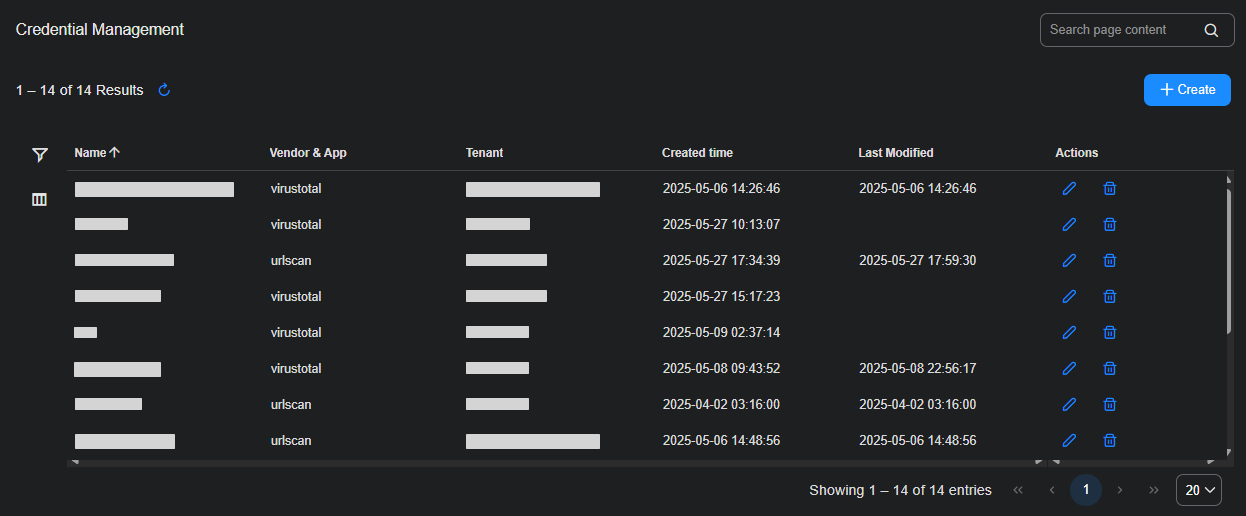
The table on the Credential Management page displays all configured credentials. Each row corresponds to one credential and includes the following columns:
-
Name: The user-defined name for the credential.
-
Vendor & App: Identifies the associated service, such as virustotal.
-
Tenant: Indicates which tenant (or All Tenants) is allowed to use the credential.
-
Created Time: Timestamp when the credential was created.
-
Last Modified: Timestamp of the most recent update to the credential.
-
Actions: Includes icons for two actions:
-
Edit: Opens the credential in a dialog to change the name, tenant, or API key.
-
Delete: Permanently removes the credential from the system.
-
Editing a Credential
To update a credential:
-
Select the Edit icon in the Actions column.
-
Modify the Name and API Key field values as needed.
The Tenant field cannot be modified after the credential is created. This is by design to ensure tenant-level isolation and integrity of access controls by preventing credentials from being reassigned across tenant boundaries.
-
Select Save to apply changes.
All edits take effect immediately and are reflected in the Credential Management table.
Deleting a Credential
To delete a credential, select the Delete icon in the Actions column and then confirm the deletion when prompted.
If Alert Auto Triage uses the credential, deleting it interrupts threat enrichment for the assigned tenant. Assign a replacement credential first, if needed.
