Dashboard Builder (EAP)
Early Access Program (EAP) feature. The dashboard builder described in this topic is available to participants in the Stellar Cyber Early Access Program. The dashboard functionality is largely the same as in previous releases. What changed is the layout, the design, and the workflow that you use to create and configure dashboards.
The dashboard builder lets you create custom dashboards and configure the widgets on them. You add and arrange widgets directly on the dashboard canvas, and you configure each widget in a panel that opens beside the canvas. You reach the builder from the Dashboards Hub (Dashboards | CREATION | Dashboards). For the landing page that lists and organizes dashboards, see Dashboards Hub (EAP).
This topic covers the following:
View Mode and Edit Mode
When you open a dashboard, it opens in View mode, which presents the widgets and their data as a read-only view.
On a custom dashboard, a View | Edit toggle appears at the top of the dashboard.
In View mode, you can explore the data on a dashboard — custom or predefined — in the following ways:
-
Search the dashboard – Use the Search field at the top of the dashboard to filter all widgets by a search term. The field supports natural language search and matches your term anywhere in a record. For example, if you enter
Netskope, every widget updates to show only the data that contains Netskope somewhere in the Interflow record. Clear the field to restore the full data. -
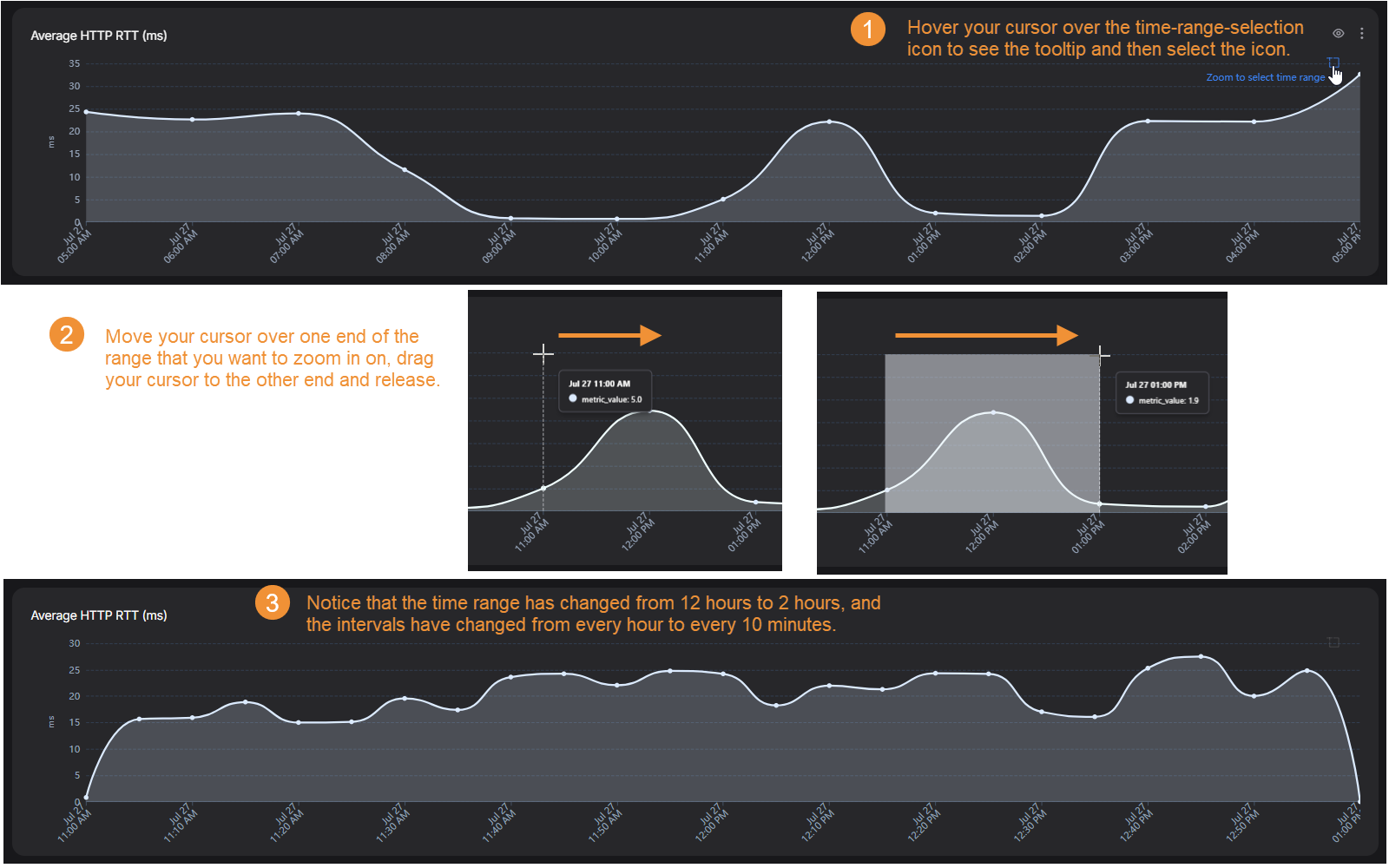
Zoom in on a time range – On a line chart, point to the widget and select the Zoom to select time range icon in the upper-right corner of the chart. Select one end of the range that you want to zoom in on, drag your cursor to the other end, and release. The chart and all other widgets on the dashboard adjust to show data for the selected time range, and the range appears as a timestamp filter to the right of the Search field. The chart intervals also adjust to match the narrower range; for example, from one-hour to ten-minute intervals. To zoom back out, select Clear all at the far right of the filter fields.
To change the contents or layout, select Edit, and use the toggle to switch between the two modes. The toggle does not appear on predefined dashboards.
Edit mode is available only for custom dashboards that you have permission to edit. Predefined dashboards are read-only. You can rearrange and resize their widgets and save a personalized layout, but you cannot add, delete, or configure their widgets.
Creating a Dashboard
To create a custom dashboard:
-
In the Dashboards Hub, select + Create New | Add New Dashboard.
-
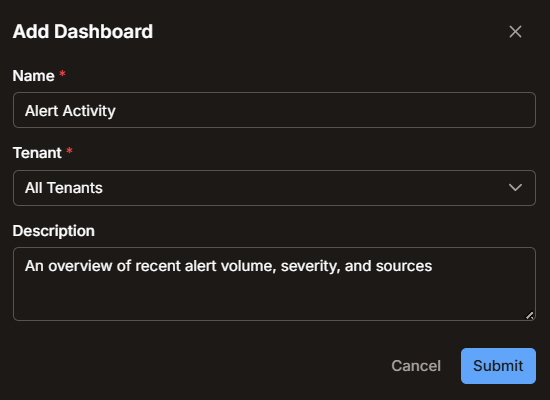
In the dialog box, enter a Name, choose an individual Tenant or All Tenants depending on whom you want the dashboard to be available for, and enter an optional Description.
-
Select Submit.
The new dashboard opens in View mode.
-
Select Edit to activate the Dashboard editing canvas.
The Dashboard editing canvas and Add widgets panel appear.
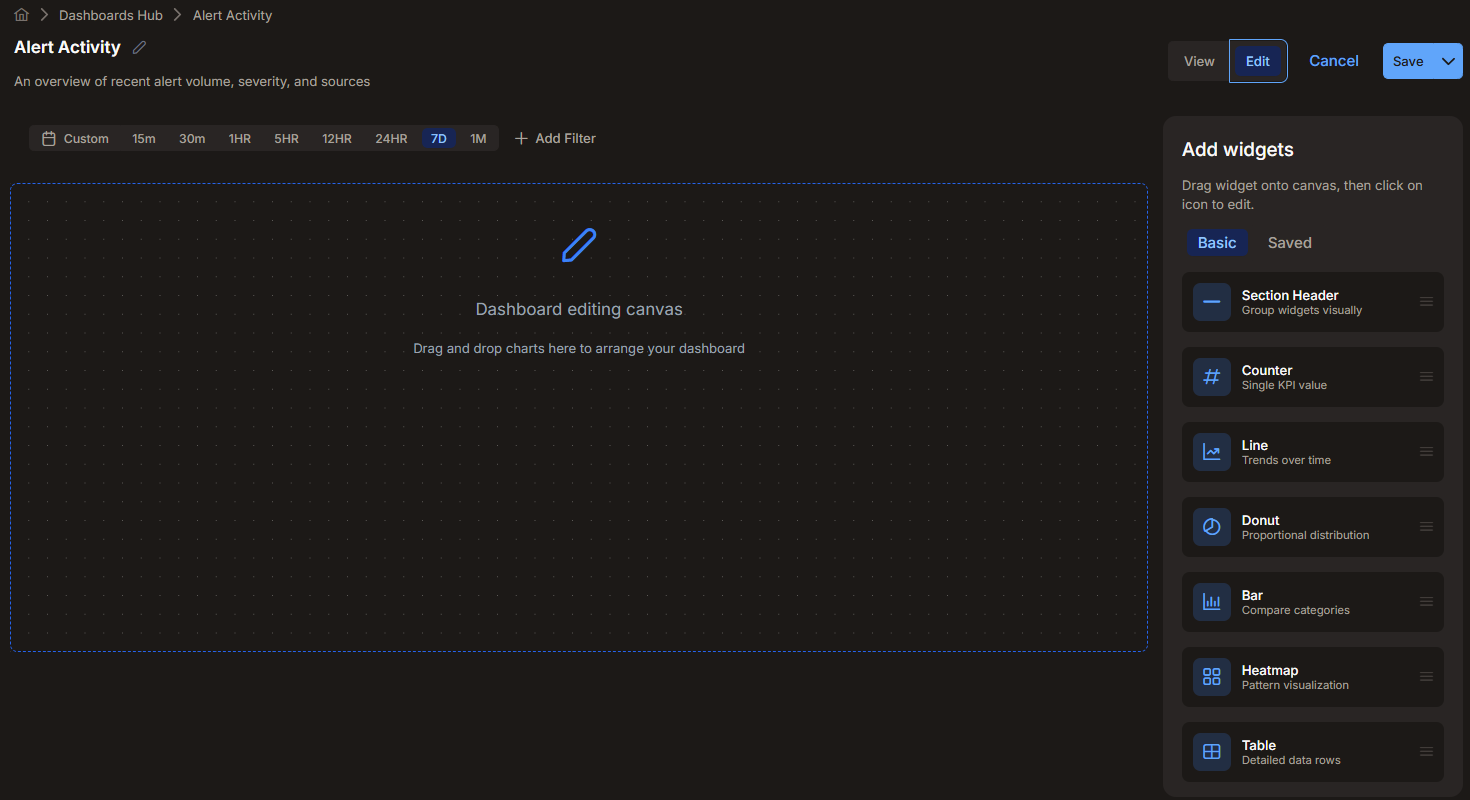
All dashboards use a standardized 12-column layout. The separate layout options for laptop, monitor, and wide screens that were available in previous releases have been removed.
Adding Widgets
When you add or edit a custom dashboard, the Add widgets panel that appears on the right side of the page has two tabs:
-
Basic—The widget types that you can add to the dashboard.
-
Saved—A searchable library of existing charts that you can reuse, including both predefined and user-created charts.
To add a widget, drag a widget type from the panel onto the canvas to place it where you want it, or select a widget type to add it to the bottom of the dashboard. When you add a widget and select Configure Widget, the configuration panel opens so that you can configure it. For more information, see Configuring a Widget.
Widget Types
The Basic tab provides the following widget types. The set of widget types is the same as in previous releases, with two renamed: the text box is now the Section Header, and the area chart is now the Line chart. To configure a widget after you add it, see Configuring a Widget.
-
Section Header—A text label that groups widgets visually. Use it to add a heading and to organize a dashboard into sections.
-
Counter—A single key metric value. Use it to show one important number at a glance, such as the total count of critical alerts.
-
Line—A trend over time. Use it to show how a value changes across a time range, such as alert volume over the last 24 hours.
-
Donut—A proportional distribution. Use it to show how parts contribute to a whole, such as the share of alerts by severity. You can toggle a donut chart to a pie chart and back.
-
Bar—A comparison of categories. Use it to compare a metric across categories, such as the number of alerts by data source.
-
Heatmap—A geographic distribution. Use it to see where activity concentrates on a map, such as the source locations of alerts.
-
Table—Detailed data rows. Use it to list individual records in sortable columns, such as a list of security alerts.
Configuring a Widget
You add and configure every widget in the same way. Only the parameters differ by widget type. To add and configure a widget on a dashboard that is open in Edit mode, do the following steps:
-
To add a widget, drag it from the Add widgets panel to the position you want it to occupy on the dashboard, or click or tap it to add it to the bottom of the dashboard and reposition it later.
-
Select Configure Widget on the widget that you added.
The Chart Configuration panel opens on the right side of the page.
-
Configure the parameters for the widget.
The parameters depend on the widget type. Expand the section below for the widget that you added.
-
After you set the parameters, select Refresh Preview to update the preview with your changes.
-
When you are ready to apply the configuration to the widget, select Submit.
When you add a widget that displays data, it opens with a default configuration—the Alerts index over the last 24 hours—so the widget shows results right away and you can see how it looks before you tailor it to the data you want. Because the Query is empty by default, the widget includes all records in the selected indices for the current time range.
To discard your changes and return a widget to its last saved state, select Reset.
Predefined chart widgets are read-only, so the Configure Widget action is not available for them.
Expand the section for the widget type that you are configuring:
 Section Header
A Section Header displays a text heading that you use to label and group the widgets on a dashboard.
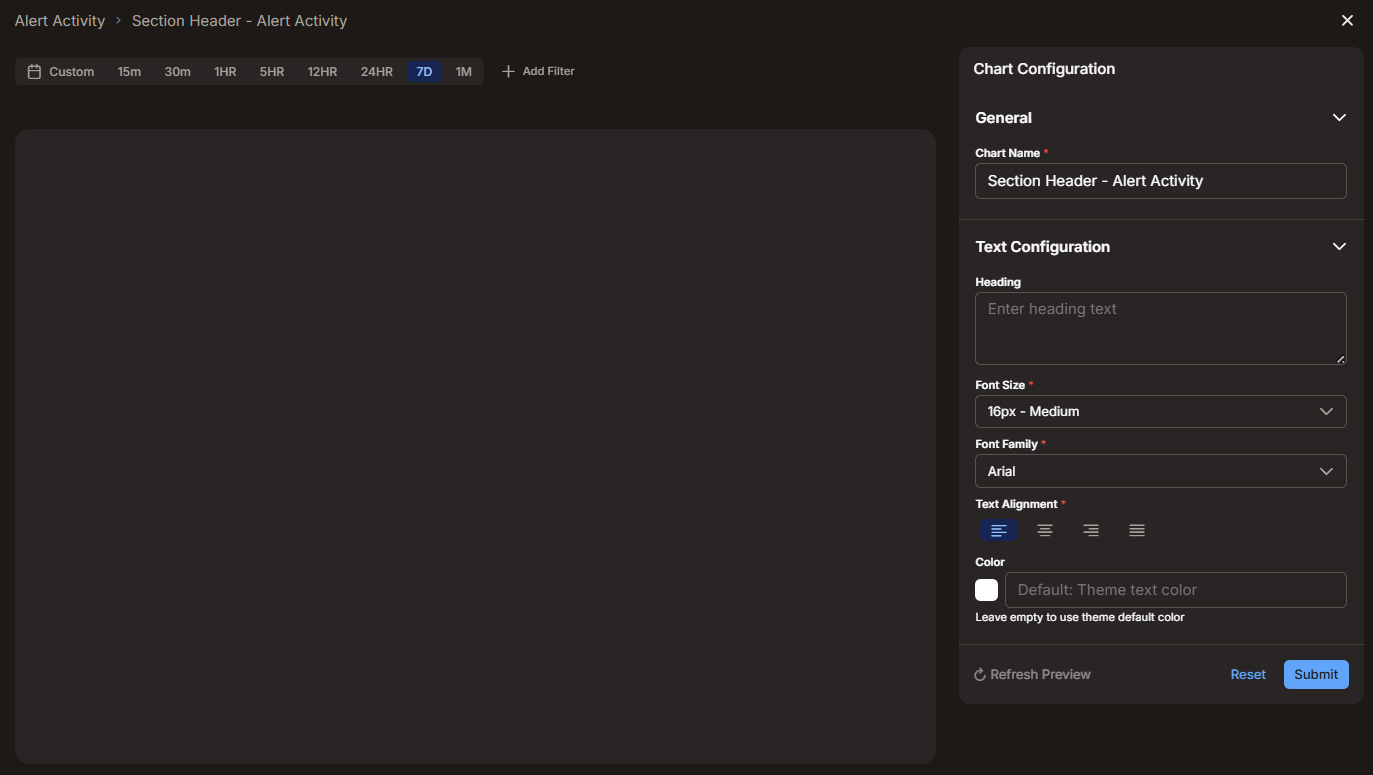
Configure the following parameters:
General
-
Chart Name (required)—The name of the widget. By default, the name combines the widget type and the dashboard name, separated by a dash—for example, Section Header - Alert Overview.
Text Configuration
-
Heading—The text that appears as the section header.
-
Font Size (required)—The size of the heading text, from 10px (Very Small) to 48px (Heading 1). The default is 16px (Medium).
-
Font Family (required)—The typeface for the heading text. You can choose a sans-serif font (such as Arial), a serif font (such as Times New Roman), or a monospace font (such as Courier New).
-
Text Alignment (required)—The horizontal alignment of the heading text: left, center, right, or justified.
-
Color—The color of the heading text. Leave this field empty to use the default text color, or select the swatch to choose a custom color. The default text color depends on the color palette set for the dashboard. For more information, see Chart Colors—Opens the Chart Colors panel, where you choose a color palette for all charts on the dashboard. The available palettes are Stellar (the default), Spectrum, Ocean, Emerald, Sunset, and Neutral. To apply the selected palette to every dashboard, select Apply to all dashboards. Select Apply to save the palette..
Counter
A Counter displays a single key metric value, such as a total count.
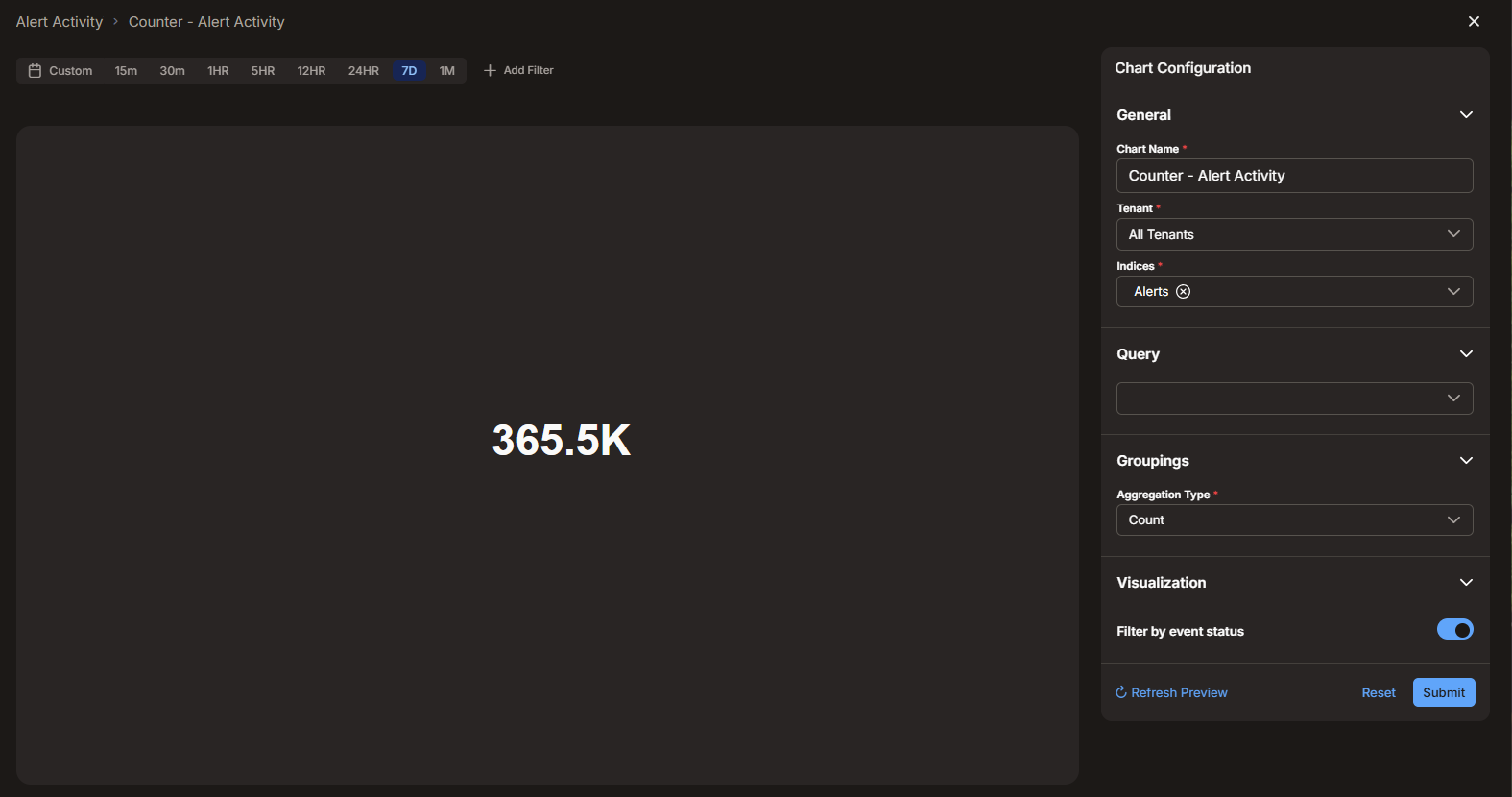
Configure the following parameters:
General
-
Chart Name (required)—The name of the widget. By default, the name combines the widget type and the dashboard name, separated by a dash.
-
Tenant (required)—The tenant whose data the counter uses. Select a specific tenant or All Tenants.
-
Indices (required)—One or more data indices that supply the data, such as Alerts, Traffic, and Windows Events. Select one or more indices from the list, which you can search by name. By default, the Alerts index is selected.
Query
-
Optional. Select a previously defined query to scope the data, or select New query to open the Query and Filter Builder in a new browser tab or window, where you build a new query to use.
Groupings
-
Aggregation Type (required)—The calculation that produces the counter value:
-
Count—The number of matching records.
-
Sum—The total of the values in a field.
-
Max—The largest value in a field.
-
Min—The smallest value in a field.
-
Average—The average of the values in a field.
-
Unique Count—The number of unique values in a field.
For fuller definitions and examples of each aggregation type, see the Calculations section in Automated Threat Hunting
-
-
Field (required for Sum, Max, Min, Average, and Unique Count)—The field whose values are aggregated. This parameter does not appear when the aggregation type is Count.
Visualization
-
Filter by event status—Specifies whether the counter data is subject to the global Status filter in the dashboard toolbar. When enabled (the default), the counter data is filtered by the global Status filter; when disabled, it displays data regardless of that filter.
Line
A Line chart shows a trend over time.
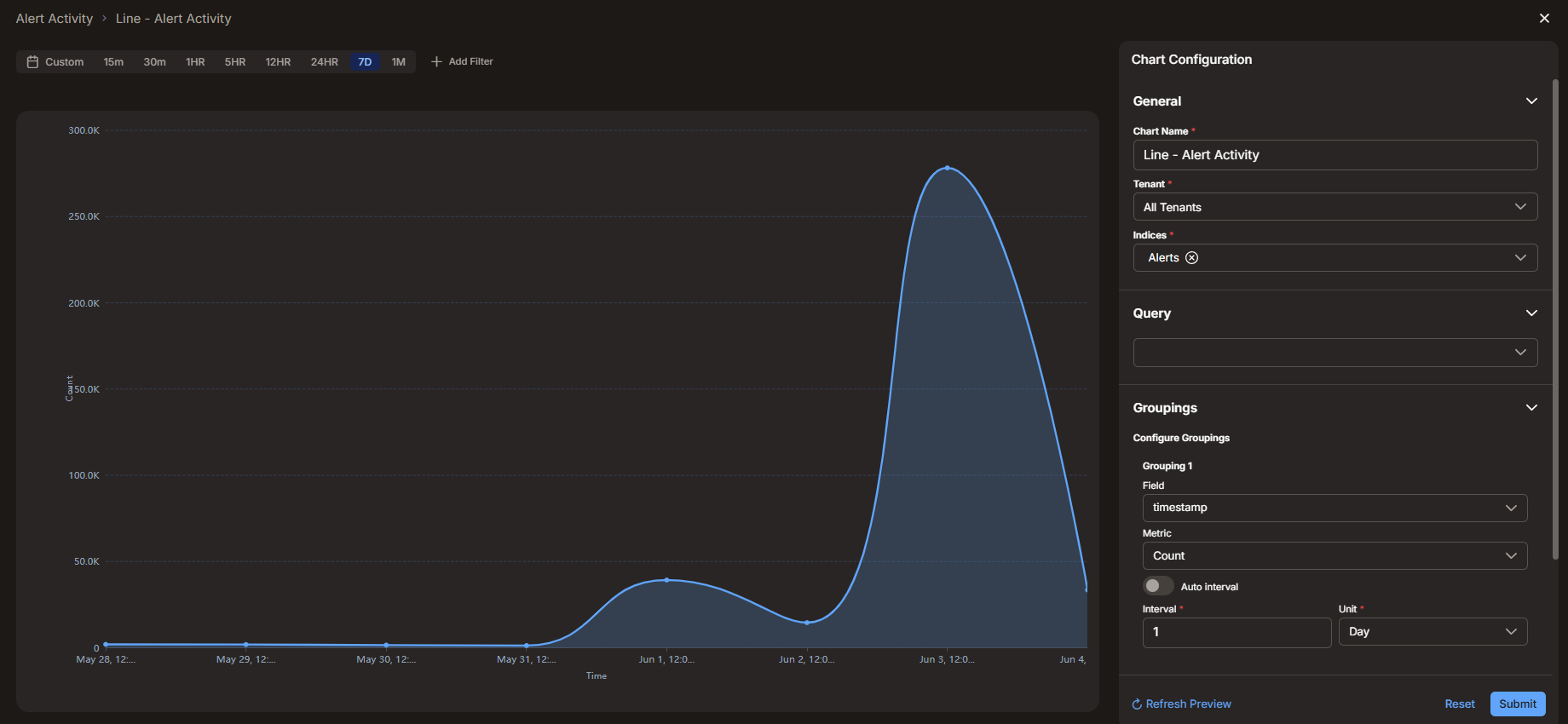
Configure the following parameters:
General
-
Chart Name (required)—The name of the widget. By default, the name combines the widget type and the dashboard name, separated by a dash.
-
Tenant (required)—The tenant whose data the chart uses. Select a specific tenant or All Tenants.
-
Indices (required)—One or more data indices that supply the data, such as Alerts, Traffic, and Windows Events. Select one or more indices from the list, which you can search by name. By default, the Alerts index is selected.
Query
-
Optional. Select a previously defined query to scope the data, or select New query to open the Query and Filter Builder in a new browser tab or window, where you build a query.
Groupings
-
Field (required)—The field used to group the data in Grouping 1. You can select any field that is available in the selected indices. For a trend over time, select a date field such as timestamp.
-
Metric (required)—The calculation applied to each group:
-
Count—The number of matching records.
-
Sum—The total of the values in a field.
-
Max—The largest value in a field.
-
Min—The smallest value in a field.
-
Average—The average of the values in a field.
-
Unique Count—The number of unique values in a field.
For fuller definitions and examples of each metric type, see the Calculations section in Automated Threat Hunting
For Sum, Max, Min, Average, and Unique Count, you also select the field whose values are aggregated; this field does not appear when the metric is Count.
-
-
Auto interval—When enabled, Stellar Cyber automatically calculates the best time interval based on your selected time range. For example, over a 30-day range, Stellar Cyber might automatically select daily intervals. Over a 7-day range, it might choose hourly intervals—always scaling to show a sensible number of data points. When disabled, you set the Interval and Unit.
-
Interval (required when Auto interval is disabled)—The number of units in each interval, such as 1.
-
Unit (required when Auto interval is disabled)—The unit of time for each interval: Minute, Hour, Day, Week, or Month.
Visualization
-
Y-Axis Label—An optional label for the y-axis of the line chart.
-
Filter by event status—Specifies whether the chart data is subject to the global Status filter in the dashboard toolbar. When enabled (the default), the chart data is filtered by the global Status filter; when disabled, it displays data regardless of that filter.
Donut
A Donut chart shows a proportional distribution—how the parts contribute to a whole. You can toggle a donut chart to a pie chart and back.
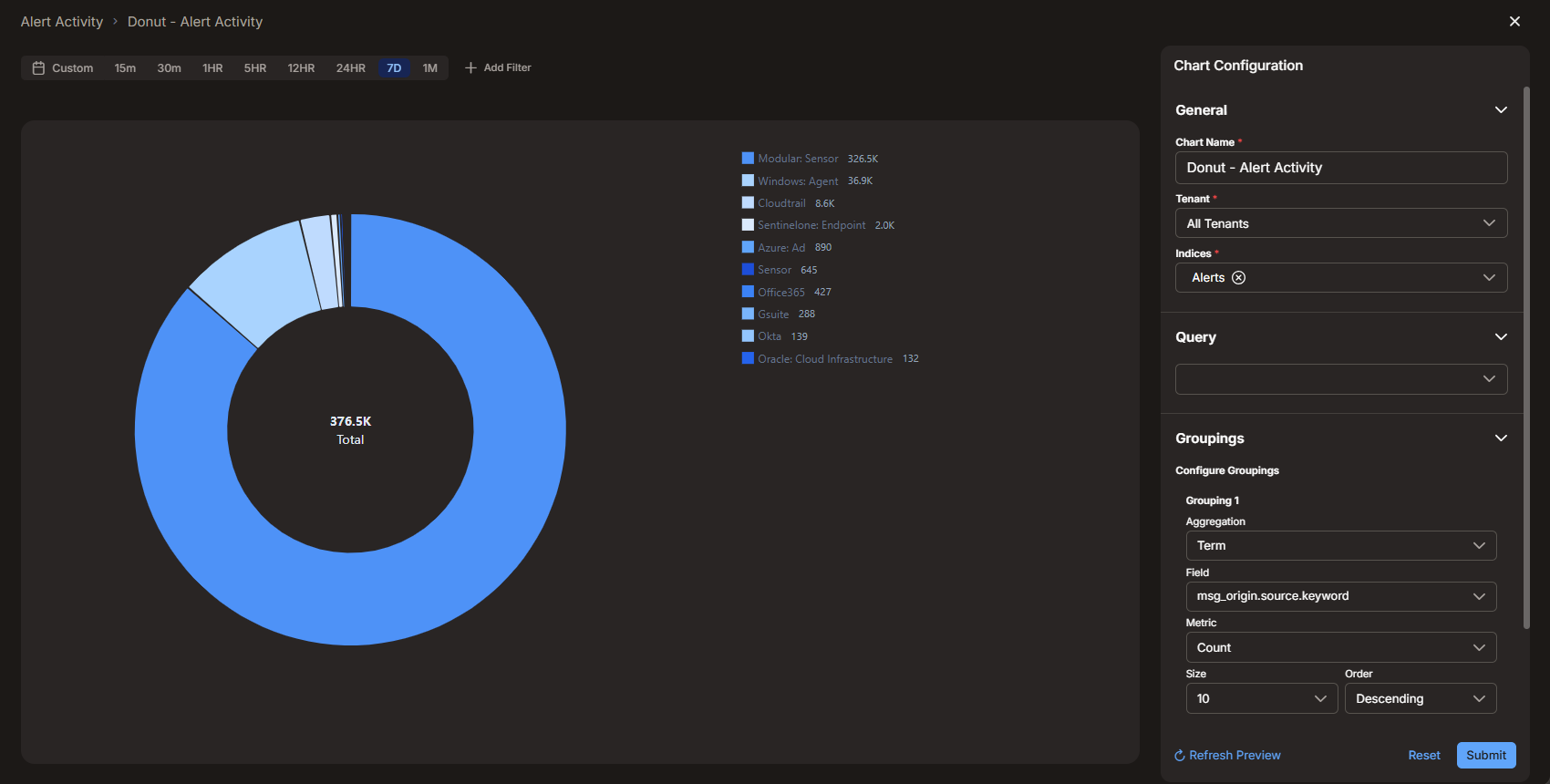
Configure the following parameters:
General
-
Chart Name (required)—The name of the widget. By default, the name combines the widget type and the dashboard name, separated by a dash.
-
Tenant (required)—The tenant whose data the chart uses. Select a specific tenant or All Tenants.
-
Indices (required)—One or more data indices that supply the data, such as Alerts, Traffic, or Windows Events. Select one or more indices from the list, which you can search by name. By default, the Alerts index is selected.
Query
-
Optional. Select a previously defined query to scope the data, or select New query to open the Query and Filter Builder in a new browser tab or window, where you build a new query to use.
Groupings
-
Aggregation (required)—Determines how the data is divided into segments. Select one of the following:
-
Term—Groups the data by the distinct values of a field and shows the most frequent values.
-
Range—Groups the data into one or more numeric ranges that you define for a field.
-
Filter—Groups the data by named filters and query strings that you define.
-
The remaining settings depend on the aggregation type that you select.
For Term and Range:
-
Field (required)—The field whose values are grouped.
-
Metric (required)—The calculation applied to each segment:
-
Count—The number of matching records.
-
Sum—The total of the values in a field.
-
Max—The largest value in a field.
-
Min—The smallest value in a field.
-
Average—The average of the values in a field.
-
Unique Count—The number of unique values in a field.
For fuller definitions and examples of each metric type, see the Calculations section in Automated Threat Hunting
For Sum, Max, Min, Average, and Unique Count, you also select the field whose values are aggregated; this field does not appear when the metric is Count.
-
For Term only:
-
Size—The maximum number of values to show, such as 10.
-
Order—Whether the values are sorted in descending or ascending order.
For Range only:
-
Ranges—One or more numeric ranges. Select Add Range to add a range, and configure each range:
-
Label—An optional name for the range.
-
From (≥)—The lower bound of the range, inclusive.
-
To (<)—The upper bound of the range, exclusive.
-
For Filter:
-
The Filter aggregation does not use a metric. Instead, you define one or more Named Filters, where each filter defines a segment. You can add any combination of filters and query strings, including more than one of each:
-
Select Add Filter to define a filter by field. Enter a name for the filter, then select a field, an operator (such as is), and a value.
-
Select Add Query String to define a filter by query. Enter a name for the filter, then enter a query string.
-
Visualization
-
Filter by event status—Specifies whether the chart data is subject to the global Status filter in the dashboard toolbar. When enabled (the default), the chart data is filtered by the global Status filter; when disabled, it displays data regardless of that filter.
Bar
A Bar chart compares a metric across categories.
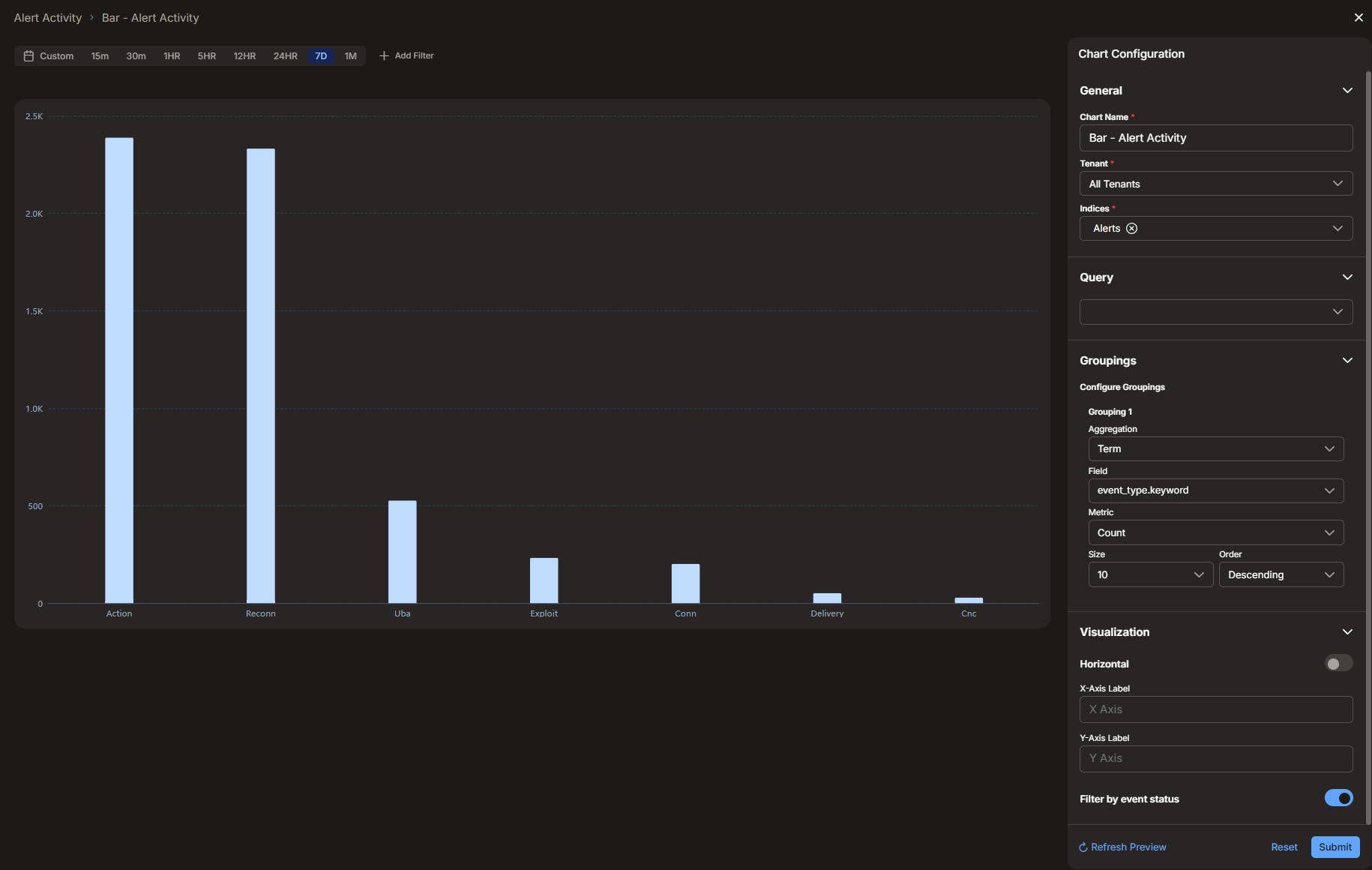
Configure the following parameters:
General
-
Chart Name (required)—The name of the widget. By default, the name combines the widget type and the dashboard name, separated by a dash.
-
Tenant (required)—The tenant whose data the chart uses. Select a specific tenant or All Tenants.
-
Indices (required)—One or more data indices that supply the data, such as Alerts, Traffic, or Windows Events. Select one or more indices from the list, which you can search by name. By default, the Alerts index is selected.
Query
-
Optional. Select a previously defined query to scope the data, or select New query to open the Query and Filter Builder in a new browser tab or window, where you build a new query to use.
Groupings
-
Aggregation (required)—Determines how the data is divided into bars. Select one of the following:
-
Term—Groups the data by the distinct values of a field and shows the most frequent values.
-
Range—Groups the data into numeric ranges that you define for a field.
-
Filter—Groups the data by named filters that you define.
-
The remaining settings depend on the aggregation type that you select.
For Term and Range:
-
Field (required)—The field whose values are grouped.
-
Metric (required)—The calculation applied to each bar:
-
Count—The number of matching records.
-
Sum—The total of the values in a field.
-
Max—The largest value in a field.
-
Min—The smallest value in a field.
-
Average—The average of the values in a field.
-
Unique Count—The number of unique values in a field.
For fuller definitions and examples of each metric type, see the Calculations section in Automated Threat Hunting
For Sum, Max, Min, Average, and Unique Count, you also select the field whose values are aggregated; this field does not appear when the metric is Count.
-
For Term only:
-
Size—The maximum number of values to show, such as 10.
-
Order—Whether the values are sorted in descending or ascending order.
For Range only:
-
Ranges—One or more numeric ranges. Select Add Range to add a range, and configure each range:
-
Label—An optional name for the range.
-
From (≥)—The lower bound of the range, inclusive.
-
To (<)—The upper bound of the range, exclusive.
-
For Filter:
-
The Filter aggregation does not use a metric. Instead, you define one or more Named Filters, where each filter defines a bar. You can add any combination of filters and query strings, including more than one of each:
-
Select Add Filter to define a filter by field. Enter a name for the filter, then select a field, an operator (such as is), and a value.
-
Select Add Query String to define a filter by query. Enter a name for the filter, then enter a query string.
-
Visualization
-
Horizontal—When enabled, the bars are oriented horizontally instead of vertically.
-
X-Axis Label—An optional label for the x-axis.
-
Y-Axis Label—An optional label for the y-axis.
-
Filter by event status—Specifies whether the chart data is subject to the global Status filter in the dashboard toolbar. When enabled (the default), the chart data is filtered by the global Status filter; when disabled, it displays data regardless of that filter.
Heatmap
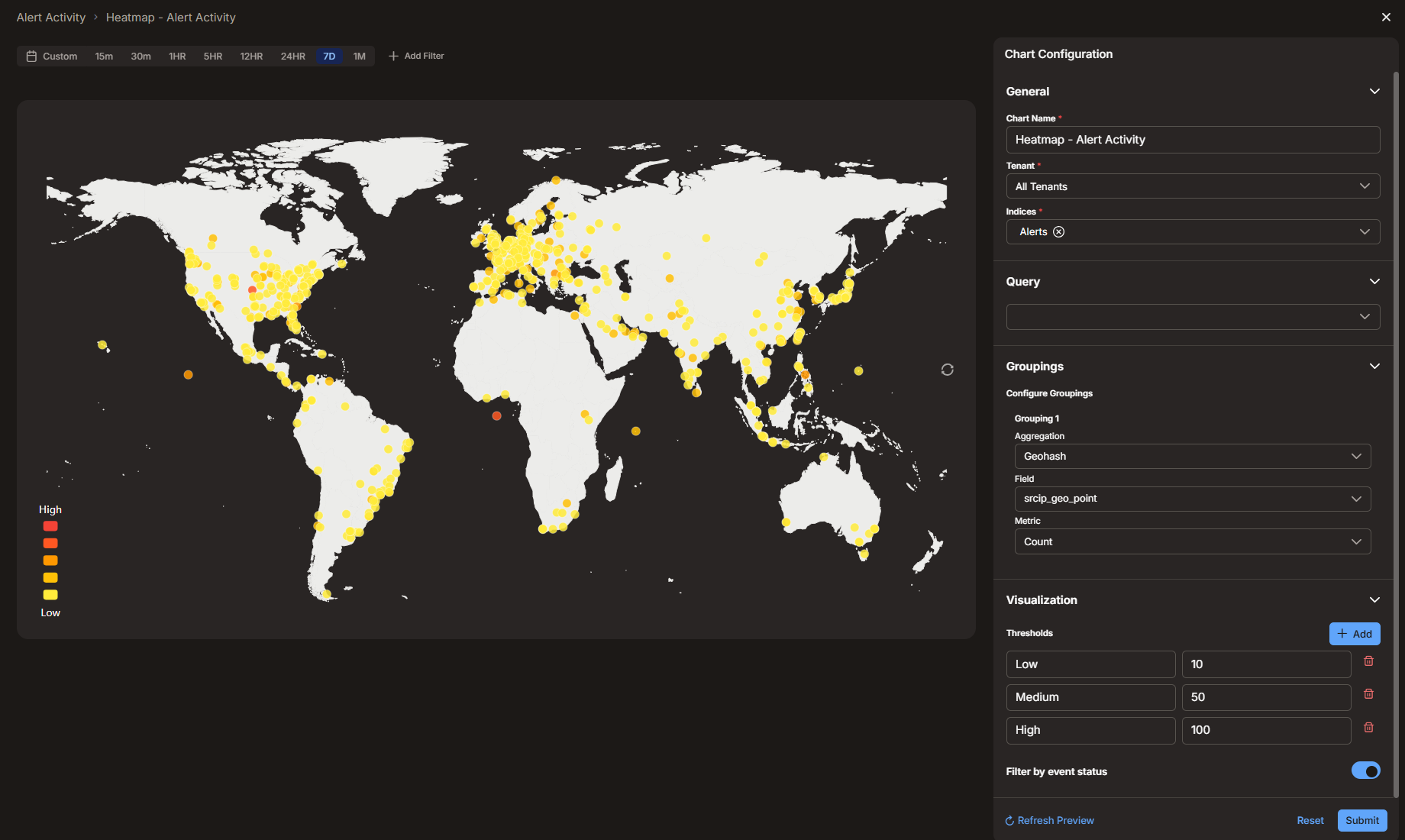
A Heatmap displays a geographic distribution as color-coded points on a world map. The color of each point reflects the value at that location, so you can see at a glance where activity is concentrated.
Configure the following parameters:
General
-
Chart Name (required)—The name of the widget. By default, the name combines the widget type and the dashboard name, separated by a dash.
-
Tenant (required)—The tenant whose data the heatmap uses. Select a specific tenant or All Tenants.
-
Indices (required)—One or more data indices that supply the data, such as Alerts, Traffic, or Windows Events. Select one or more indices from the list, which you can search by name. By default, the Alerts index is selected.
Query
-
Optional. Select a previously defined query to scope the data, or select New query to open the Query and Filter Builder in a new browser tab or window, where you build a new query to use.
Groupings
Grouping 1
-
Aggregation—The method used to group locations on the map. For a heatmap, this is set to Geohash, which is currently the only option. Geohash divides the map into a grid of geographic cells and groups nearby locations into the same cell, so that records close together are combined into a single point. (Geohashing converts the latitude and longitude of each record into a short code that represents a small geographic area; records that fall in the same area share the same code and are grouped together.)
-
Field (required)—The geographic-point field that provides the location for each point on the map, such as
srcip_geo_point(the geolocation of the source IP address). Other options aredstip_geo_point,hostip_geo_point,remote_ip_geo_point, andsrcip_geo_point. -
Metric (required)—The calculation that determines the value of each point:
-
Count—The number of matching records.
-
Sum—The total of the values in a field.
-
Max—The largest value in a field.
-
Min—The smallest value in a field.
-
Average—The average of the values in a field.
-
Unique Count—The number of unique values in a field.
For fuller definitions and examples of each metric type, see the Calculations section in Automated Threat Hunting
For Sum, Max, Min, Average, and Unique Count, you also select the field whose values are aggregated; this field does not appear when the metric is Count.
-
Visualization
-
Thresholds—Define the color bands for the points on the map based on the metric value. Each threshold has a label and a value; for example, the default thresholds are Low (10), Medium (50), and High (100). A point uses the color of the highest threshold that its value reaches, and the legend on the map shows which color corresponds to each threshold. Select + Add to add a threshold, and select the trash icon to remove one.
-
Filter by event status—Specifies whether the chart data is subject to the global Status filter in the dashboard toolbar. When enabled (the default), the chart data is filtered by the global Status filter; when disabled, it displays data regardless of that filter.
On the map, nearby records are clustered into geographic points. Point to any point to see its location, coordinates, and value, and use the zoom control to zoom in and out.
Table
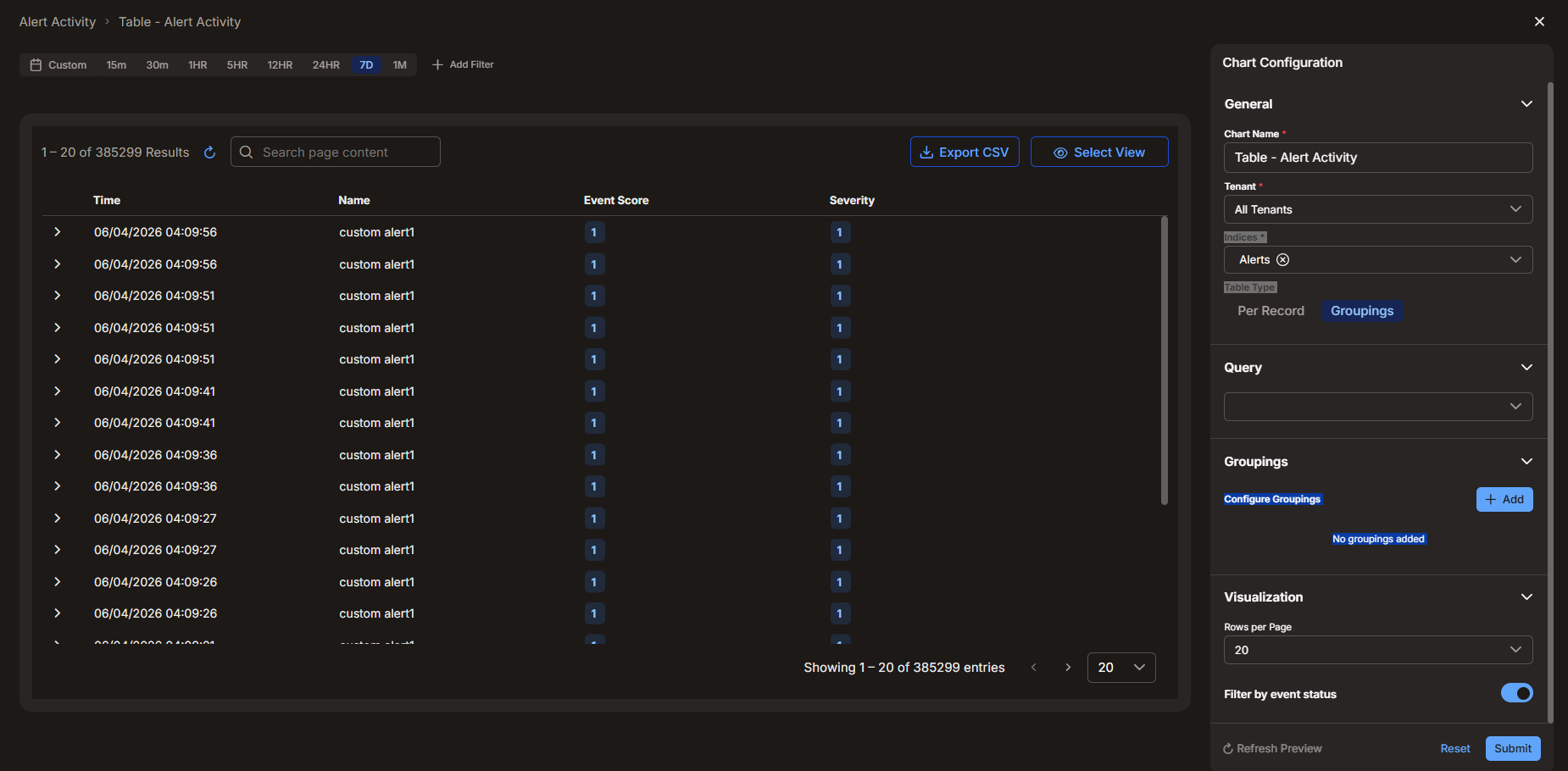
A Table displays data in rows and columns. The Table Type determines whether the table lists individual records or aggregated groups.
Table Type: Per Record
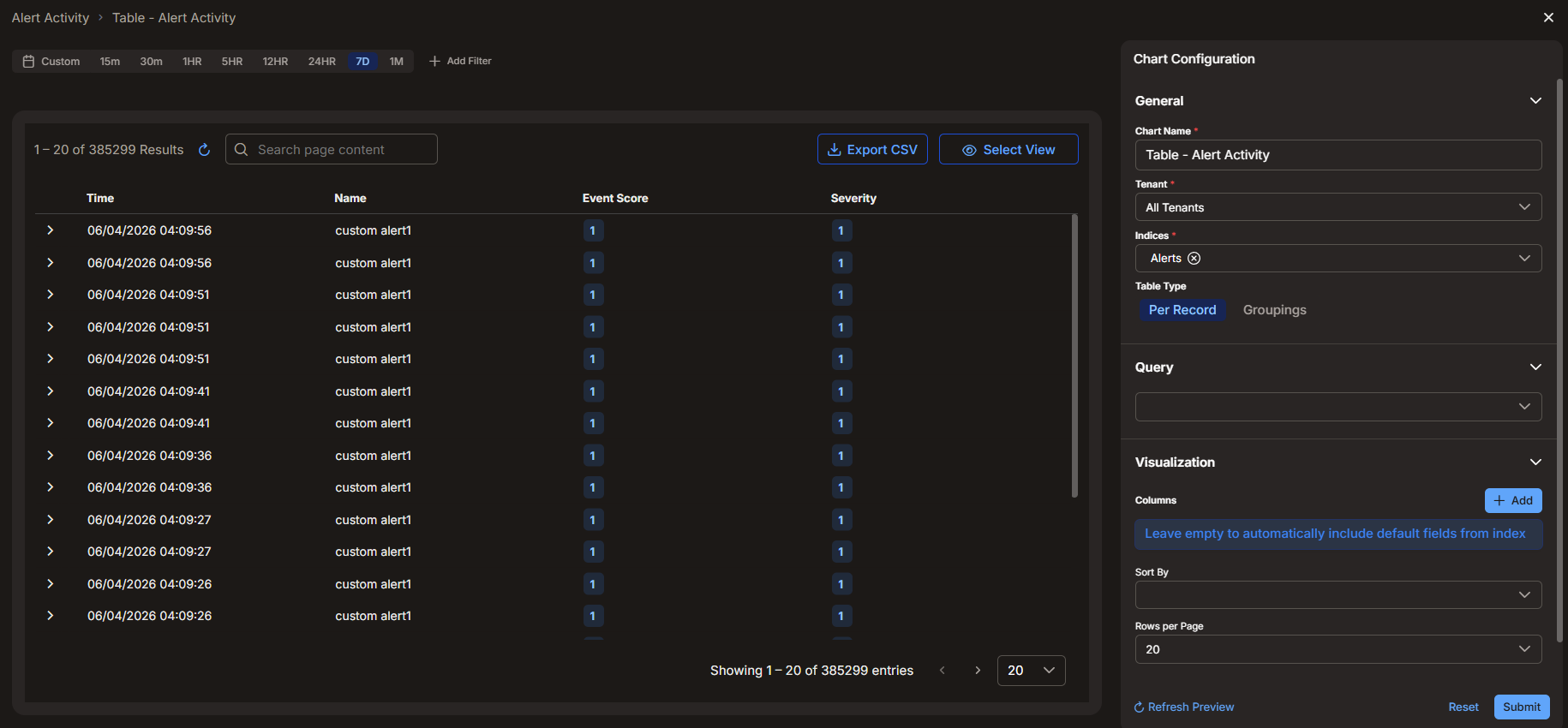
Table Type: Groupings
Configure the following parameters:
General
-
Chart Name (required)—The name of the widget. By default, the name combines the widget type and the dashboard name, separated by a dash.
-
Tenant (required)—The tenant whose data the table uses. Select a specific tenant or All Tenants.
-
Indices (required)—One or more data indices that supply the data, such as Alerts, Traffic, or Windows Events. Select one or more indices from the list, which you can search by name. By default, the Alerts index is selected.
Table Type
-
Per Record (default)—Lists individual records, one per row.
-
Groupings—Lists aggregated data, organized into columns that you define.
The settings that follow depend on the Table Type that you select.
Query
-
Optional. Select a previously defined query to scope the data, or select New query to open the Query and Filter Builder in a new browser tab or window, where you build a new query to use.
For the Per Record table type, configure these settings under Visualization:
-
Columns—The fields to display as columns. Select + Add to add a column and choose a field, which you can search by name. Leave the list empty to automatically include the default fields from the index.
-
Sort By—The field used to sort the rows.
-
Rows per Page—The number of rows shown on each page, ranging from 20 to 500.
-
Filter by event status—Specifies whether the table data is subject to the global Status filter in the dashboard toolbar. When enabled (the default), the table data is filtered by the global Status filter; when disabled, it displays data regardless of that filter.
For the Groupings table type, configure one or more grouping columns under Groupings. Select + Add to add a column, and for each column set the following:
-
Column Label (required)—The heading for the column.
-
Aggregation—How the data is grouped: Term, Range, or Filter. The remaining settings depend on the aggregation type and work the same as for the Donut and Bar charts. For Term, you set a Field, a Metric, a Size, and an Order; Range and Filter provide the range and named-filter settings described for those charts.
The Groupings table type also provides the Rows per Page and Filter by event status settings under Visualization.
For additional information and detailed examples of configuring tables, see Using Chart Builder.
Arranging Widgets
Widgets are placed on a 12-column grid. To move a widget, drag it by the handle at the top of the widget. To resize a widget, drag its edges or corners. Each widget type has a minimum and a maximum size, so you cannot resize a widget below or above those limits. The grid compacts automatically to remove empty space.
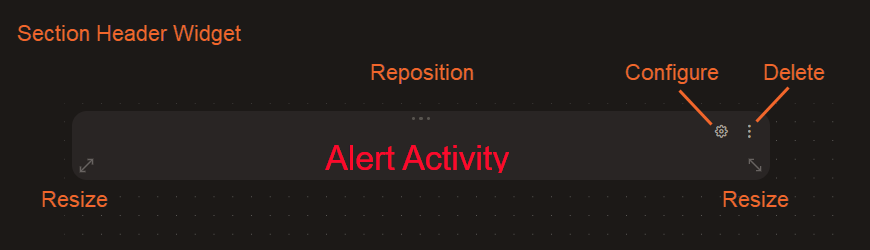
When you hover your cursor over a widget, icons appear for the following actions:
-
Reposition—Select the three horizontal dots at the top of a widget and drag it to a new position on the dashboard canvas.
-
Configure—Select the gear icon to open the configuration panel for the widget. This action is available in Edit mode for custom dashboards.
-
Delete—Select the three vertical dots in the top right corner to delete the widget and remove it from the dashboard, with confirmation.
-
Resize—Select the diagnoal double-headed arrows in the lower left and right corners of the widget to resize it.
Working with a Widget
In View mode, you can interact with a widget in the following ways:
-
To open a widget in a full-screen view with detailed data, select Drilldown.
In the expanded view, you can adjust how the data is presented without reconfiguring the widget. You can change the number of results (for example, Top 5, Top 10, or Top 20), change the metric, or switch the chart type.
-
To filter every widget on the dashboard by a value, right-click that value in a predefined chart, such as a bar, donut, line, or heatmap chart, and select Filter In to include it or Filter Out to exclude it. The value is added to the global filter, and all widgets on the dashboard update to match.
You can tell which charts support filtering by their type and origin. Filtering is built into many predefined charts — for example, approximately 240 bar charts and 170 donut charts support it. It is not available on counters (which show a single value), section headers, or tables, which provide their own column-level filtering instead, nor on custom charts that you build or on certain predefined report dashboards, such as license and usage reports.
-
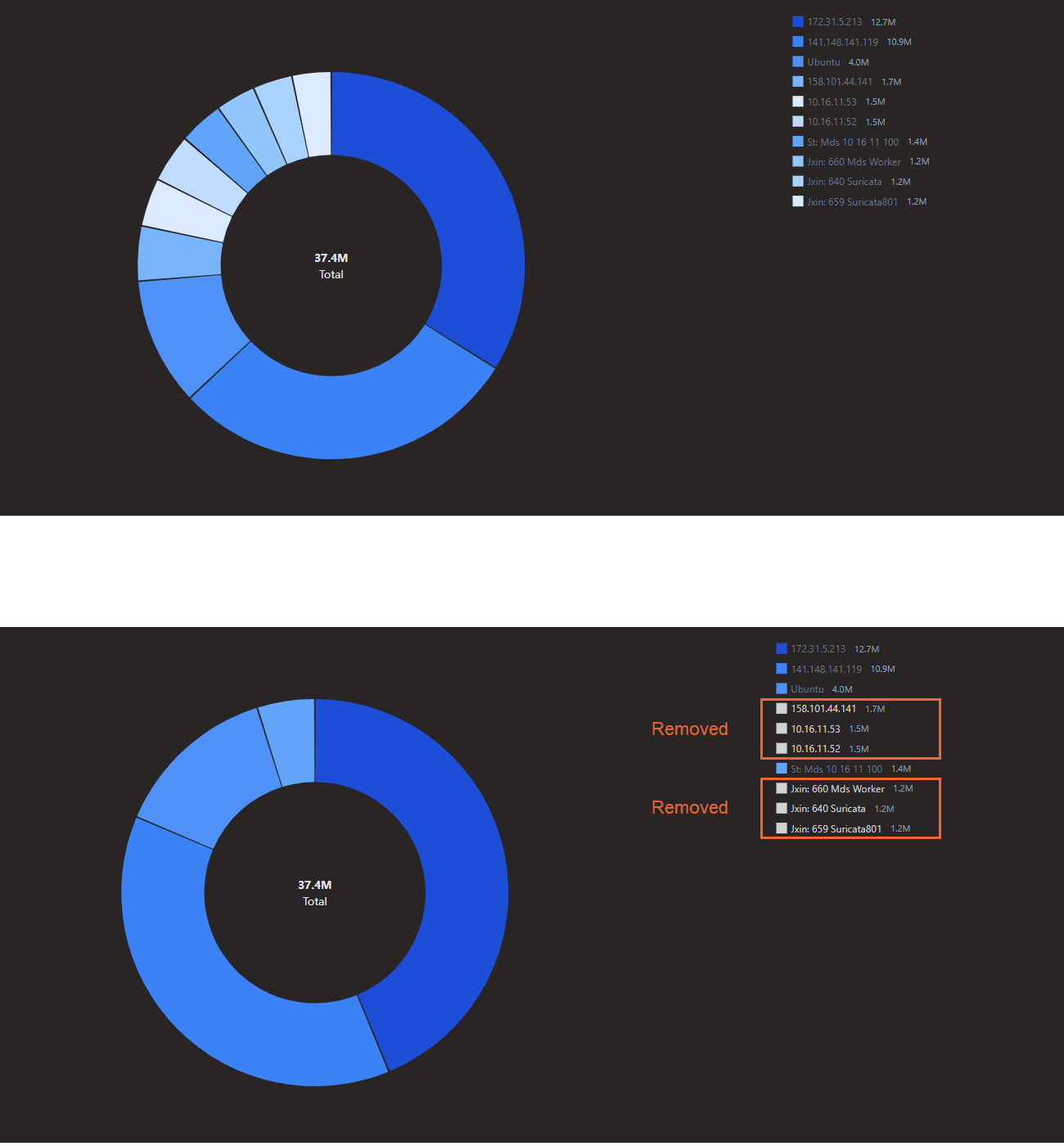
To hide a segment from a chart that has a legend, such as a donut or bar chart, select the corresponding entry in the legend. This removes the corresponding segment from the chart. Select the legend entry again to restore the segment. A hidden entry appears dimmed in the legend. This changes only how the chart displays and does not filter the other widgets on the dashboard.
Saving a Dashboard
While you edit a dashboard, an indicator shows that the dashboard has unsaved changes. Use the following actions to manage those changes:
-
Save—Saves the dashboard and returns it to View mode.
-
Cancel—Discards all unsaved changes on the dashboard. Stellar Cyber asks you to confirm before it discards the changes.
-
Save As—Creates a new dashboard from the current one under a different name. If the current dashboard has unsaved changes, Stellar Cyber prompts you to save or discard them first.
Other Dashboard Actions
From the dashboard toolbar, you can also perform the following actions, depending on your permissions:
-
Refresh—Reloads the data for all widgets on the dashboard.
-
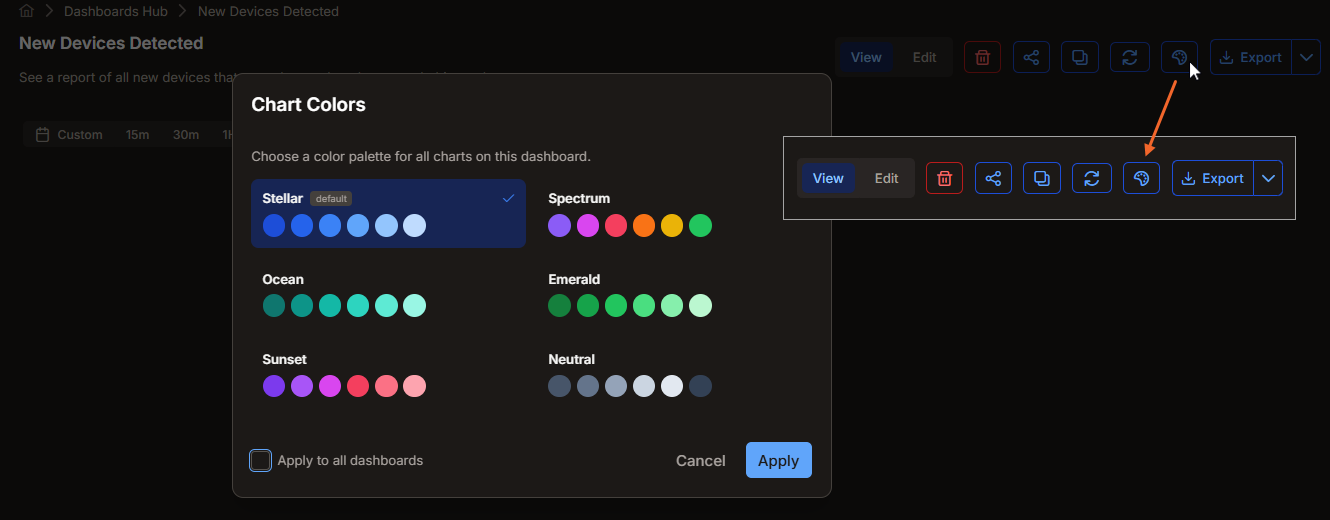
Chart Colors—Opens the Chart Colors panel, where you choose a color palette for all charts on the dashboard. The available palettes are Stellar (the default), Spectrum, Ocean, Emerald, Sunset, and Neutral. To apply the selected palette to every dashboard, select Apply to all dashboards. Select Apply to save the palette.
-
Clone—Creates an editable custom copy of a predefined or custom dashboard.
-
Share—Shares a custom dashboard with users, tenants, or tenant groups. For the procedure and the access rules, see Configuring Object-Level Sharing and Access Control.
-
Export—Exports the dashboard. Select one of the following: Export as PDF to export a PDF document, Export as PDF & CSV to export both a PDF document and the underlying data as CSV, or Export as Configuration to export a configuration file that you can import on another instance.
-
Delete—Removes a custom dashboard, with confirmation. Stellar Cyber blocks the deletion if a scheduled report references the dashboard.
To set the time range or apply filters on a dashboard, see Working with Dashboards.
