Dashboards Hub (EAP)
Early Access Program (EAP) feature. The redesigned Dashboards Hub described in this topic is available to participants in the Stellar Cyber Early Access Program. The dashboard functionality is largely the same as in previous releases. What changed is the layout, the design, and the workflow that you use to manage and build dashboards.
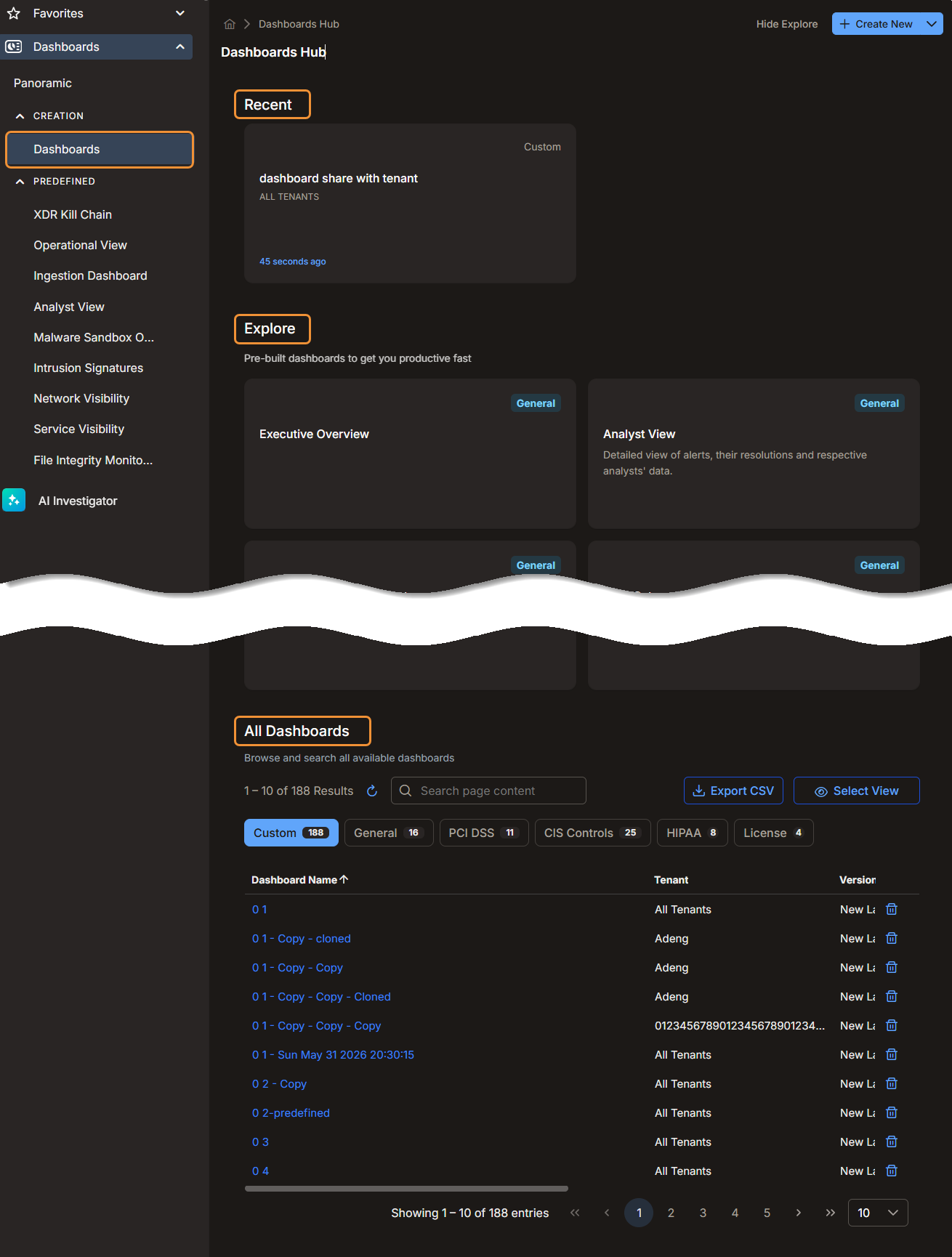
The Dashboards Hub (Dashboards | CREATION | Dashboards) provides a centralized landing page for working with dashboards. It is designed to make dashboard access more efficient, especially in environments with many custom dashboards. Instead of scrolling through a long left-navigation list, you can use the Hub to review recent dashboards, browse predefined dashboards, filter dashboards by category, search the full dashboard inventory, and open the dashboard you need from a single page.
The Dashboards Hub contains these main sections:
This topic also covers the following:
To create or configure a dashboard from the Hub, see Dashboard Builder (EAP). To set the time range, apply filters, or share a dashboard, see Working with Dashboards.
Recent
The Recent section shows dashboards that you opened recently, displayed as cards. Use this section to return quickly to dashboards that you access often. Each card shows the dashboard name, the tenant, the category, and the time since you last opened the dashboard. The Recent section shows up to 15 dashboards.
If you have not opened any dashboards recently, this section is empty.
A Legacy badge on a card identifies a dashboard that still uses the previous layout and has not been migrated to the standardized layout. You can continue to open and use a legacy dashboard from the Hub.
Explore
The Explore section presents a set of widely applicable predefined dashboards that provide a practical starting point for most deployments. Use this section to quickly open dashboards—such as an executive overview, ingestion trends, and alert categorizations—without searching the full list or creating custom dashboards.
To hide the Explore section, select Hide Explore (next to the + Create New button at the top of the page). This collapses the section and keeps it hidden until you restore it. To show it again, select Show Explore. This toggle is useful when you no longer need quick access to the predefined cards and prefer a more compact view of the Dashboards Hub.
All Dashboards
The All Dashboards section lists all available dashboards in a table. Use this section to browse the full inventory of dashboards or locate a specific one. The table helps you distinguish between built-in dashboards, custom dashboards, and (for root-level users and partners) tenant-specific dashboards.
The table includes these columns:
-
Dashboard Name—The name of the dashboard. Select the name to open the dashboard.
-
Tenant—The tenant to which the dashboard is scoped, or All Tenants.
-
Version—Whether the dashboard uses the standardized layout (New Layout) or the previous layout (Legacy).
-
Category—The category of the dashboard, such as Custom or General.
-
Shared With—The users, tenants, or tenant groups with which a shared dashboard has been shared.
-
Created By—The user who created the dashboard.
These columns help you identify the correct dashboard before opening it. This is especially useful when dashboards have similar or even identical names, which can occur in environments with multiple tenants.
To delete a custom dashboard directly from the table, select the trash icon at the end of the row. The trash icon appears only for dashboards that you have permission to delete.
Search and Filtering by Category
Use the search field above the table to locate dashboards by name. Search is the fastest way to find a dashboard when you know all or part of its name.
Category filters let you narrow the list of dashboards to those in one or more specific categories. Each category tab shows a count of the dashboards it contains. The following categories are available:
-
Custom
-
General
-
PCI DSS
-
CIS Controls
-
HIPAA
-
License
For example, to see only user-created dashboards, select Custom. You can combine search with category filters to find dashboards more efficiently.
Pagination
Use the pagination controls at the bottom of the table to move through large result sets. You can control how many entries appear on each page to review a large dashboard inventory in smaller or larger batches.
Dashboards Hub Actions
In addition to the three main sections, the Dashboards Hub includes page-level actions that support common dashboard tasks.
Create New
Select + Create New | Add New Dashboard to create a dashboard from the Dashboards Hub. For the steps to create and configure a dashboard, see Dashboard Builder (EAP).
Select + Create New | Import Dashboard to import a dashboard that was previously exported as a configuration file. This supports sharing dashboards between users: one user exports a dashboard from the Dashboards Hub and transfers the file to another user, who then imports it to make the dashboard available in their environment.
Export CSV
To export the dashboard list currently shown in the table, select Export CSV. Use this option when you want to review the dashboard inventory outside the user interface or share the current list with another user.
Select View
Select Select View to change the table view to a previously configured view or to create a new view. Use this option when you want to adjust how dashboard information is displayed in the table.
Best Practices
Use the following practices to work more efficiently in the Dashboards Hub:
-
Use Recent for dashboards that you open often.
-
Use Explore to start with common predefined dashboards.
-
Use All Dashboards to browse the complete dashboard inventory.
-
Use Search when you know all or part of the dashboard name.
-
Use category filters to reduce large result sets.
-
Review Tenant, Category, and Created By before opening a dashboard with a similar name.
-
Use the page actions to create or import dashboards directly from the landing page.
