Autonomous SOC Workflow
 Learn more at Stellar Cyber Academy.
The following links take you to videos on the Stellar Cyber Academy technical training portal where you can learn more about a topic.
R25 Autonomous SOC: AI SOC in Action (English, 40m)
Discover how Autonomous SOC uses AI-driven verdicts, auto triage, and evidence linkage to help you investigate cases and alerts while keeping you in control of response decisions. Learn how to trace AI findings to underlying threat hunting queries and use the AI assistant to query cases and alerts in natural language.
R27 SOC Autonómo en Acción (español, 50m:00s)
Conoce las funciones de SOC autónomo de Stellar Cyber mediante una demostración práctica que muestra cómo Auto-Triage genera veredictos, qué evidencia los respalda y cómo puedes investigarlos dentro de la plataforma. Aprende además cómo AI Assistance y AI Investigator apoyan tu análisis, qué límites tienen estas funciones y cómo mantener al analista en control de la decisión final.
The first time you access a link on the portal during a session, you must log in to access content.
Stellar Cyber Autonomous SOC brings together AI-driven capabilities to help you investigate security activity, analyze alerts and cases, reach triage conclusions, and determine what to investigate or do next. In the security operations center (SOC), it uses a human-augmented approach in which AI performs portions of investigation, enrichment, summarization, and triage while you review the evidence, validate its conclusions, pursue additional investigation, and decide what response to take.
The AI analysis is designed to be transparent. When Stellar Cyber reaches a conclusion, such as assigning a verdict to an alert, you can review the findings and supporting evidence used to reach that conclusion. This lets you understand why the AI reached a particular result, verify it against the underlying security data, and make your own judgment before acting.
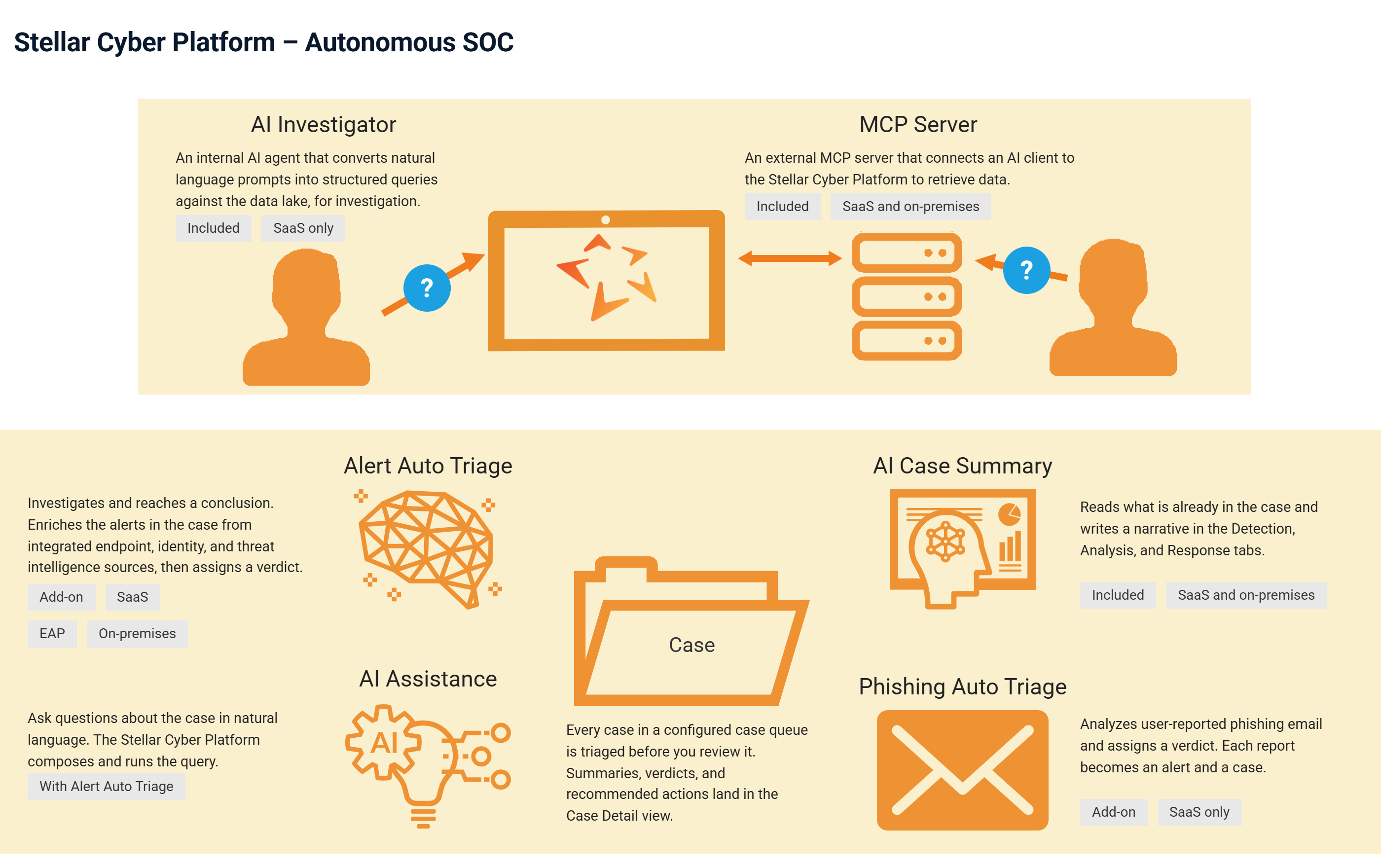
Autonomous SOC is not a single feature or workflow. This topic covers five related AI capabilities that support different parts of security operations:
-
AI Investigator provides a built-in AI experience for investigating security data in the Stellar Cyber Platform using natural language.
-
Stellar Cyber MCP Server connects an external Model Context Protocol (MCP)-compatible AI client to Stellar Cyber data and case-management workflows.
-
AI Case Analysis and Summary analyzes information already associated with a case and adds AI-generated narratives, hypotheses, summaries, and response guidance to the Case Detail view.
-
Alert Auto Triage investigates alerts associated with cases, enriches the investigation with additional evidence, and assigns alert verdicts before analyst review.
-
AI Assistance lets you investigate an analyzed case interactively by asking questions in natural language about the case and the evidence assembled by Alert Auto Triage.
Together, these capabilities provide two complementary ways to incorporate AI into security operations. You can interact with security data through an AI client, either within or outside the Stellar Cyber Platform, and you can use AI-driven analysis to reduce the manual work involved in investigating alerts and cases.
To see how these capabilities affect your security operations over time, you can also configure case metrics that measure how long cases take to acknowledge, respond to, and resolve. Tracking these times helps you confirm that automation is shortening your response, identify where cases stall while waiting for analyst attention, and show how the performance of your SOC improves as you expand your use of AI. See Measure SOC Performance with Case Metrics.
Gather Data, Analyze, and Respond
Autonomous SOC capabilities support an Integrated Security Operations Center (ISOC), in which data collection, detection, correlation, investigation, triage, and response remain connected. The workflow begins with the security data available to the Stellar Cyber Platform and continues through the actions you take and the feedback you provide.
Sensors and connectors gather data about the network, endpoints, identity, cloud resources and activity, applications, and logs. The Stellar Cyber Platform normalizes and enriches the collected data, applies additional detections, correlates related alerts into cases, and provides response actions. This gives you and the AI capabilities a shared investigation context, with access to the evidence behind an alert.
Different forms of analysis support different stages. Machine learning and rules detect suspicious activity, while Graph Machine Learning (GraphML) associates related alerts into cases. Large language models help interpret and explain security context, and Alert Auto Triage performs structured investigation and enrichment to determine alert verdicts. See Detection and Correlation Overview and Understanding Cases.
After you validate the findings, you can use supported response actions through configured connectors, record the outcome, and provide feedback for future evaluations. Reviewing those outcomes also helps you identify missing data, adjust where you apply automated analysis, and measure changes in case handling.
Before You Begin
Autonomous SOC capabilities differ in deployment availability, licensing, and enablement requirements. Review the following information to determine which capabilities are available for your deployment.
| Capability | Deployment | License | Must Be Enabled |
|---|---|---|---|
| AI Investigator | SaaS only | Included with a valid platform license | Yes |
| Stellar Cyber MCP Server | SaaS and on-premises | Included with a valid platform license | No |
| AI Case Analysis and Summary | SaaS and on-premises | Included with a valid platform license | Yes |
| Alert Auto Triage | SaaS and on-premises | Add-on license for SaaS, Early Access Program for on-premises | Per case queue |
| AI Assistance | SaaS and on-premises | Included with Alert Auto Triage | No |
AI Assistance is part of Alert Auto Triage. It has the same deployment availability and licensing requirements and is not licensed separately.
Add-on licenses are available from your Stellar Cyber Partner Support representative.
In on-premises deployments, AI Case Analysis and Summary, Alert Auto Triage, and AI Assistance are available through the Early Access Program. To enroll, contact your Customer Success representative. AI Investigator is not available in on-premises deployments. 
AI-assisted capabilities send security context to an external large language model (LLM) provider for processing. Before you enable these capabilities, review AI Data Processing and Residency for Agentic LLM Features to see what information each capability sends, which capabilities anonymize personal information, and which regions support AI processing. Support varies by region, and the region that stores your data is not always the region where AI processing occurs.
Prepare the Data and Integrations
AI analysis depends on the evidence available for the investigation. Before you enable automated analysis for a queue, verify that the sensors and connectors for the environment are collecting the relevant data and assigning it to the intended tenant. For example, an investigation involving an account and a host can require identity, endpoint, and network records to understand the activity.
Use the following checks to confirm data collection and tenant assignment:
-
Sensors – Open Sensor Details to review Tenant Name and Tenant ID, input/output counters, and traffic graphs. The counters cover the period since the sensor services were last restarted; use the graphs to check recent activity.
-
Connectors – Review collection status and Last Activity in Working with the Connectors Table. Use Analyzing Connector Details to inspect ingestion statistics. The Connector Details Page also provides ingestion information and a View Data link to the connector's records in Threat Hunting.
-
Ingested records – Select the intended tenant and an appropriate time interval in Threat Hunting, and check for recent records from the source. Open a record's JSON tab to verify its
tenantid. This checks the tenant assigned to the data as well as the tenant assigned to the sensor. If your parser uses Tenant Mapping, review the mapping when records appear under an unexpected tenant.
Review the integrations you use for enrichment and response as well as those that collect data. The available response actions depend on the supporting connectors, their configuration, and the data associated with the case. See Connector Types and Functions.
You can also use Coverage Analyzer to review detection coverage against MITRE ATT&CK and identify where additional data sources or configuration changes could improve coverage. When evidence is incomplete, investigate the gap before treating the absence of a finding as evidence that the activity is benign.
Review Access and Tenant Scope
Determine which tenant's data you need to investigate and which users need to review cases or take response actions. A tenant can represent a customer, a department, or another part of your organization. User scope controls access to tenants, while privileges control access to functions. See Understanding Tenants and Configuring Role-Based Access Control.
When you use an external AI client through the MCP Server, its access is limited by the permissions and tenant scope of its API key. Use read-only access when the client only needs to retrieve investigation context. Grant permissions to update cases only when those operations are part of its intended use. See Permissions and Privilege Model.
Before taking a response action, verify the affected tenant, user or host, and connector, and follow your organization's response approval process. Reviewing an AI recommendation and submitting an action are separate parts of the workflow.
Connectivity Requirements for On-Premises Deployments
AI-based analysis in on-premises deployments uses Stellar Cyber cloud-hosted AI services. On-premises deployments require outbound connectivity to the regional gateway. For deployments using the US AI region, allow outbound TCP connections to grant-scgs-prod.stellarcyber.cloud on port 9090 and hub-scgs-prod.stellarcyber.cloud on port 45671. For deployments using the EU (Frankfurt) AI region, allow outbound TCP connections to grant-scgs-eu.stellarcyber.cloud on port 9090 and hub-scgs-eu.stellarcyber.cloud on port 45671.
AI-based analysis is not available in air-gapped deployments. Without outbound connectivity to the Stellar Cyber cloud AI services, AI Case Analysis and Summary, Alert Auto Triage, and AI Assistance cannot operate.
In on-premises deployments, the Stellar Cyber cloud AI services read the alert records and related data they need from your deployment over an encrypted connection, assemble the minimized context, and send it to the external Large Language Model (LLM). Your deployment does not communicate directly with the LLM. Alert Auto Triage and Case Analysis do not anonymize this context. For details, see AI Processing and Data Flow.
Use AI Inside or Outside the Stellar Cyber Platform
Stellar Cyber provides two ways to use an AI client as part of an investigation. AI Investigator provides the AI experience within the Stellar Cyber Platform. The Stellar Cyber MCP Server lets you use an external MCP-compatible AI client with Stellar Cyber data and workflows.
The two capabilities are complementary rather than two interfaces to the same functionality. Use AI Investigator for open-ended investigation of security data within the Stellar Cyber Platform. Use the MCP Server when you want an external AI client to perform supported operations with Stellar Cyber data, with current capabilities focused primarily on case review and case management.
Investigate Security Data with AI Investigator
AI Investigator is the built-in AI client experience in the Stellar Cyber Platform. Enter questions and investigative requests in natural language and AI Investigator converts them into structured queries against the data lake, retrieves the relevant security records, and helps you interpret the results.
Use AI Investigator when an investigation needs to extend beyond the boundaries of an individual case. For example, you can investigate activity involving a particular user or host, look for related events elsewhere in the environment, or follow a hypothesis across the security data available to Stellar Cyber.
This approach lets you investigate large volumes of security data without first spending time to construct the underlying query manually. You can move from a natural-language question to the relevant security records more quickly while retaining access to the underlying data for further investigation and validation.
Work with Stellar Cyber from an External AI Client
The Stellar Cyber MCP Server is an integration layer between an MCP-compatible AI client and the Stellar Cyber Public API. It lets an external AI client interpret natural-language requests, select the appropriate supported operations, retrieve Stellar Cyber data, and present the results in a conversational form.
Current MCP Server capabilities focus primarily on case management. Depending on the permissions assigned to your API key, you can use an external AI client to find cases, retrieve case details, examine related alerts and observables, review investigation context, and update selected case fields such as status, severity, assignee, and tags.
This lets you incorporate Stellar Cyber case review and handling into an AI client you already use without building a separate custom integration for each supported operation. Access remains governed by the permissions and tenant scope of the Stellar Cyber API key that the AI client uses so that it operates within the access you authorize.
Use AI Investigator when you want an AI-assisted investigation within the Stellar Cyber Platform. Use the MCP Server when you want an external MCP-compatible AI client to work with supported Stellar Cyber data and workflows.
See Using the Stellar Cyber MCP Server.
Use AI to Analyze Alerts and Cases
Three Autonomous SOC capabilities apply directly to analyzing alerts and cases: AI Case Analysis and Summary, Alert Auto Triage, and AI Assistance.
These capabilities work together as part of a human-augmented case-analysis workflow. AI Case Analysis and Summary helps you understand the information associated with a case. Alert Auto Triage performs additional investigation, presents the findings and supporting evidence, and assigns verdicts to the alerts in the case. AI Assistance lets you interactively investigate the resulting case and triage evidence.
Throughout this workflow, AI performs portions of the analysis while you retain responsibility for reviewing the evidence, validating its conclusions, pursuing additional investigation, and deciding what action to take.
AI Case Analysis and Summary
AI Case Analysis and Summary analyzes the information associated with a case and adds AI-generated content throughout the Case Detail view. Instead of requiring you to assemble the complete story from individual alerts, observables, and relationships before beginning an investigation, it gives you an interpreted starting point.
After AI Case Analysis runs:
-
The Detection tab provides a Case Summary containing a high-level narrative, key insights, potential impact, and recommended next steps.
-
The Analysis tab adds a hypothesis describing what likely occurred and AI-generated summaries that help you reconstruct the timeline and understand important entities and relationships.
-
The Response tab provides case-specific guidance for further validation, investigation, and containment.
These additions help you move more quickly from the collection of evidence in a case to an understanding of what might have happened and what deserves attention next. You can then use the underlying alerts, observables, timeline, and other case evidence to validate the AI-generated interpretation before deciding how to proceed.
See AI Case Analysis.
Alert Auto Triage
Alert Auto Triage performs a deeper investigation of the alerts associated with a case. It applies structured Verdict Signal Checks, incorporates relevant enrichment and threat intelligence, and assigns each analyzed alert a verdict such as True Positive, Benign True Positive, False Positive, or Inconclusive.
Alert Auto Triage provides more than the resulting verdict. You can review the findings and supporting evidence that led to the conclusion, including the results of the checks performed during triage. This transparency lets you understand how the verdict was reached and compare the automated analysis with your own assessment.
By performing these repetitive investigation and enrichment steps automatically, Alert Auto Triage reduces the amount of manual Tier 1 triage you need to perform and helps you focus attention on alerts that require further judgment or response.
You remain responsible for evaluating the conclusion. You can confirm or override an individual alert verdict when your analysis differs from the automated determination.
 AI Case Analysis Compared with Alert Auto Triage
AI Case Analysis and Summary and Alert Auto Triage both add AI-generated information to case investigations, but they perform different functions.
| AI Case Analysis and Summary | Alert Auto Triage | |
|---|---|---|
| Primary purpose | Interpret and summarize the information associated with the case | Investigate alerts and determine their verdicts |
| What it provides | Case narrative, hypothesis, timeline and observable summaries, and response guidance | Alert verdicts, findings, and supporting evidence |
| External enrichment | No | Yes, from integrated endpoint, identity, and threat intelligence sources |
| Verdicts | No alert verdict assignment | Yes, using Verdict Signal Checks |
| Licensing | Included with a valid platform license | Add-on license for SaaS, Early Access Program (EAP) for on-premises |
In practical terms, AI Case Analysis and Summary helps you understand the case that Stellar Cyber has assembled. Alert Auto Triage goes further by investigating the alerts within the case, evaluating additional evidence, and reaching a verdict that you can review against the findings that support it.
See Alert Auto Triage.
AI Assistance
AI Assistance extends Alert Auto Triage into an interactive investigation. From the Case Detail view, you can ask questions in natural language about an analyzed case and the triage context already assembled for it.
For example, you can ask why a verdict was assigned, request clarification about an alert or observable, or pursue a follow-up hypothesis without manually constructing the underlying query. Because you can continue from the evidence gathered during triage, AI Assistance lets you explore the reasoning behind a result rather than treating the initial verdict as the end of the investigation.
AI Assistance is included with Alert Auto Triage and operates on the analysis and evidence produced for the case. It does not require a separate license.
See AI Assistance.
Analyze Cases with Autonomous SOC
AI Case Analysis and Summary, Alert Auto Triage, and AI Assistance form a connected workflow for human-augmented case investigation. You enable AI Case Analysis globally, determine which cases receive automated analysis, review the resulting analysis and alert verdicts, examine the supporting evidence, use AI Assistance when you want to investigate further, and take supported response actions after validating the findings.
The workflow uses AI to reduce repetitive investigative work without requiring you to accept its conclusions without review.
Step 1: Enable AI Case Analysis and Summary
You must enable AI Case Analysis and Summary globally before you can use it for cases.
-
Log in to the Stellar Cyber UI with Super Admin privileges.
-
Select System | ORGANIZATION MANAGEMENT | Settings.
-
Toggle on Enable AI Case Analysis & Summary and submit the change.
After you enable the global setting, the Case Summary and Analysis section appears when you configure case queues.
See Global Settings.
Step 2: Turn On Case Summary for a Queue
Case queues determine which cases receive AI-based analysis. Queue design is therefore a decision about where to spend your AI analysis, not only about how cases are displayed.
In the Case Summary and Analysis section of the queue builder, turn on Case Summary. The Stellar Cyber Platform then generates a case summary when a case enters the queue or changes while it is in the queue.
Starting with the AI Analysis Queue
You do not have to build a queue to get started. The Stellar Cyber Platform provides a default AI Analysis Queue containing cases with a score of 75 or higher or a severity of Critical, with both Case Summary and Auto-Triage turned on. This focuses AI analysis on your most serious cases from the outset.
The other default queues, All Open Cases and All Closed Cases, have these settings turned off because they are broad by design. Keeping analysis disabled for broad queues helps reserve automated-analysis capacity for more targeted, higher-priority cases.
Step 3: Turn On Auto-Triage for a Queue
Turn on Auto-Triage in the same section to have the Stellar Cyber Platform perform Alert Auto Triage on the alerts in the cases in the queue.
The Auto-Triage setting requires the Case Summary setting to be enabled, and it appears only when you have the Alert Auto Triage add-on license installed. Turning off Case Summary automatically turns off Auto-Triage.
Because Alert Auto Triage draws on a monthly alert allowance that is shared across your organization, queue scope affects how that capacity is used. A broadly scoped queue with Auto-Triage enabled can use up the allowance on lower-priority cases before more serious cases arrive. Scope queues with Auto-Triage enabled as narrowly as your operations allow; conditions based on score or severity can help focus analysis on higher-priority cases.
See Configuring Case Queues for the full queue configuration procedure.
Step 4: Configure Automated Case Analysis
You can use case-analysis settings and selection criteria to determine which cases Stellar Cyber analyzes automatically.
By default, Stellar Cyber automatically analyzes critical cases with a severity score of 75 or higher. Automatic triage is also subject to a daily burst limit that spreads the monthly allowance over the month.
Use the available settings and case selection criteria to focus automated analysis on the cases where it provides the greatest operational value.
When new alerts are added to an analyzed case and its severity score increases sufficiently, Stellar Cyber can analyze the case again so that the new alerts are included in triage.
Processing time varies with alert volume and external dependencies. See Understanding Alert Auto-Triage Performance. For the current automatic-analysis behavior and configuration, see Working with Cases and Alert Auto Triage.
Run Analysis On Demand (Optional)
You can also analyze a case manually when it has not been processed automatically or when you want to reanalyze it after new information becomes available.
-
Select a case from the Cases page to open the Case Detail view.
-
Select Run Analysis at the top of the page.
-
Review the analysis usage information in the confirmation message.
-
Confirm the analysis.
The button changes to Analyzing... while processing is underway and to Case Analyzed when processing is complete.
Manual analysis is not subject to the daily burst limit, but it counts against the monthly alert allowance.
See Running AI Analysis on a Case.
Step 5: Review the Case Analysis
After analysis is complete, begin with the AI-generated information in the Case Detail view, and then use the underlying case evidence to validate what the analysis tells you.
On the Detection tab, review the Case Summary for a concise explanation of the triggering activity, important findings, potential impact, and suggested next steps. Compare the summary with the associated alerts when you need to verify the activity behind the narrative.
Move to the Analysis tab when you need to understand how the activity unfolded. Review the hypothesis, timeline summary, observables, and relationships between entities to evaluate the proposed interpretation and determine the scope of the activity.
Use the Response tab when you are ready to evaluate next steps. AI Case Analysis provides case-specific validation, investigation, and containment guidance, while the standard Case Actions let you take supported response actions through configured connectors.
Treat the AI-generated material as an investigative starting point. You can trace its interpretation back to the alerts, observables, timeline, and other case evidence before deciding whether you agree and what action to take.
Step 6: Review Alert Auto Triage Results
Alert Auto Triage assigns verdicts to individual alerts associated with an analyzed case and provides the findings and evidence that led to each conclusion.
In the Detection tab, review the Verdict column in the Associated Alerts table. Select the additional information for an alert to open the Alert Details side panel and examine the verdict, Stellar AI Summary, Findings, and the evidence used to reach the conclusion.
This evidence-backed presentation lets you move from the automated conclusion into the reasoning behind it. Review the findings when you want to validate a verdict, understand why Stellar Cyber classified the activity a particular way, or determine whether further investigation is warranted.
Verdicts also appear in supported alert and threat-hunting tables, where you can display, sort, and filter on the Verdict column without first opening the associated case. Use the column to focus your attention on alerts that require review or further investigation.
When you first begin using Alert Auto Triage, review its verdicts closely against your own analysis. This helps you become familiar with how the feature evaluates activity in your environment and where additional investigation may be warranted. If the evidence supports the verdict, leave it unchanged. If your analysis differs from the automated determination, override the alert verdict and provide a justification for the change. When alert verdicts change, Stellar Cyber reevaluates the case based on the updated alert information.
Step 7: Investigate Further with AI Assistance
When the case analysis or an alert verdict raises another question, open AI Assistance from the Case Detail view.
Ask questions in natural language to explore the case and the analysis already performed by Alert Auto Triage. You can ask why a verdict was reached, examine particular alerts or observables, request clarification about the supporting findings, and test follow-up hypotheses while remaining within the context of the case.
This lets you continue the investigation from the evidence already gathered rather than starting again from the raw case data.
AI Assistance does not impose a separate limit on the number of questions you can ask. Its available context depends on the analyses already performed for the case.
Step 8: Respond and Record the Outcome
After you validate the findings and determine what response is appropriate, use the Response tab to move from investigation to action. AI Case Analysis provides guidance for containment and further investigation. The standard Case Actions let you submit supported actions through configured connectors.
-
Review the response guidance against the alerts, observables, and other evidence in the case.
-
Select the appropriate Case Action, such as blocking an IP address, disabling a user, or containing a host. Available actions vary with the connectors and data associated with the case.
-
Review the target, connector, and action parameters before submitting the action. See Using the Response Tab in the Case Details View for the requirements and procedure for each action.
-
Check the result in Automation | Action History. Review any failure or status message before deciding whether further action is needed. See Viewing Response Action History.
-
Record your findings, the action taken, and any follow-up work in Case Activity. Update the case status and resolution as appropriate so that other analysts can continue from the same investigation context. See Working with the Case Detail View.
For recurring response workflows, you can also configure playbooks in Automated Threat Hunting. Review the playbook conditions and actions separately from the settings that enable AI case analysis and triage.
Use Investigation Outcomes to Improve Operations
Your investigation can provide context that helps with the next alert. When you override an alert verdict, explain what the activity represents, why the verdict should change, and where that explanation applies. For example, identify an approved administrative task and the host and schedule on which it is expected, rather than describing the activity only as normal.
Stellar Cyber saves the justification and can apply that context when evaluating similar future alerts. The feedback informs the AI assessment while you retain responsibility for reviewing the result. Choose how long the context applies, and revisit it when the environment changes. See Providing Feedback to Alert Auto Triage.
Use the completed investigation to review your operational configuration as well. If evidence was missing, review data collection and detection coverage. If cases waited for analysis or analyst attention, review queue scope and the available analysis capacity. Use case metrics to compare handling times as you make these changes.
Measure SOC Performance with Case Metrics
Autonomous SOC changes how work moves through your SOC: AI performs parts of the triage and investigation, and analysts review, validate, and act on the results. Case metrics let you measure that work, so you can see how quickly cases are acknowledged, responded to, and resolved, and how those times change as your use of automation grows.
A case metric is essentially a timer that measures how long a particular stage of case handling takes. You decide what starts, pauses, and stops each timer, based on things that happen to a case or on changes to its properties. For example, a metric can start when a case is created and stop when an analyst is assigned to it, which measures how long new cases wait for attention. Templates for common measurements, such as time to acknowledge, time to respond, and time to resolve, give you a starting point. Each metric you enable applies to every case automatically.
As cases progress, you can follow each metric case by case and compare results across cases. Use these measurements to check the response times of your SOC against your operational targets and to track how those times change as you adjust where and how you apply AI analysis. For details about measuring SOC performance when handling cases, see Configuring Case Metrics.
