Upload a Custom Parser Provided by Customer Success
Root-level users
Stellar Cyber ingests data from many different sources and processes it through parsers that convert raw log messages into normalized fields. Parser Studio is the preferred method for creating and managing these custom parsers. In some cases, Stellar Cyber Customer Success might provide a parser file for your environment. This topic explains how to upload that file.
If Customer Success has asked you to provide sample logs for a parser already being handled through support, follow the guidance in Configuring Generic Log Capture.
Use the following procedure only if Customer Success has already provided a parser file for your environment. To add the parser to your environment, you'll upload the file through Parser Studio.
Before You Upload
Confirm the following before starting:
-
You have the JSON configuration file provided by Stellar Cyber Customer Success.
-
The
cust_idvalue in the routing step of the file matches the Stellar Cyber tenant ID for the tenant to which you are uploading the parser. A mismatch causes an error and the upload will not proceed. You can find a tenant ID on the Tenants page (System | ORGANIZATION MANAGEMENT | Tenants). -
The port number specified in the routing step falls in the range 7000–8000 and does not conflict with an existing custom parser.
-
(Optional, if using Tenant Mapping) A tenant map configured for the target tenant. The tenant map must exist in Tenant Mapping (System | ORGANIZATION MANAGEMENT | Tenant Mapping) before you configure the parser. See Tenant Mapping.
Upload Steps
-
Confirm the correct tenant is selected at the top of the Parser Studio page.
-
Navigate to System | DATA SOURCE MANAGEMENT | Parser Studio | Parsers and select + Create Parser.
-
Select Upload Custom Parser.
-
In Select the type of custom parser you want to upload, select Modular Parser.
-
In Tenant, choose the tenant for which you are creating the parser.
This must be the tenant whose ID matches the
cust_idvalue in the routing step of your configuration file.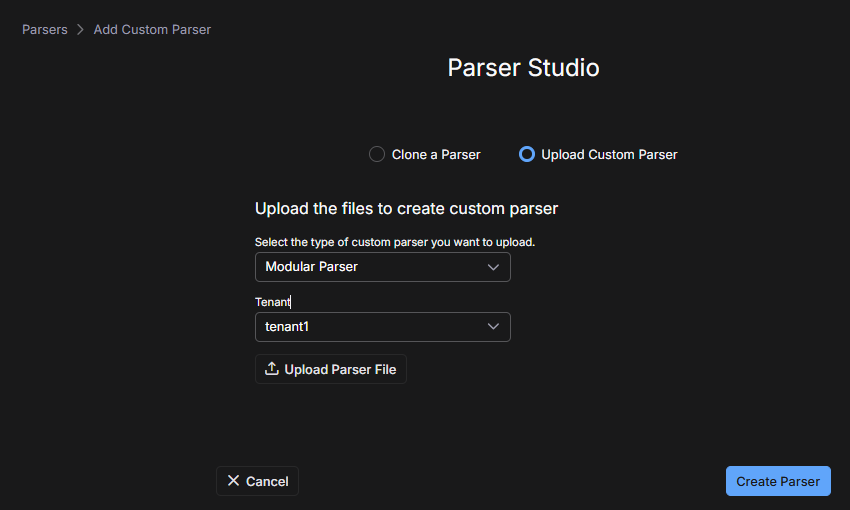
-
Select Upload Parser File, navigate to your JSON configuration file, and select it.
-
Select Create Parser.
If the upload succeeds, Stellar Cyber adds the parser to the Parser Studio table.
If the upload fails, an error message explains the reason. The most common cause is a mismatch between the
cust_idin the routing step in the file and the Stellar Cyber tenant ID for the selected tenant. If this occurs, open the JSON file, locate thecust_idfield in the routing step, and replace its value with the correct tenant ID. Save the file and repeat the upload. -
After a successful upload, review the parser in the table and confirm the following:
-
The parser name clearly identifies its purpose.
-
The assigned port does not conflict with another custom parser.
-
The parser is configured for the correct tenant.
-
The parser status is appropriate for testing or production use.
-
-
(Optional) Select the custom parser you just uploaded and select the Edit icon to open the parser configuration workflow and make modifications. (See Parser Studio – Parsers.)
-
If you are ready to use the parser in production, enable it in the Parser Studio table.
