Parser Studio – Parsers
Parser Studio
Parser Studio  is a management workspace for creating and managing log parsers for data ingestion. Parsers convert raw log messages that devices send to Modular Sensors into normalized fields in Interflow records. Stellar Cyber then analyzes the normalized, searchable data stored in these records for detections, correlations, and investigations. You can use Parser Studio to do the following:
Root-level users, partners, and tenant users
-
View built-in parsers provided by Stellar Cyber and custom parsers that you or others on your team create
Root-level users
-
Create custom parsers by cloning an existing parser
-
Upload parser definitions
-
Configure log parsing rules
-
Test parser behavior before deployment
-
Activate parsers for production log ingestions
To access Parser Studio:
-
Log in as a root-level user, partner, or tenant user and navigate to System | DATA SOURCE MANAGEMENT | Parser Studio | Parsers.
Parser Studio opens to a landing page with a table of built-in and previously created parsers.
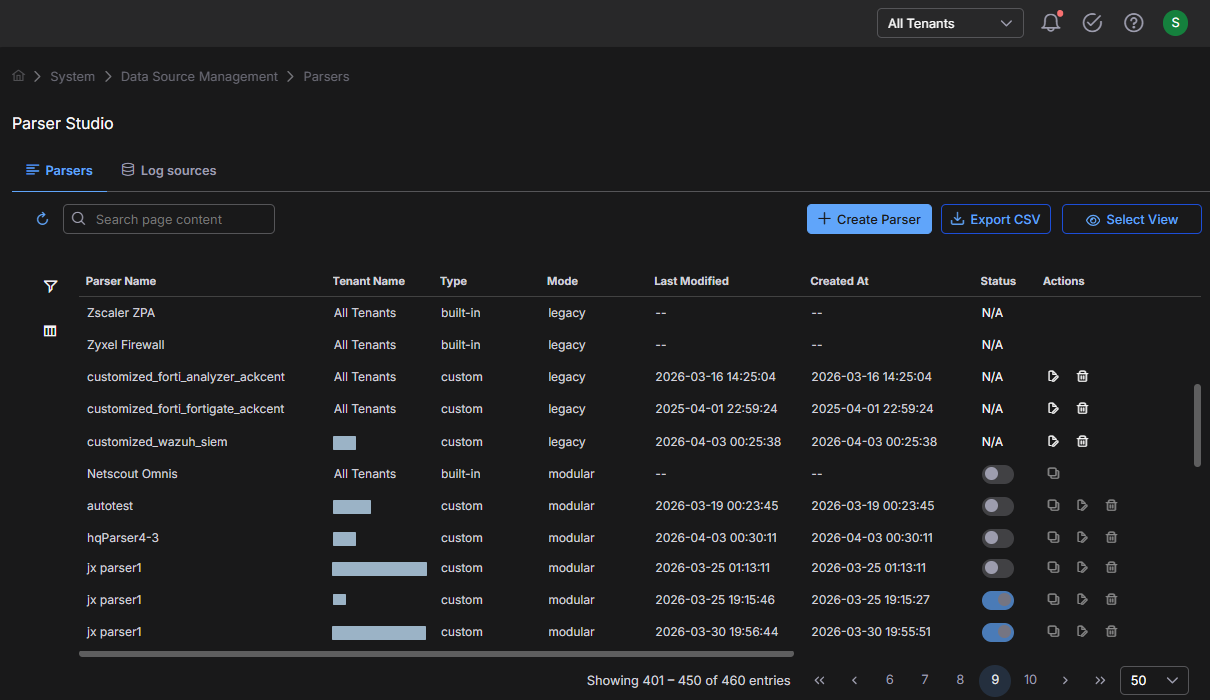
The Type and Mode of a parser can be in one of these four combinations:
-
Built-in parsers in legacy mode cannot be acted on in any way; that is, they cannot be activated/deactivated, cloned, edited, or deleted.
-
Built-in parsers in modular mode (there are two in this release: Fortinet Fortigate and NetScout Omnis) can be activated/deactivated and cloned, but only after you first select a specific tenant. They cannot be acted upon when viewing parsers in All Tenants mode, and they cannot be edited or deleted even after you select a specific parser.
-
Custom parsers in legacy mode can be edited and deleted, but only after you first select a specific tenant. They cannot be activated/deactivated or cloned. These are custom parsers that Stellar Cyber Customer Success provides in response to customer requests and which are uploaded to the Stellar Cyber Platform.
-
Custom parsers in modular mode can be activated/deactivated, cloned, edited, and deleted after you first select a specific tenant.
-
-
If you are a root-level user or partner, use the tenant selector at the top of the page to choose an individual tenant whose parsers you want to manage.
You cannot create, clone, edit, or delete a parser when the tenant selector is All Tenants. You must first select an individual tenant.
Parser Studio displays a table of built-in and previously created parsers for your selection.
The table is intended to support day-to-day management—quick visibility into configuration, and actions to maintain parsers over time—and contains the following column headings:
Column
Description
Parser Name
Name of the parser
Tenant Name (visible to root-level users and partners)
Tenant with which a parser is associated
Type
Whether the parser was created by Stellar Cyber (built-in) or by a user (custom)
Mode
legacy or modular (Legacy parsers use the original parser architecture and cannot be edited in Parser Studio. Modular parsers use a newer architecture and can be. All custom parsers are modular; built-in parsers can be either mode.)
Last Modified
(Custom parsers) Timestamp of the last modification
Created At
(Custom parsers) Timestamp when a parser was created
Status
(Custom parsers) A toggle to set the parser as active (running in production) or inactive (validated but not deployed)
(Built-in parsers) N/A
For each custom parser in the table, there is a set of common actions that you can perform:
-
Clone a custom parser (useful to copy a working configuration)
-
Edit a custom parser
-
Delete a custom parser
Treat deletion carefully. Removing a parser stops parsing for the data streams that depend on it.
-
Create a Custom Parser
Root-level users
Custom parsers let Stellar Cyber ingest logs from data sources that do not already have built-in parser support. Parser Studio provides two methods for creating a custom parser:
-
Clone a Parser – Start from an existing modular parser and modify it through a guided four-step configuration workflow.
-
Upload Custom Parser – Upload a parser configuration file that Stellar Cyber Customer Success has provided in response to a custom parser request. For information, see Requesting and Uploading Custom Parsers.
The following sections walk through each method. The four-step configuration walkthrough that accompanies the cloning method—including examples, troubleshooting techniques, and tips—uses the cloning workflow, but the concepts and practices it illustrates apply equally when you are preparing or troubleshooting an uploaded parser configuration.
Requirements
-
Root-level user access with read-write privileges
A sample raw log entry that is representative of the logs you want to parse
-
Knowledge of the protocol that your devices use to transmit logs to an external system
-
Knowledge of the log format that your devices use (Stellar Cyber supports custom parsers in Syslog, CEF, and LEEF formats.)
-
(Upload method only) A parser configuration file in JSON format provided by Stellar Cyber Customer Success. The file defines all five pipeline steps: routing, parsing, normalization, enrichment, and output. For instructions on uploading the file, see Requesting and Uploading Custom Parsers.
The
cust_idvalue in the routing step of the configuration file must match the Stellar Cyber tenant ID for the tenant to which you are uploading the parser. You can find a tenant ID on the Tenants page (System | ORGANIZATION MANAGEMENT | Tenants). -
(Optional, if using Tenant Mapping) A tenant map configured for the target tenant. The tenant map must exist in Tenant Mapping (System | ORGANIZATION MANAGEMENT | Tenant Mapping) before you configure the parser. See Tenant Mapping.
-
(Optional, if using Tenant Mapping with a Stellar Cyber ID field) The Stellar Cyber tenant ID value that the sending system embeds in its log messages.
Clone a Parser
You can clone another custom parser or either the Fortinet Fortigate built-in parser or the NetScout Omnis built-in parser, which Stellar Cyber currently lets you clone to get started.
-
When logged in as a root-level user, select or confirm the tenant for which you want to create a parser, and then select + Create Parser.
-
Select Clone a Parser and then do either of the following:
Search for a parser to clone, choose it from the search results, and then select Next.
or
Select Browse Parser Library, choose one from the list, select Clone Selected Parser, and then select Next.
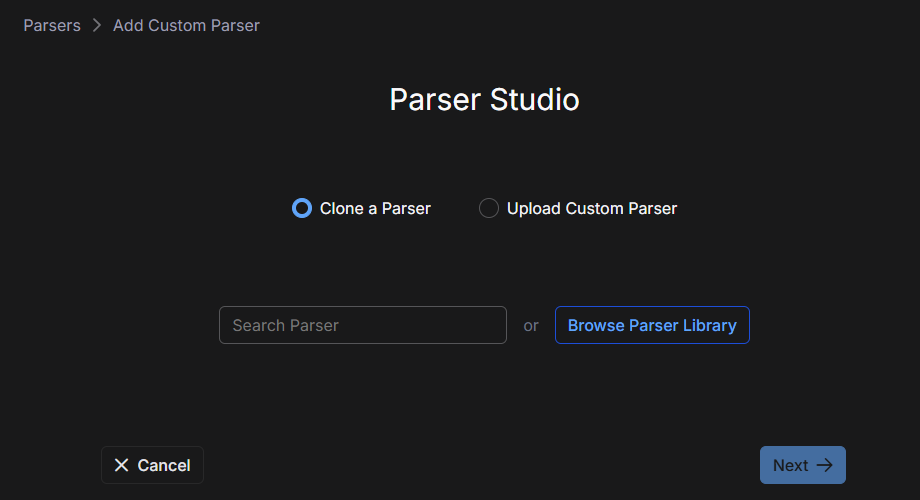
Parser Studio creates a copy of the selected parser and opens the parser configuration workflow, which consists of four steps:
Stellar Cyber guides you through each step of the workflow.
In this example, the cloned parser is modified to parse a different log format (Syslog instead of CEF) to demonstrate Parser Studio capabilities. In typical use, you would clone a built-in or custom parser for a similar product and modify it to support logs from a device that does not yet have a dedicated parser in the Stellar Cyber Platform.
Step 1: Raw Log
-
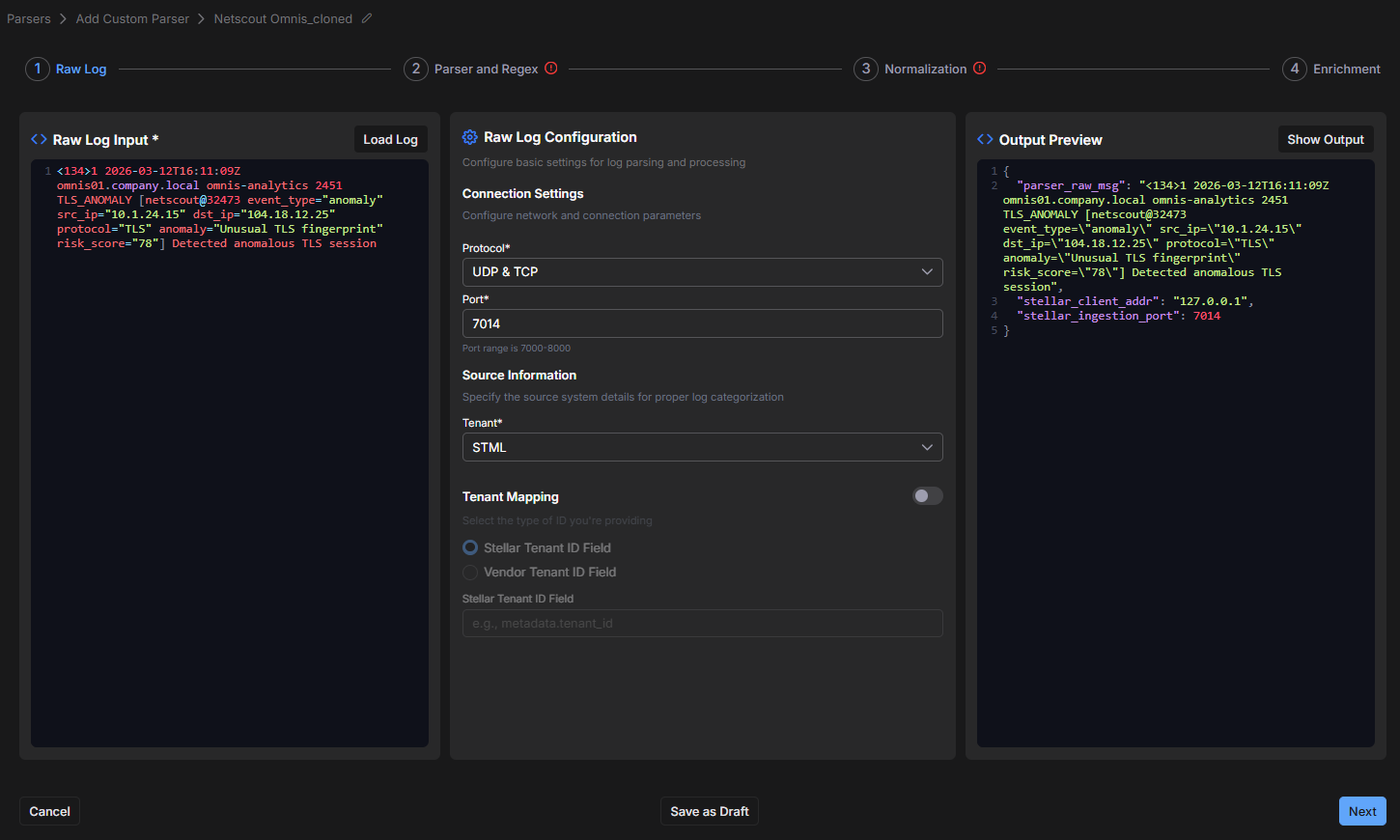
Upload or paste a raw log sample in the Raw Log Input panel.
Either copy and paste a single log entry that represents the logs that require parsing into the Raw Log Input field, or select Load Log, navigate to the file with a single log entry and select it.
Example log entry:
<134>1 2026-03-12T16:11:09Z omnis01.company.local omnis-analytics 2451 TLS_ANOMALY [netscout@32473 event_type="anomaly" src_ip="10.1.24.15" dst_ip="104.18.12.25" protocol="TLS" anomaly="Unusual TLS fingerprint" risk_score="78"] Detected anomalous TLS session
-
Enter the connection setting and source configuration.
Protocol: Choose either UDP & TCP or HTTP.
Port: Enter a port number between 7000 and 8000. This range is reserved for custom parsers. Be sure to use a unique number. If you accidentally enter one that’s already in use by another custom parser, Stellar Cyber notifies you and prompts you to enter a different number.
Tenant (root-level users and partners): Choose the tenant for which you’re creating this custom parser.
Tenant Mapping (optional): Enable this toggle if the logs that this parser will process include a tenant ID field, and you want the parser to assign each log to the correct Stellar Cyber tenant based on that field. This is useful in multi-tenant environments where a single log stream contains logs belonging to different tenants.
When you enable Tenant Mapping, select one of the following options:
-
Stellar Tenant ID Field – Select this option if the sending system embeds a Stellar Cyber tenant ID directly in each log. In the Stellar Tenant ID Field, enter the JSON path to the field that contains the Stellar Cyber tenant ID (for example,
metadata.tenant_idorcustomer_id). The parser extracts the value at that path from each incoming log and uses it directly to assign the log to the matching Stellar Cyber tenant. No tenant map is required. -
Vendor Tenant ID Field – Select this option if the sending system embeds its own tenant ID in each log rather than a Stellar Cyber tenant ID. In the Vendor Tenant ID Field, enter the JSON path to the field that contains the vendor tenant ID (for example,
metadata.tenant_id,vendor_id, ororg_id). The parser extracts the value at that path from each incoming log and looks it up in the selected tenant map to find the corresponding Stellar Cyber tenant ID. If the lookup finds a match, the log is assigned to the mapped Stellar Cyber tenant. If no match is found, the log is assigned to the same tenant as the sensor that received it.
To select a tenant map, click or tap Select Tenant Mapping. The Select Tenant Mapping Table dialog box opens and lists the available tenant maps for the selected tenant, along with the number of entries each tenant map contains. Select a tenant map to preview its Vendor Tenant ID-to-Stellar Cyber Tenant ID mappings, and then click or tap Select. The selected tenant map name appears in the Raw Log Configuration panel. To change the tenant map, select Change Tenant Mapping.
The tenant map must already exist before you configure the parser. To create or manage tenant maps, navigate to System | ORGANIZATION MANAGEMENT | Tenant Mapping. For information, see Tenant Mapping.
-
-
Preview the output of the parsed log by selecting Show Output.
-
To continue to the second step, select Next.
If you want to save the custom parser configuration done so far and resume later, select Save as Draft and then select Cancel. Stellar Cyber saves it to the Parser Studio table as a custom parser with “Draft” appended to its name in the Parser name column. To resume, select Edit for the custom parser configuration.
Step 2: Parser and Regex
-
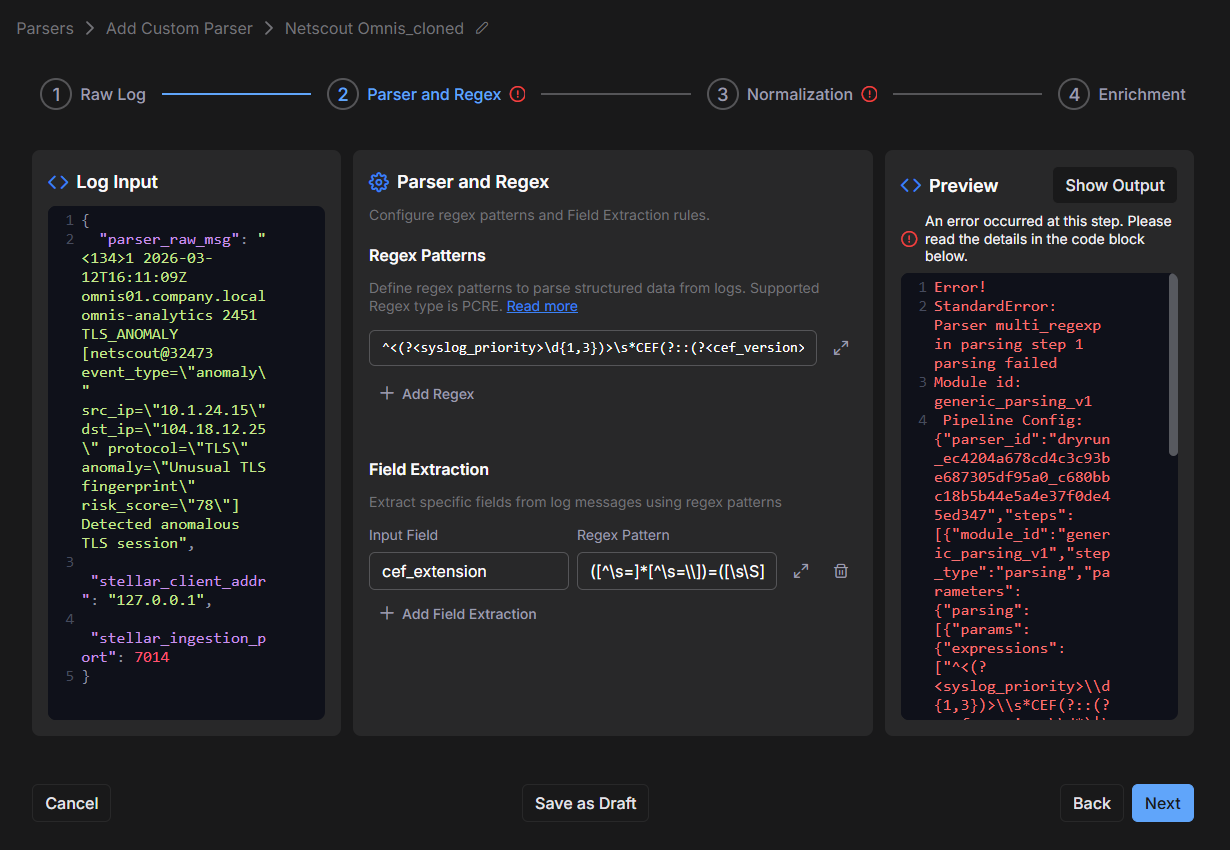
Review the Regex pattern that Stellar Cyber generated and check the Preview panel for any error messages.
In this example, there is an error. The sample log uses Syslog format; therefore, the parser should generate a Syslog-style regex. However, here the generated pattern reflects CEF instead of Syslog. When this happens, the Preview panel displays an error because the regex does not match the sample log.
-
When there’s an error, diagnose the issue by comparing the sample log format with the generated regex.
You can use a regex debugging tool such as those at regex101.com or regexr.com, or you can work with an AI assistant by providing the sample log, the generated regex, and the error output.
-
To correct the error in this example, replace the regex with a Syslog pattern that matches the sample log structure. For example:
^<(?<syslog_priority>\d{1,3})>(?<syslog_version>\d)\s+(?<raw_time>\S+)\s+(?<host>\S+)\s+(?<app_name>\S+)\s+(?<procid>\S+)\s+(?<syslog_msgid>\S+)\s+\[(?<sd_id>\S+)\s*(?<syslog_structured_data>[^\]]*)\]\s*(?<message>.*)$
Some tools or AI assistants might return regex in an escaped form that is suitable for JSON or code but not for direct entry in the Regex Pattern Editor. If you paste it exactly as shown, the parser might fail although the regex logic is correct. For example, if you see
\\d\\s+, change it to\d\s+. In other words, review the pattern and convert double backslashes to single backslashes.Also make sure the expression ends cleanly. A missing quote or an extra trailing backslash can cause the parser to fail even when the rest of the pattern is correct. For example, if you see this escaped regex—
(?<key>\\w+)=\"(?<value>[^\"]+)\"
—change it to this for the Regex Pattern Editor version:
(?<key>\w+)="(?<value>[^"]+)"
-
Under Field Extraction, set the Input Field to
syslog_structured_dataand extract the key-value pairs from the structured-data block using the following pattern:([^\s=]+)="([^"]*)"
This second pattern extracts fields such as
event_type,src_ip,dst_ip,protocol,anomaly, andrisk_scorefrom the structured-data portion of the message. -
Select Show Output to verify that the parsing now succeeds.
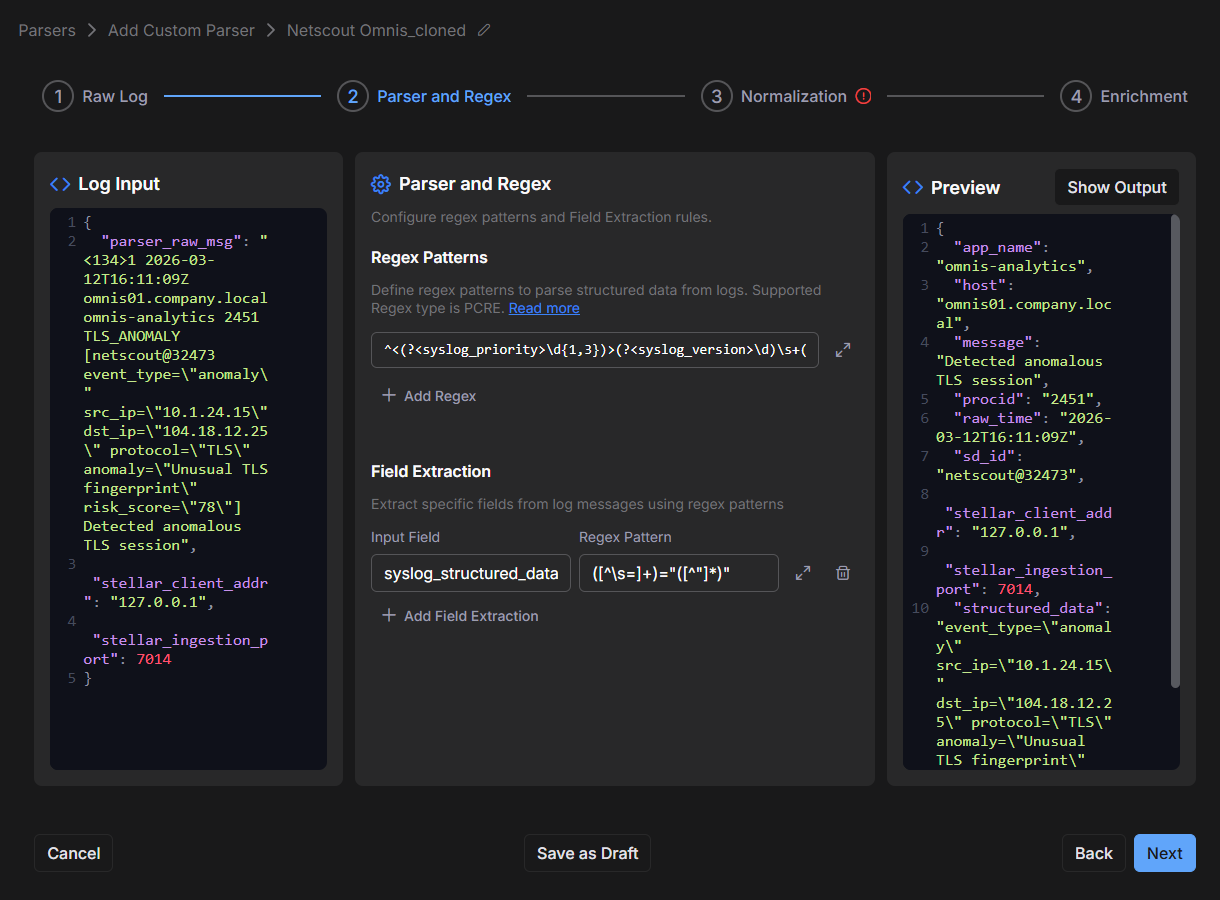
The Preview panel no longer shows a parsing error, and the output includes the extracted Syslog fields and the parsed structured data.
The parser first extracts the RFC 5424 syslog header fields and the structured-data block. It then parses the structured-data block into individual key-value fields, which are used to populate the JSON output.
-
-
To continue to the third step, select Next.
Step 3: Normalization
The Normalization page contains three tabs:
-
Vendor – Defines vendor and product metadata used to populate the
msg_originsection in JSON-formatted Interflow records. -
Ignore Values – Specifies placeholder values to drop during normalization such as
(empty string),-, ornull. -
Field Mapping – Maps parsed fields to Stellar Cyber schema fields and optional namespaces.
If required values are missing, the step indicator displays a red exclamation point. The Output Preview panel also lists validation errors. In this example, the Vendor tab contains a missing value that must be completed before continuing.
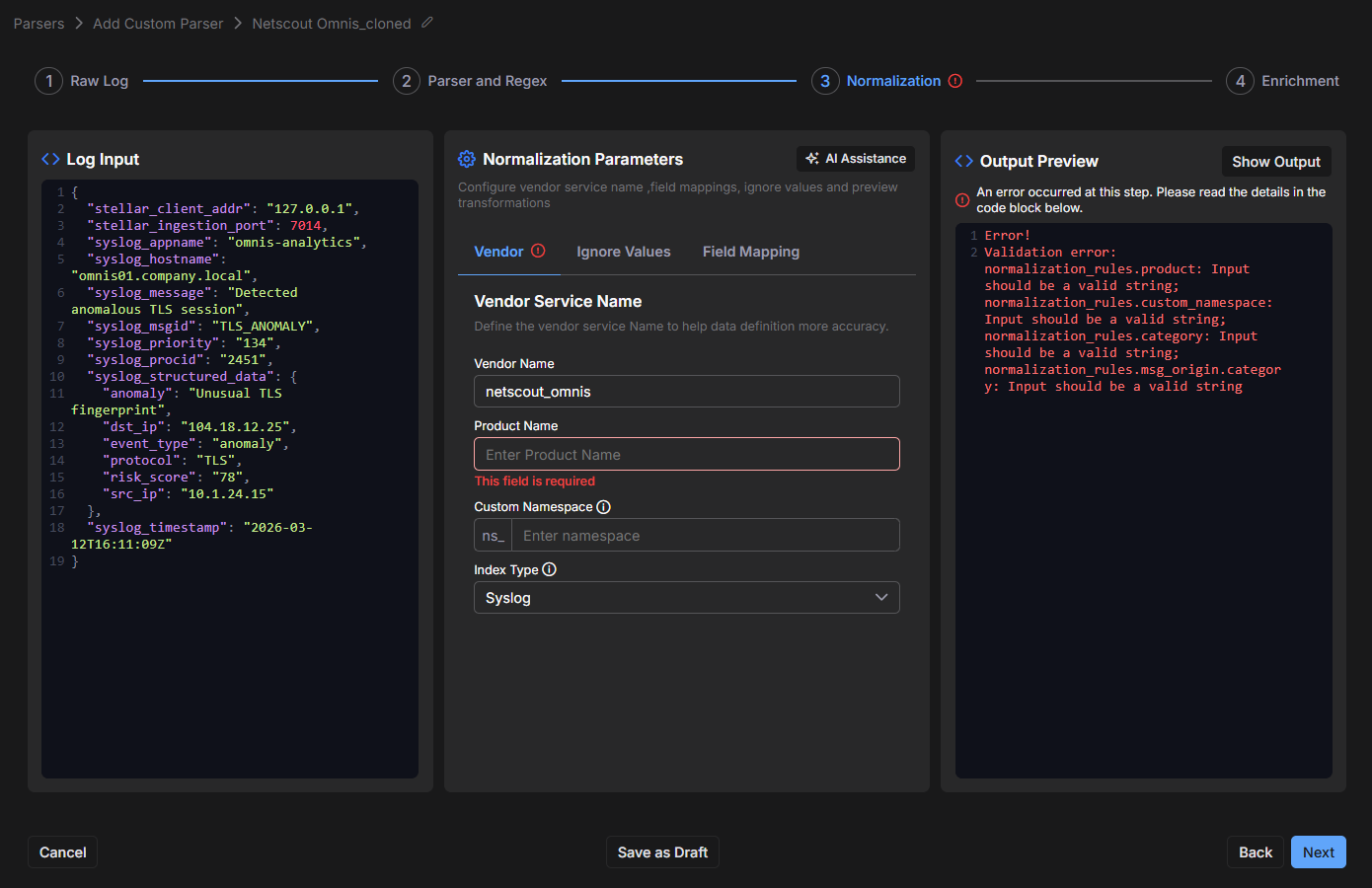
-
Rename the fields in the Vendor Service Name section with meaningful values, and then select Show Output.
For the example here, enter the following values:
-
Vendor Name:
netscout -
Product Name:
omnis -
Custom Namespace:
netscout_omnis
The renamed fields appear in the
msg_originsection in the Output Preview panel:"msg_origin": {
"category": "Syslog",
"product": "omnis",
"source": "netscout_omnis",
"vendor": "netscout"
},
Choose values for Vendor Name and Product Name carefully. Stellar Cyber builds
msg_origin.sourceautomatically by concatenating these values. Usingnetscoutandomnisproduces the clear source valuenetscout_omnis. -
-
For Index Type, choose an appropriate index for the type of data being parsed.
For the example here, choose Syslog.
This populates the
msg_origin.categoryvalue. -
Select the Field Mapping tab, scroll to the Namespace Fields section at the bottom, and then delete the row there by selecting the Delete (trash) icon.
The Namespace Fields section displayed an error because the template includes a placeholder row with
*in Raw Field and an empty New Field Name. Because New Field Name is required, the row was flagged as invalid.The Custom Namespace defined on the Vendor tab already groups vendor-specific fields under a namespace. Therefore, it’s safe to delete the placeholder row in Namespace Fields.
Avoid defining the same namespace in both Custom Namespace and Namespace Fields because doing so creates a nested structure. In most cases, defining only the Custom Namespace is sufficient.
Use Namespace Fields only when you want to map specific extracted values into a separate namespace or when you are not using Custom Namespace. For example:
Raw Field:
syslog_structured_data.risk_scoreNew Field Name:
ns_netscout_omnis.risk_scoreType:
Integer -
Either leave the mappings in Top Level Fields or delete them.
In the example, the template in the Field Mapping tab includes many
cef_mappings. Because this example parses RFC 5424 Syslog data rather than CEF, these mappings go unused. It’s safe to leave unused mappings in place. They don’t affect parsing because normalization only applies mappings to fields that exist in the parsed record.However, removing unused
cef_mappings can simplify the configuration. Cleaning up the list makes it easier to review active mappings and reduces confusion for future updates.From 6.5.0, you can map one Raw Field to multiple Stellar Cyber Schema fields in the Top Level Fields section. This is useful when you want one parsed value to populate more than one top-level normalized field; for example, you might want to normalize
syslog_timestampto bothlog.syslog.timestampandtimestamp. There is no maximum limit to how many mappings you can configure. -
Select Show Output.
The Output Preview panel no longer shows normalization errors.
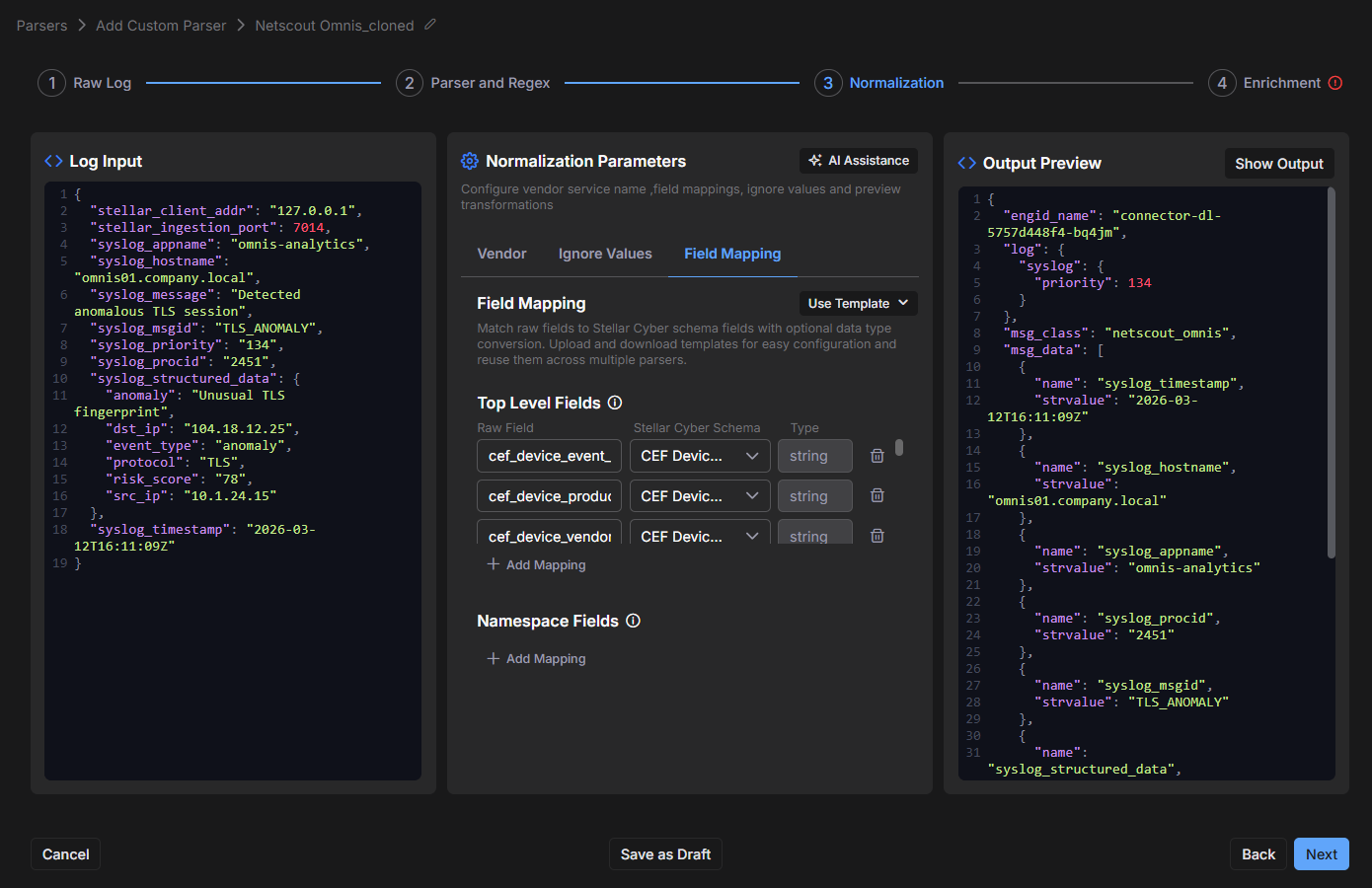
-
To advance to the fourth step, select Next.
Step 4: Enrichment
The Enrichment page lets you apply custom post-processing logic to the normalized record by using a Ruby function.
-
Review the Ruby function and check the Preview panel for any error messages.
When you clone a parser, the Ruby Function area might contain enrichment code from the original parser. In this example, the inherited Ruby function expects CEF-specific fields such as
cef_extensioninside a vendor namespace. However, the current parser uses Syslog fields instead. As a result, the inherited function does not match the current record structure, and the Preview panel displays an enrichment error.In this example, the error occurs because the function tries to read
record["netscout_omnis"], but that field does not exist in the normalized output. Because the function receivesnilinstead of a record object, the next line fails.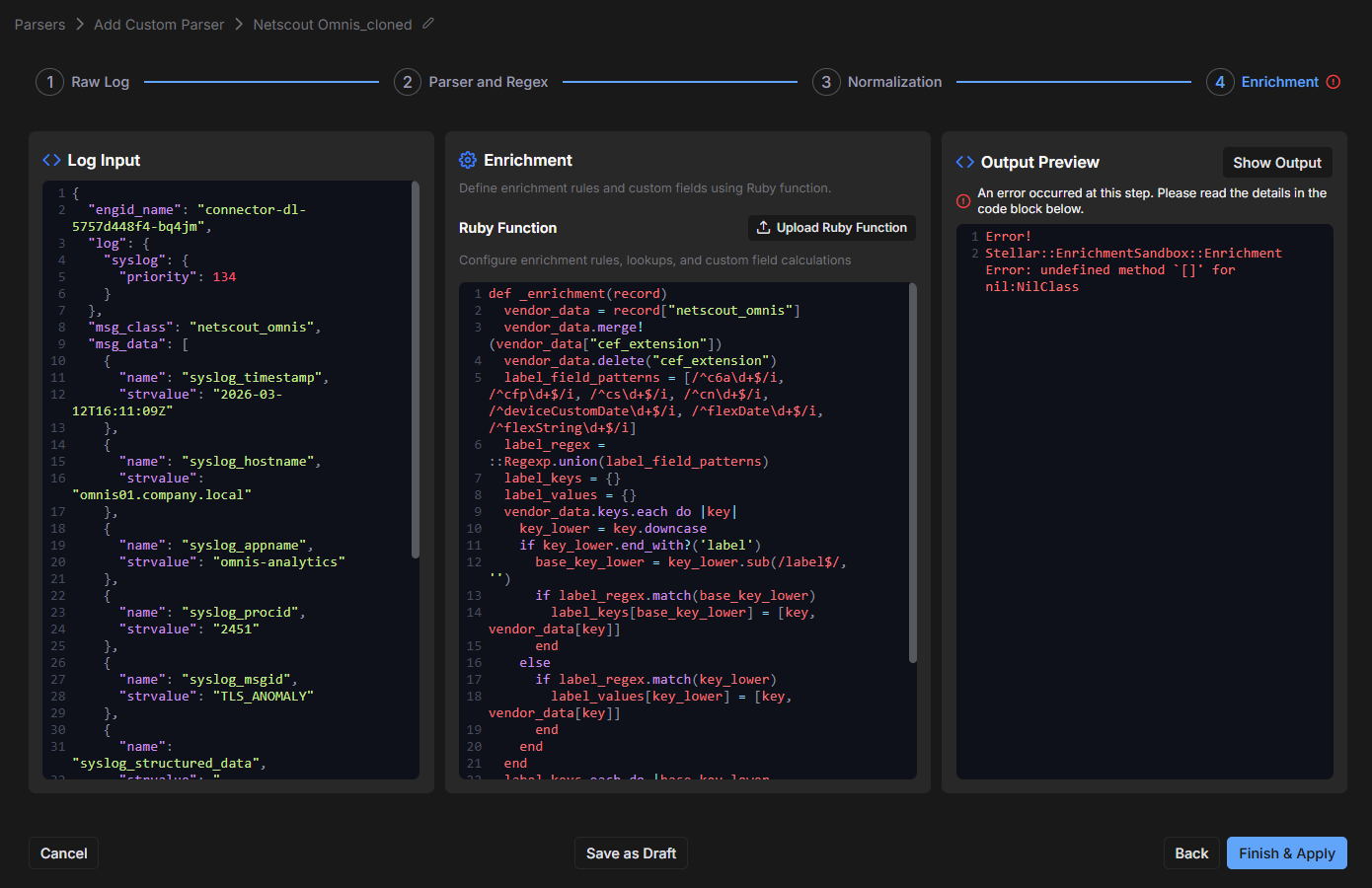
-
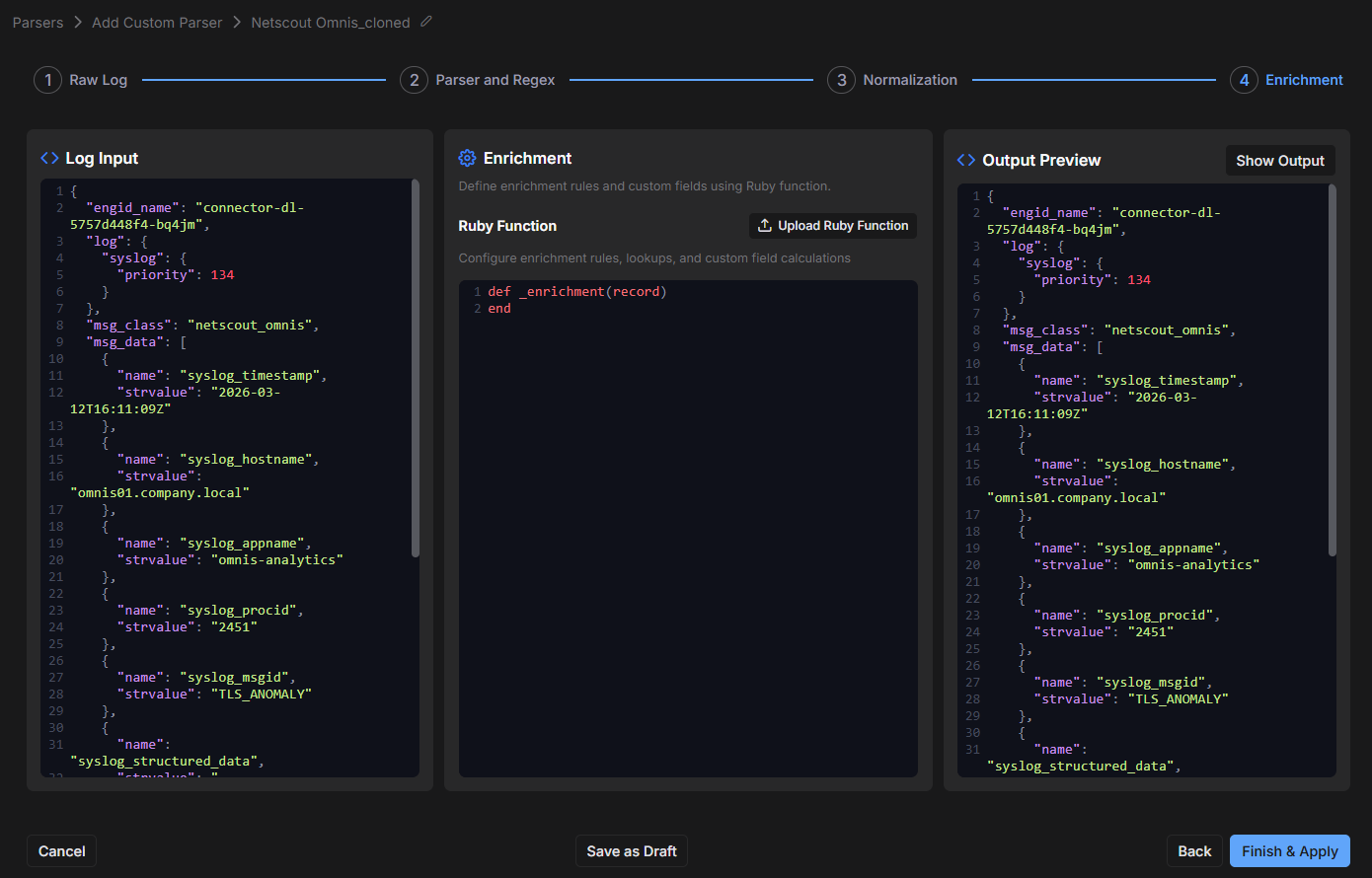
To clear the error quickly, replace the inherited Ruby function with a simple pass-through function, and then select Show Output.
Replace the code in the Ruby Function panel with the following:
Copydef _enrichment(record)
endThis function satisfies the required method signature for enrichment and does not modify the record. The enrichment step succeeds, and the output remains the same as it was after normalization.
This is a useful troubleshooting technique. First, make the Enrichment step succeed with a minimal function. After that, if you need custom enrichment logic, add it gradually and test each change.
For an example showing how to add enrichment, see Optional: Add a Derived Field Using Enrichment.
-
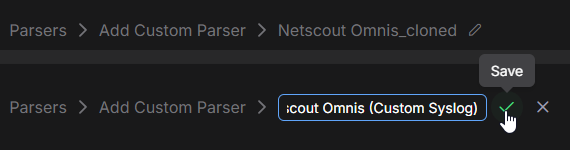
To rename the parser, select the Edit icon (pencil) next to the parser name at the top of the page, enter a descriptive name, and select the Save icon (green checkmark).
-
To finish creating the parser, select Finish & Apply.
-
If you are ready to use the parser in production, enable it in the Parser Studio table.
Optional: Add a Derived Field Using Enrichment
The Enrichment step adds value after parsing and normalization by calculating derived fields that do not exist in the original message.
After confirming that the pass-through function works in the previous example, you can add enrichment logic. For example, you can derive a severity value from the parsed risk_score.
-
Replace the pass-through Ruby function with the following example:
Copydef _enrichment(record)
data = record["msg_data"]
return record unless data.is_a?(::Array)
fields = {}
data.each do |item|
next unless item.is_a?(::Hash)
name = item["name"]
value = item["strvalue"]
fields[name] = value if name && value
end
risk_score = nil
structured = fields["syslog_structured_data"]
if structured
m = structured.match(/"risk_score"=>"(\d+)"/)
risk_score = m[1].to_i if m
end
severity =
if risk_score.nil?
"unknown"
elsif risk_score >= 75
"critical"
elsif risk_score >= 50
"high"
elsif risk_score >= 25
"medium"
else
"low"
end
data << { "name" => "derived_severity", "strvalue" => severity }
record
endThis function reads the normalized
msg_dataarray, extracts therisk_scorevalue fromsyslog_structured_data, evaluates the score, and appends a new field namedderived_severity. -
Select Show Output again.
The Output Preview now includes the
derived_severityfield. For this sample, therisk_scorevalue is78, which maps to theCriticalseverity level:{ "name": "derived_severity", "strvalue": "critical" }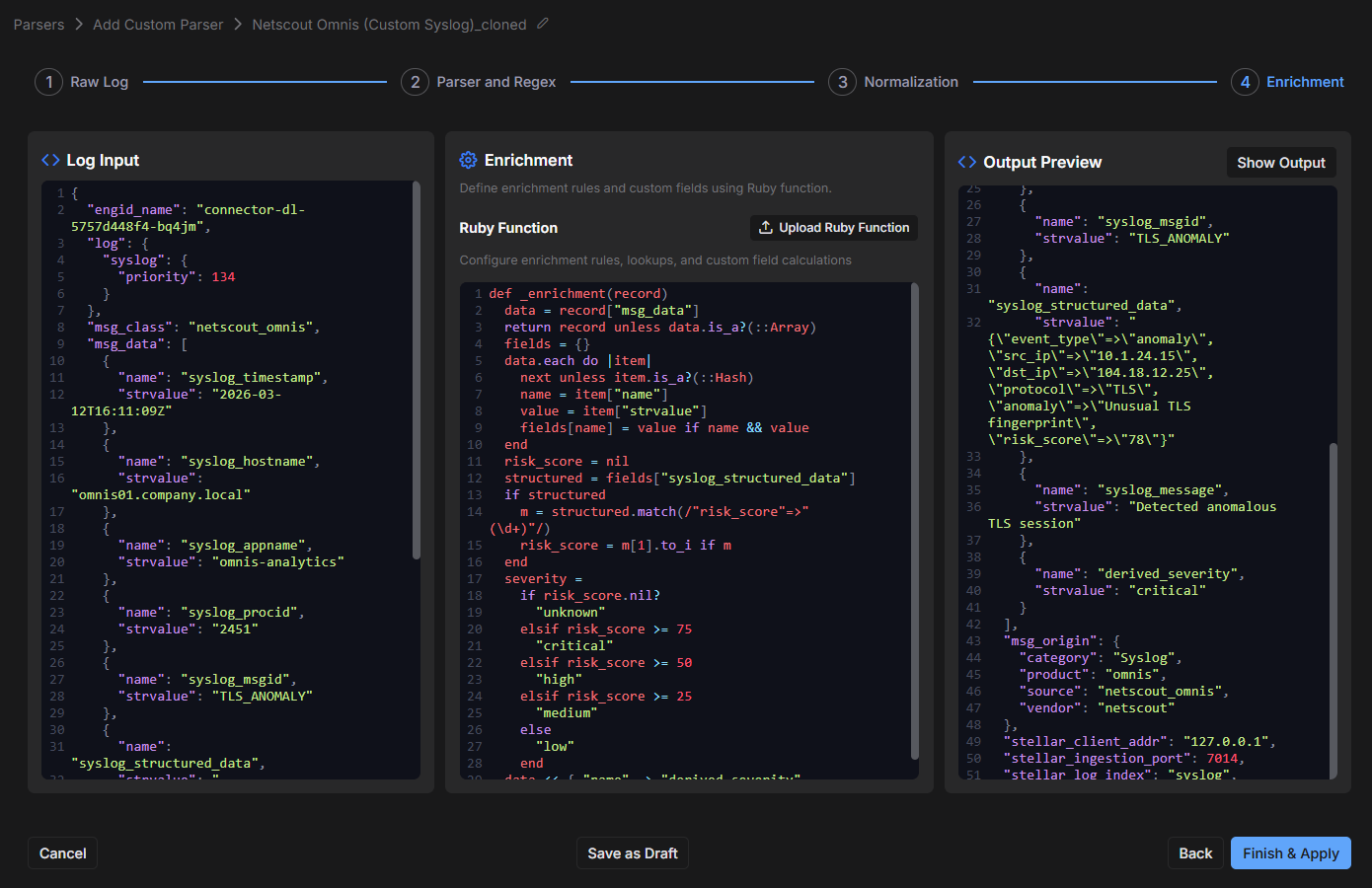
-
To complete the parser setup, select Finish & Apply.
Stellar Cyber saves the parser and returns you to the Parser Studio table. The parser appears as a custom parser for the selected tenant.
-
After saving, review the parser in the table and confirm the following:
-
The parser name clearly identifies its purpose.
-
The assigned port does not conflict with another custom parser.
-
The parser is configured for the correct tenant.
-
The parser status is appropriate for testing or production use.
-
-
If you are ready to use the parser in production, enable it in the Parser Studio table.
Upload a Custom Parser
Use Upload Custom Parser only when Stellar Cyber Customer Success has already provided a parser configuration file for your environment. This option is intended for existing Customer Success-delivered parser files. For most custom parser needs, use Parser Studio to create and manage parsers directly.
Unlike cloning, the upload method does not open the four-step configuration wizard. Once uploaded successfully, the parser appears directly in the Parser Studio table and can be enabled for use.
For prerequisites and upload instructions, including how to configure Tenant Mapping if needed, see Upload a Custom Parser Provided by Customer Success.
Troubleshooting
If a custom parser does not behave as expected, use the following checks to isolate the issue. Because a Parser Studio configuration is performed in stages (Raw Log, Parser and Regex, Normalization, and Enrichment), problems often originate in an earlier step and propagate forward. When troubleshooting, validate each stage in order.
The following strategy can help you troubleshoot issues efficiently before reviewing specific symptoms.
Troubleshooting Strategy
Work incrementally and validate each stage before moving to the next:
-
Use a realistic sample log that represents actual incoming data.
-
Validate parsing before adjusting normalization settings.
-
Use regex debugging tools or an AI assistant when extraction rules do not match expectations.
-
Clear enrichment errors with the simplest possible pass-through function first.
-
Add derived enrichment logic only after parsing and normalization are stable.
This staged approach prevents changes in later steps from masking issues that originate earlier in the workflow.
Parser Studio is not visible in the UI
If you do not see Parser Studio in the navigation or cannot access the feature:
-
Confirm that you are logged in with a role that has permission to create custom parsers. Some roles do not expose Parser Studio.
-
Verify that you are working in the correct tenant. Parser Studio availability might be tenant-specific.
-
If the feature is still not visible, contact your administrator or Stellar Cyber support to confirm that Parser Studio is enabled for your environment.
A parser is enabled but data is not arriving
If a parser is configured and enabled but no events appear:
-
Verify that the log sender is using the correct protocol (UDP or TCP) and the port configured for the parser.
-
Confirm that network and firewall rules allow traffic from the log source to a Modular Sensor on the configured port.
-
Ensure that the parser is enabled for the correct tenant and that the incoming data is being sent to that tenant.
-
Use a packet capture or simple connectivity test (for example, netcat or telnet) to confirm that traffic is reaching the ingestion port.
-
Review system logs on the Modular Sensor for ingestion errors or listener binding failures.
Test results do not match expectations
If parsing succeeds but fields are missing, incorrect, or incomplete:
-
Re-check the sample log. Small format differences (extra spaces, different delimiters, optional fields) are common and can cause regex mismatches.
-
Validate timestamp extraction first. Timestamp parsing failures often prevent correct event processing and can affect downstream normalization.
-
Confirm that your regex captures only the intended fields and does not over-match. Test with multiple sample logs if possible.
-
Start with a minimal set of fields. After parsing works reliably, gradually add additional fields.
-
Check normalization mappings to ensure that captured fields are mapped to the correct destination fields.
-
If enrichment logic is used, temporarily replace it with a pass-through function to confirm that the issue originates earlier in the pipeline.
Enrichment produces unexpected results
If derived fields are missing or incorrect:
-
Confirm that enrichment logic matches the actual format of the normalized data.
-
Verify that field names referenced in the Ruby function exist in msg_data.
-
Temporarily simplify the enrichment function to isolate the issue, then reintroduce logic incrementally.
An uploaded parser configuration is rejected
If the upload fails with an error:
-
Check that the
cust_idvalue in the routing step of your JSON file exactly matches the Stellar Cyber tenant ID for the target tenant. Tenant IDs are case-sensitive. You can verify the tenant ID on the Tenants page (System | ORGANIZATION MANAGEMENT | Tenants). -
Confirm that the port number in the routing step is between 7000 and 8000 and is not already assigned to another custom parser.
-
Confirm that all five pipeline steps are present in the file: routing, parsing, normalization, enrichment, and output.
-
Validate the JSON syntax of the file before uploading. A missing brace, bracket, or comma can cause the upload to fail even when the parser logic is correct.
