Managing Institutional Knowledge
Institutional Knowledge captures what you teach Stellar Cyber about your environment. When you override an Alert Auto Triage verdict and explain why, Stellar Cyber records your justification and consolidates it into knowledge to inform future evaluations of similar alerts. For example, if you explain that a host is an approved internal scanner, Stellar Cyber takes that context into account when the same host triggers another scan-related alert, so you do not need to repeat the explanation. Institutional Knowledge is part of Alert Auto Triage and is available to all Alert Auto Triage users, with no separate enrollment.
Institutional Knowledge informs the AI assessment but does not determine the verdict. You retain final authority over every verdict, and knowledge never changes a case or alert score.
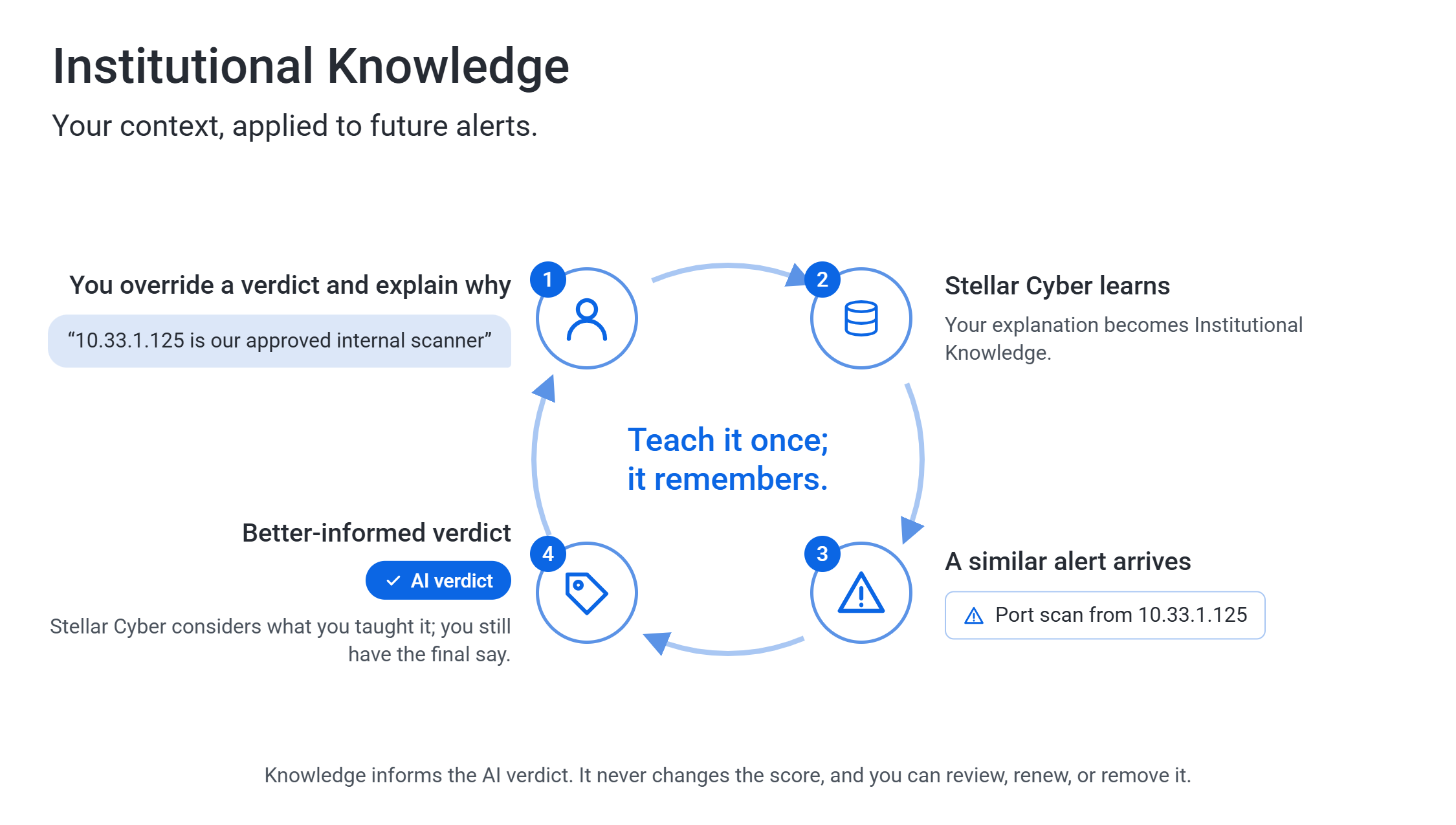
This topic explains how Institutional Knowledge is built and applied, and how to view or pause it. To review the justifications behind the knowledge, and to renew or delete them, see Managing Sources of Institutional Knowledge. For guidance on writing feedback that becomes useful knowledge, see Providing Feedback to Alert Auto Triage.
The following are the sections in this topic:
How Institutional Knowledge Works
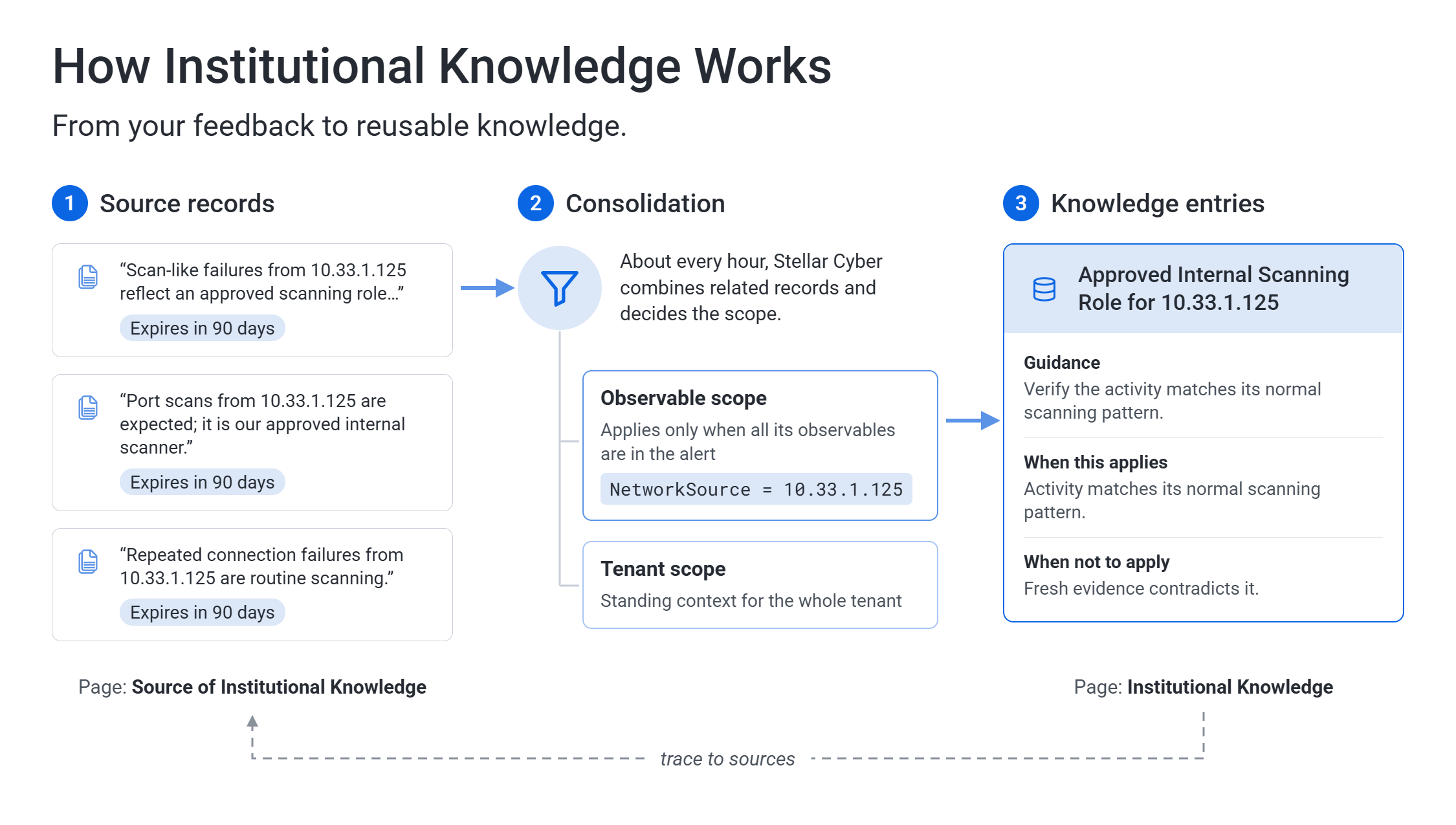
Institutional Knowledge is built from the justifications you provide when you override a verdict. The process has three stages:
-
You provide feedback. When you override a verdict, you select suggested justifications, add your own context, or both. You also specify how long the context applies. Stellar Cyber saves this as a source record.
-
Stellar Cyber consolidates it. Stellar Cyber processes new source records periodically. It determines whether each record applies to specific observables or to the whole tenant, combines related records, and writes a knowledge entry that includes a title, a summary, guidance, and the conditions under which it applies.
-
Stellar Cyber applies it. When a new alert is triaged, Stellar Cyber retrieves matching active knowledge entries and uses them when determining the verdict and confidence.
Because consolidation is periodic, new feedback does not take effect immediately. Stellar Cyber refreshes Institutional Knowledge approximately every hour.
Source Records and Knowledge Entries
Two pages present Institutional Knowledge: one shows justifications submitted with verdict overrides, and the other shows what Stellar Cyber learned from those justifications.
|
Page |
What It Shows |
Example |
|---|---|---|
| Source of Institutional Knowledge | Each justification submitted with a verdict override, as it was written, with the alert, the analyst, and its status. | "Scan-like failures from 10.33.1.125 reflect an approved internal scanning role…" |
| Institutional Knowledge | Consolidated knowledge entries that Stellar Cyber derives from one or more source records and applies during triage. | "Approved Internal Scanning Role for 10.33.1.125" |
Knowledge entries link to their source records, and source records link to the knowledge entries they support. These links let you trace knowledge back to the analyst who submitted the justification.
Knowledge Scope
The scope of a knowledge entry determines which future alerts it can apply to.
|
Scope |
What It Means |
Example |
|---|---|---|
| Observable | The knowledge applies to specific observables, such as an IP address, host, user, process, file hash, or URL. It applies only when all of those observables are present in the alert. | NetworkSource = 10.33.1.125 is an approved scanner. |
| Tenant | The knowledge describes standing context for the whole tenant and applies to related alerts across the tenant. Stellar Cyber can combine several source records into one tenant-level entry. | Vulnerability scans in this environment run nightly from the security subnet. |
Not every source record produces a knowledge entry. Records without usable, reusable context are not included.
How Knowledge Influences Triage
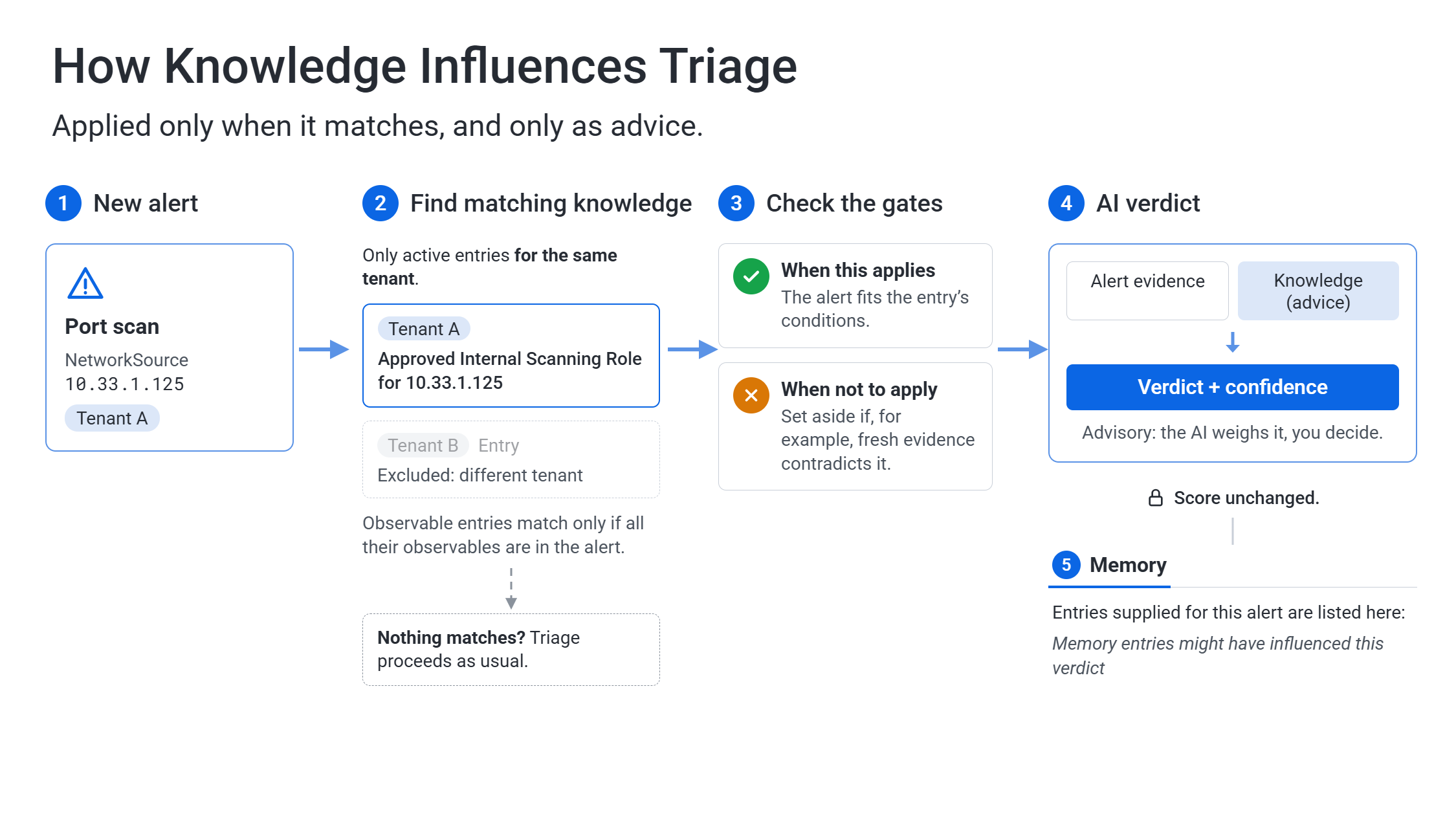
When Stellar Cyber triages an alert, it retrieves only active, matching knowledge entries belonging to the alert tenant:
-
An observable entry matches when every observable in its scope is present in the alert.
-
A tenant entry matches related alerts, such as alerts of the same type, across the tenant.
Each entry identifies conditions for applying the knowledge and conditions that prevent its use. For example, an entry that explains an approved scanner does not apply if fresh evidence in the alert contradicts it. If no entry matches, triage proceeds exactly as it would without Institutional Knowledge.
Knowledge informs the verdict and confidence but remains advisory. Stellar Cyber does not close, suppress, score, or contain an alert based on knowledge.
Seeing Which Knowledge Was Applied to an Alert
When Stellar Cyber applies knowledge to an alert, the alert details include a Memory tab listing the applied entries. You can review these entries when evaluating the verdict.
To see the knowledge applied to an alert:
-
Open the alert details, for example from the Associated Alerts table of a case.
-
Select the Memory tab.
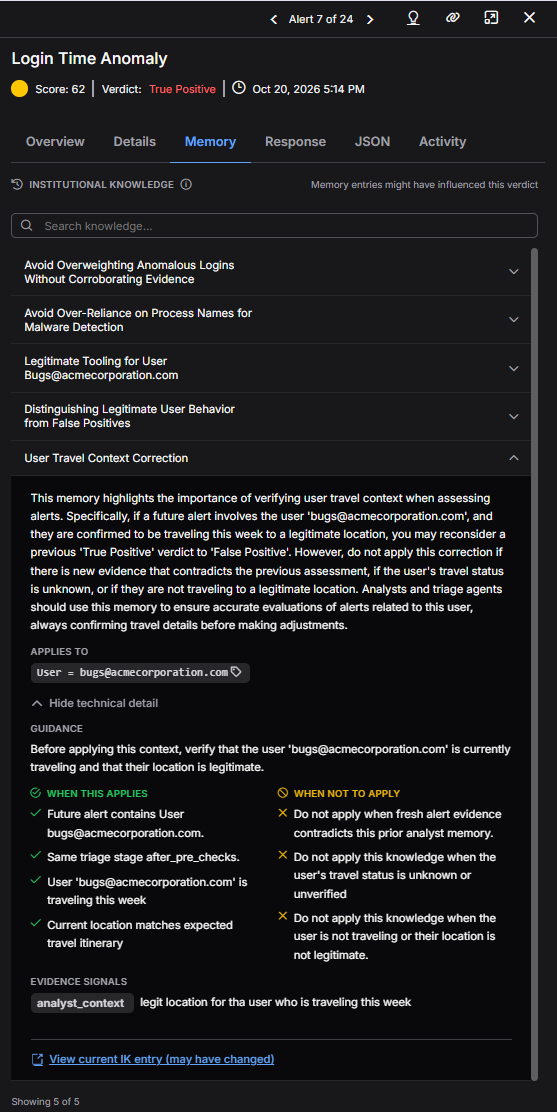
The Institutional Knowledge section lists each knowledge entry that Stellar Cyber applied when it triaged the alert, with the note Memory entries might have influenced this verdict.
-
To find a specific entry, enter text in the Search knowledge box.
-
Select the entry title to expand it.
The expanded entry shows a summary of the knowledge, including when it should and should not be used; Applies To, which lists the observables the knowledge is tied to (observable scope only); and Show technical detail, which reveals the guidance and conditions described in Viewing Learned Knowledge.
-
Select View current IK entry (may have changed).
The entry opens on the Institutional Knowledge page. Select Open in Source of Institutional Knowledge to view its source records.
The entries in the Memory tab were supplied to the AI as context for this alert. These entries might have influenced the verdict, but the AI weighs them against the alert evidence and is not required to follow them. The Memory tab appears only when at least one knowledge entry was applied to the alert.
The Memory tab shows the knowledge as it was when the alert was triaged. If the knowledge is later renewed, deleted, or paused, the Memory tab for that alert does not change, as indicated by the may have changed note in the link to the current entry. Stellar Cyber does not re-evaluate alerts that were already triaged.
Viewing Learned Knowledge
The Institutional Knowledge page lists the knowledge entries Stellar Cyber currently maintains.
To view learned knowledge:
-
Navigate to System | DATA MANAGEMENT | Institutional Knowledge.
-
In the tenant selector, choose a tenant or retain All Tenants.
-
Select the arrow next to an entry to expand it.
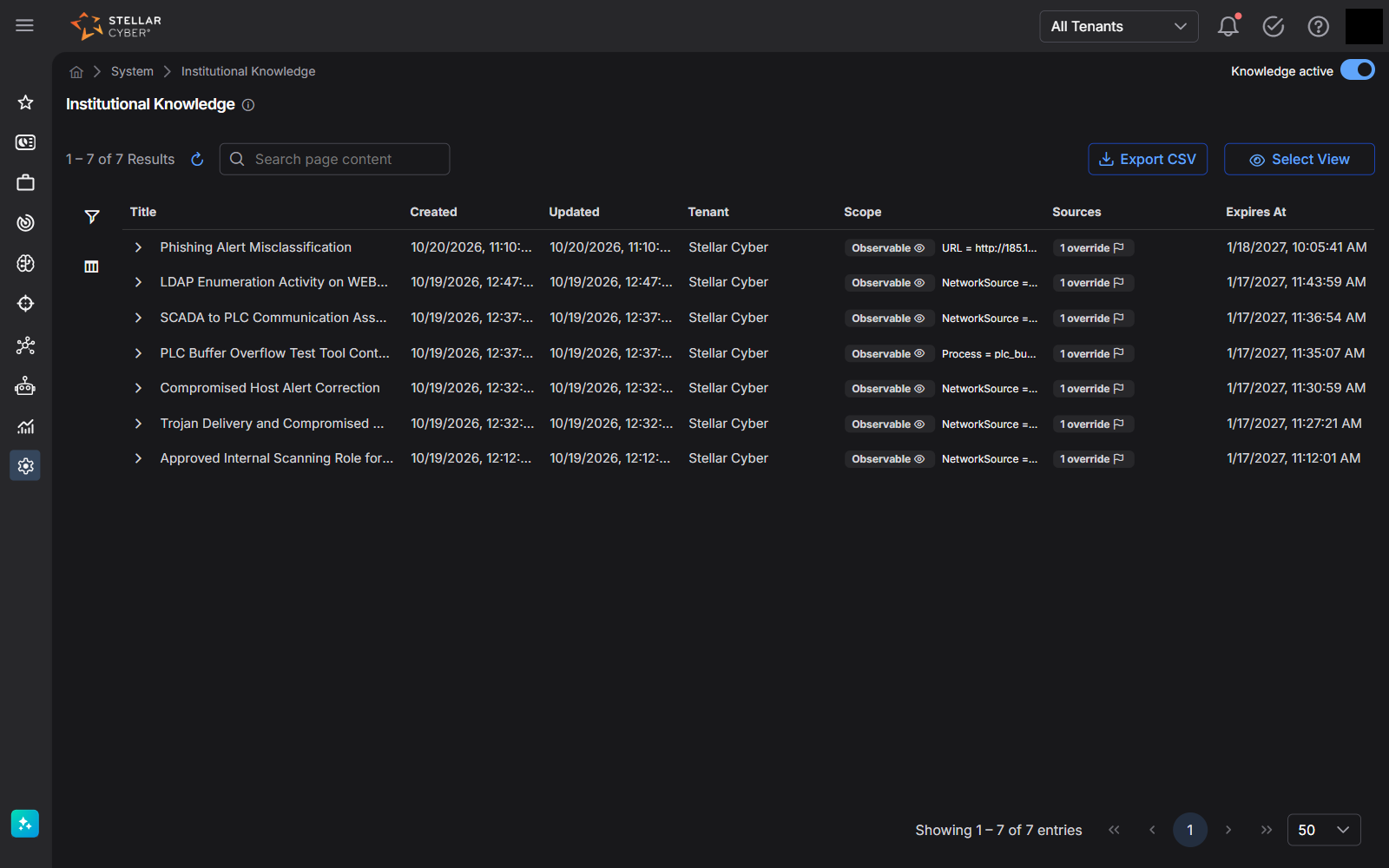
The table includes the following columns:
|
Column |
Description |
|---|---|
| Title | A short name for the knowledge, generated by Stellar Cyber. |
| Created | When the knowledge entry was first created. |
| Updated | When the entry was last rebuilt, such as after a source record was added, renewed, or deleted. |
| Tenant | The tenant the knowledge belongs to. Knowledge applies only to this tenant. |
| Scope | Observable or Tenant. For observable knowledge, the observables it is tied to, for example NetworkSource = 10.33.1.125. |
| Sources | The number and type of supporting source records, for example 1 override. |
| Expires At | When the entry stops applying unless its source records are renewed. See Managing the Lifecycle of Knowledge. |
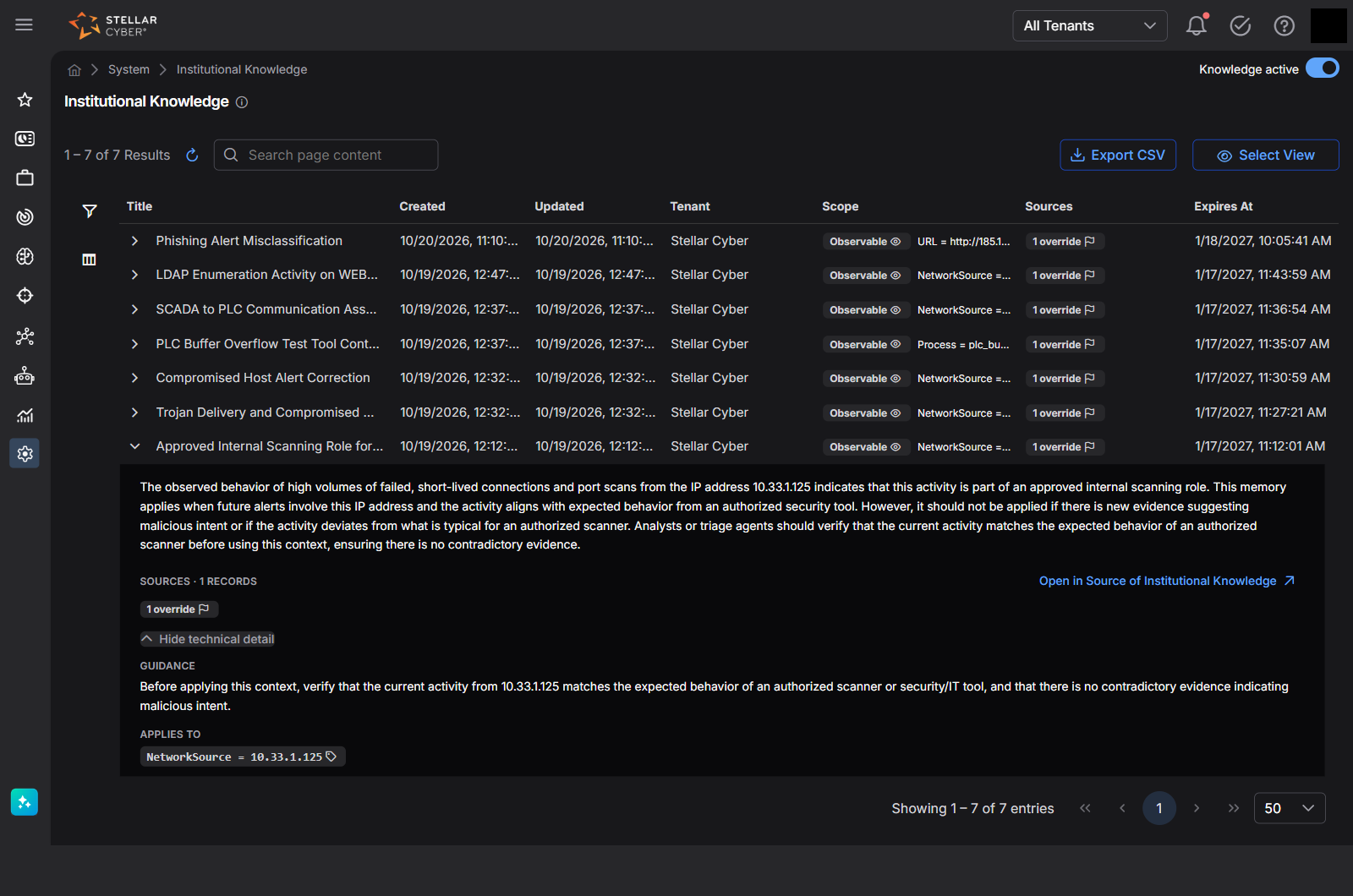
When you expand an entry, the following information appears:
-
A summary of the knowledge and when it should or should not be used.
-
Sources, with the number of source records, and Open in Source of Institutional Knowledge, which opens the records behind this entry in a new browser tab.
-
Show technical detail, which reveals the details that Stellar Cyber uses when it applies the knowledge:
|
Field |
Description |
|---|---|
| Guidance | What Stellar Cyber verifies before applying the knowledge to an alert. |
| Applies To | The observables associated with the knowledge (observable scope only). |
| When This Applies | The conditions that must hold for the knowledge to apply. Select Show more to see the full list. |
| When Not to Apply | The conditions under which Stellar Cyber must not apply the knowledge, for example when fresh alert evidence contradicts it. |
| Evidence Signals | Supporting feedback labeled by type, such as the override justification (override_justification) and additional context (analyst_context). |
You can also do the following on this page:
-
Enter text in the Search page content box to find entries by content.
-
Select the filter icon to filter entries.
-
Select Select View to show, hide, or reorder columns, including the hidden ID column.
-
Select Export CSV to download the entries shown in the table.
You cannot edit or delete a knowledge entry directly. Knowledge entries are maintained through their source records. To change what Stellar Cyber has learned, renew or delete the supporting source records. See Managing the Lifecycle of Knowledge.
Pausing Institutional Knowledge
Use the toggle at the upper right of the Institutional Knowledge page to enable or pause Institutional Knowledge for a tenant. Its label reads Knowledge active when knowledge is applied and Knowledge inactive when it is paused. Pause knowledge to stop its influence on triage immediately, such as when investigating an unexpected verdict or correcting feedback.
When you pause Institutional Knowledge:
-
Stellar Cyber stops applying Institutional Knowledge starting with the next alert it triages for that tenant.
-
No data is deleted. You can continue to submit justifications, and Stellar Cyber continues to record and consolidate them.
-
Alerts that were already triaged are not affected.
When you turn it back on, Stellar Cyber resumes applying all active knowledge entries immediately.
To pause or resume Institutional Knowledge:
-
Navigate to System | DATA MANAGEMENT | Institutional Knowledge.
-
In the tenant selector, select the tenant.
-
Turn the toggle off to pause Institutional Knowledge or on to resume it. Confirm if prompted.
Tenant Isolation and Data Handling
-
Knowledge is isolated by tenant. Every source record and knowledge entry belongs to exactly one tenant, and Stellar Cyber never applies knowledge from one tenant to alerts belonging to another tenant. If you manage multiple tenants, use the tenant selector and the Tenant column to manage knowledge for each tenant.
-
The AI model does not retain knowledge. Institutional Knowledge is stored separately and retrieved for each alert at triage time. It is not embedded in the AI model, and you can trace or reverse its use.
-
Knowledge follows Alert Auto Triage data handling. When knowledge applies to an alert, it is sent to the AI service as part of the context for that alert, under the same data-handling terms as Alert Auto Triage.
Best Practices
-
Review knowledge regularly. Review the Institutional Knowledge page periodically for entries that no longer reflect your environment, and delete their source records.
-
Renew what is still true. Check the Expiring soon and Expired records on the Source of Institutional Knowledge page and renew context that remains valid, such as approved scanners or service accounts.
-
Check the Memory tab when a verdict surprises you. If a verdict seems wrong, open the Memory tab for the alert to see whether knowledge influenced it, then trace that knowledge to its source.
-
Trace before you delete. Review the source records for a knowledge entry before deleting them, especially for tenant-level entries that combine several records, so you understand what else depends on them.
-
Pause, then clean up. If you find incorrect knowledge that is affecting many alerts, pause Institutional Knowledge for the tenant, delete or correct the source records, and turn it back on once processing completes.
-
Give feedback that is worth learning. The quality of Institutional Knowledge depends on the quality of the justifications behind it. Be specific, state the condition that bounds the context, and match it to the right scope. See Providing Feedback to Alert Auto Triage.
For how automated verdicts are generated, see the Alert Auto Triage topic.
